How can we help?
Search for answers or browse articles about Sintel Forms
Sections – Tab order
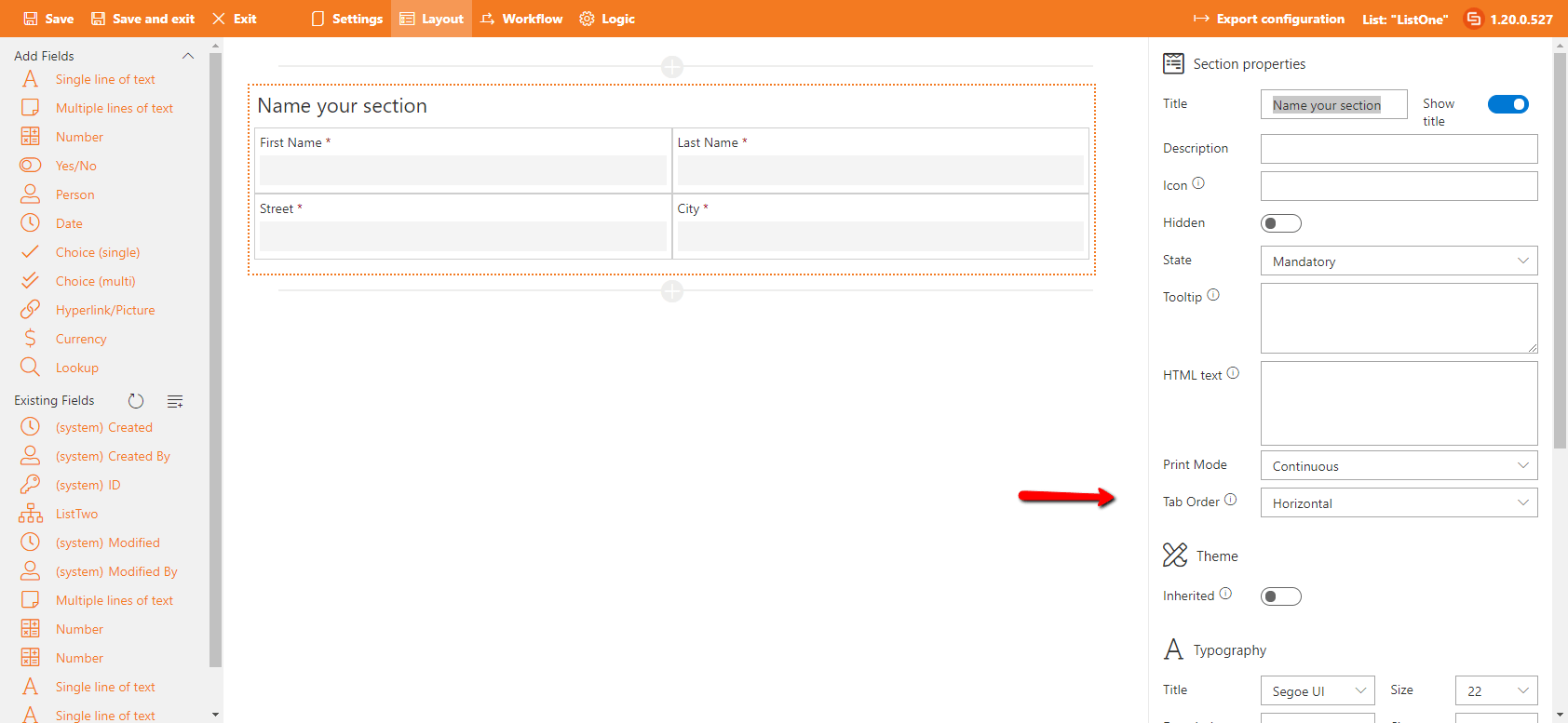
Sintel Forms allows users to configure the Tab Order within sections of a form. This setting determines the navigation flow when using the Tab key on a PC and also affects the display order of fields on smaller screens, such as smartphones.
How to Configure Tab Order
- Open the Sintel Forms Designer
- Navigate to the Layout section.
- Select a Section
- Click on the section you want to modify.
- Choose the Tab Order
- In the Properties Panel, locate the Tab Order setting.
- Select either Vertical or Horizontal.
- Save Your Changes
- Once set, the form will follow the selected tab order when users navigate using the Tab key.
Understanding Tab Order Behavior
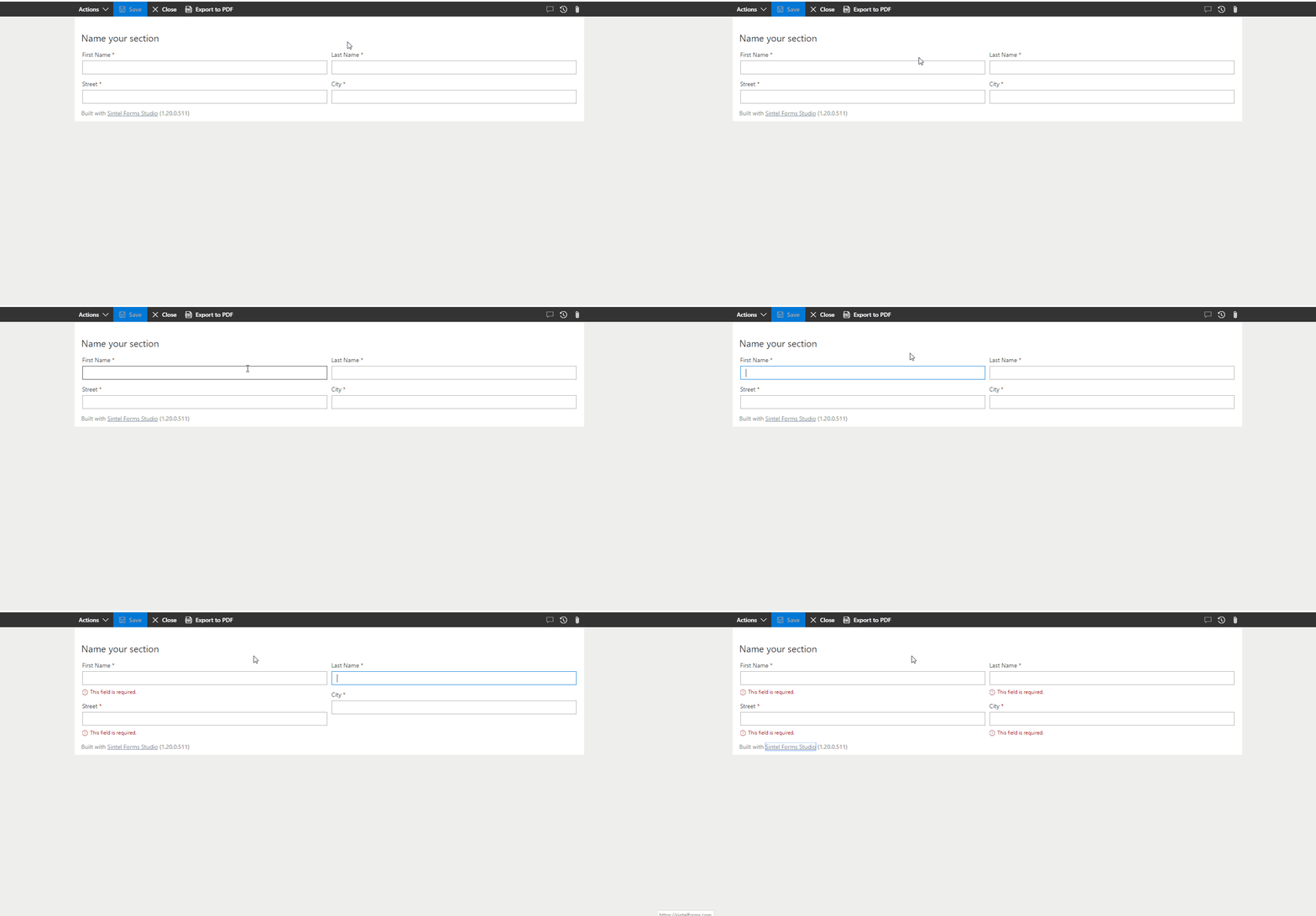
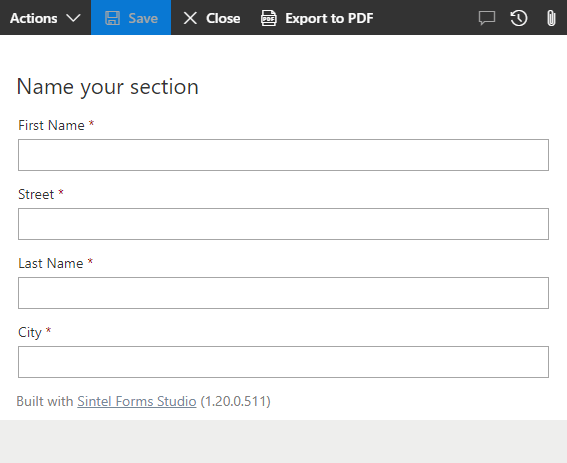
Vertical Tab Order
- The cursor moves top to bottom through the fields within a section.
- On smaller screens (e.g., smartphones), fields are displayed in a single-column vertical layout.
Horizontal Tab Order
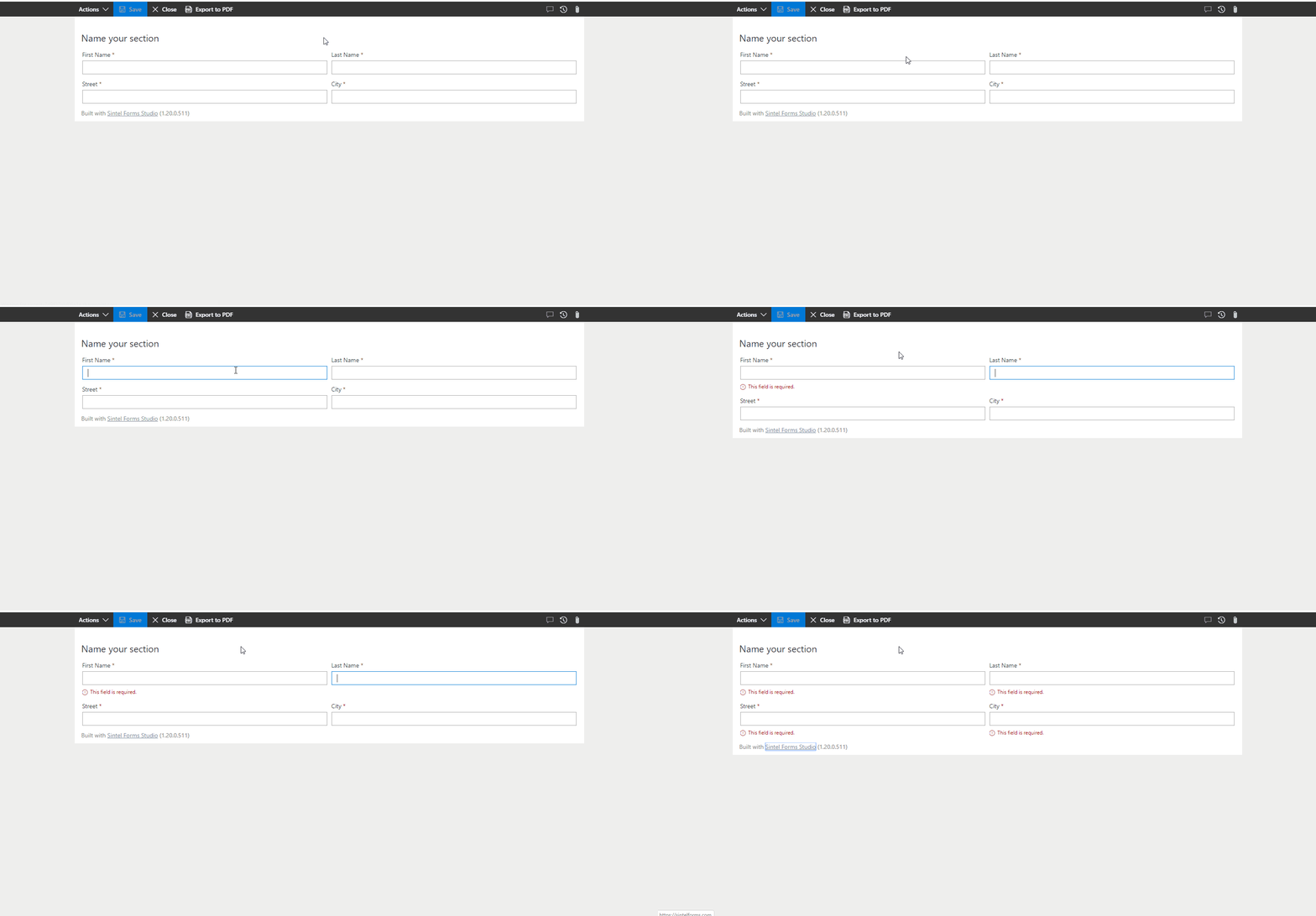
- The cursor moves left to right across columns within a section.
- On smaller screens, fields are arranged in a horizontal layout where possible.
By setting the appropriate tab order, you can enhance form usability, ensuring a logical and efficient navigation experience for users on both desktop and mobile devices.