How can we help?
Search for answers or browse articles about Sintel Forms
Attachments and Image Previews
When attachments are added within a form they are stored in the exact same way that SharePoint would store them i.e. they are added as attachments to the list item. Adding attachments in Sintel Forms couldn’t be easier, you simply have to open a form which has been configured with Sintel forms and then:
- Click on the Attachments icon from the top menu which opens the attachments pane.
- Click on Attach file, browse for it and select it.
- Save the form.
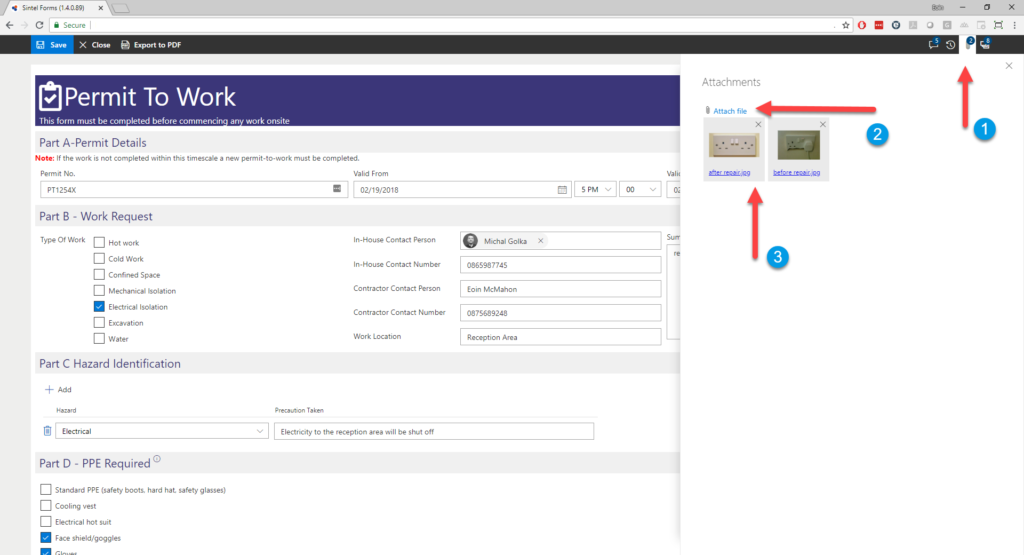
You can upload any file type that SharePoint supports, this is the list of supported file types.
When you attachments Sintel Forms will attempt to provide a preview of them if they are images, the list of file types that can be previewed are gif, jpeg, jpg, png. A custom icon will also appear for Word, Excel, PowerPoint and HTML files. All other supported file types will have a Paperclip Icon as shown.
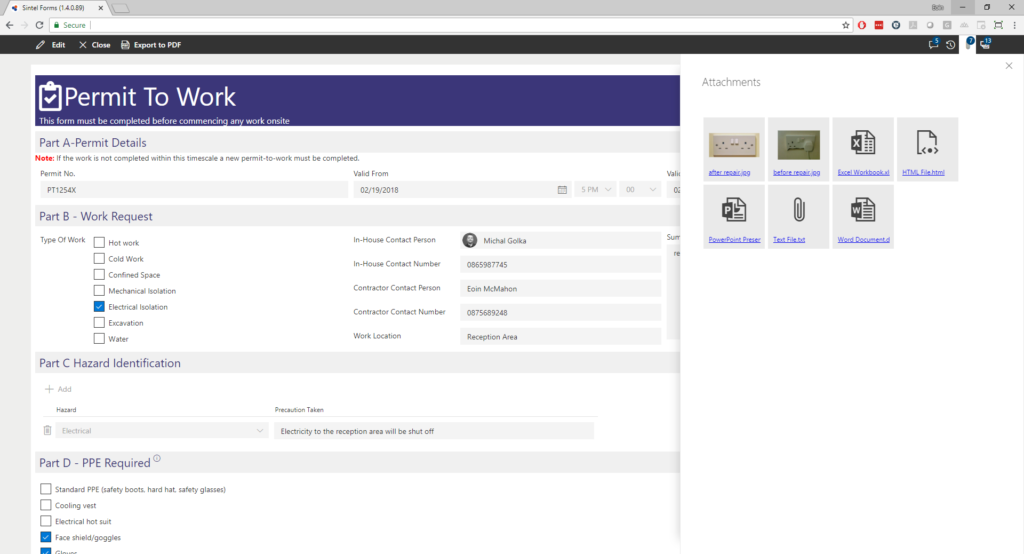
Image Previews and Custom Icons
Extensions with: | Extension |
previews | gif, jpeg, jpg, png |
HTML icon | html, htm |
Excel icon | xlsx, xlsm, xslb, xltx, xltm, xls, xlt |
Word icon | doc, dot, wbk, docx, dotx, dotm, docb |
PowerPoint icon | ppt, pot, pps, pptx, pptm, potm, ppam, ppsx, sldx, sldm |