Search for answers or browse articles about Sintel Forms
Adding and Editing Linked List items using Inline, Dialog & Sintel Forms Embedded
Sintel Forms offers three editing modes for linked list items, allowing you to choose the best approach based on your needs: Inline, Dialog, and Sintel Embedded.
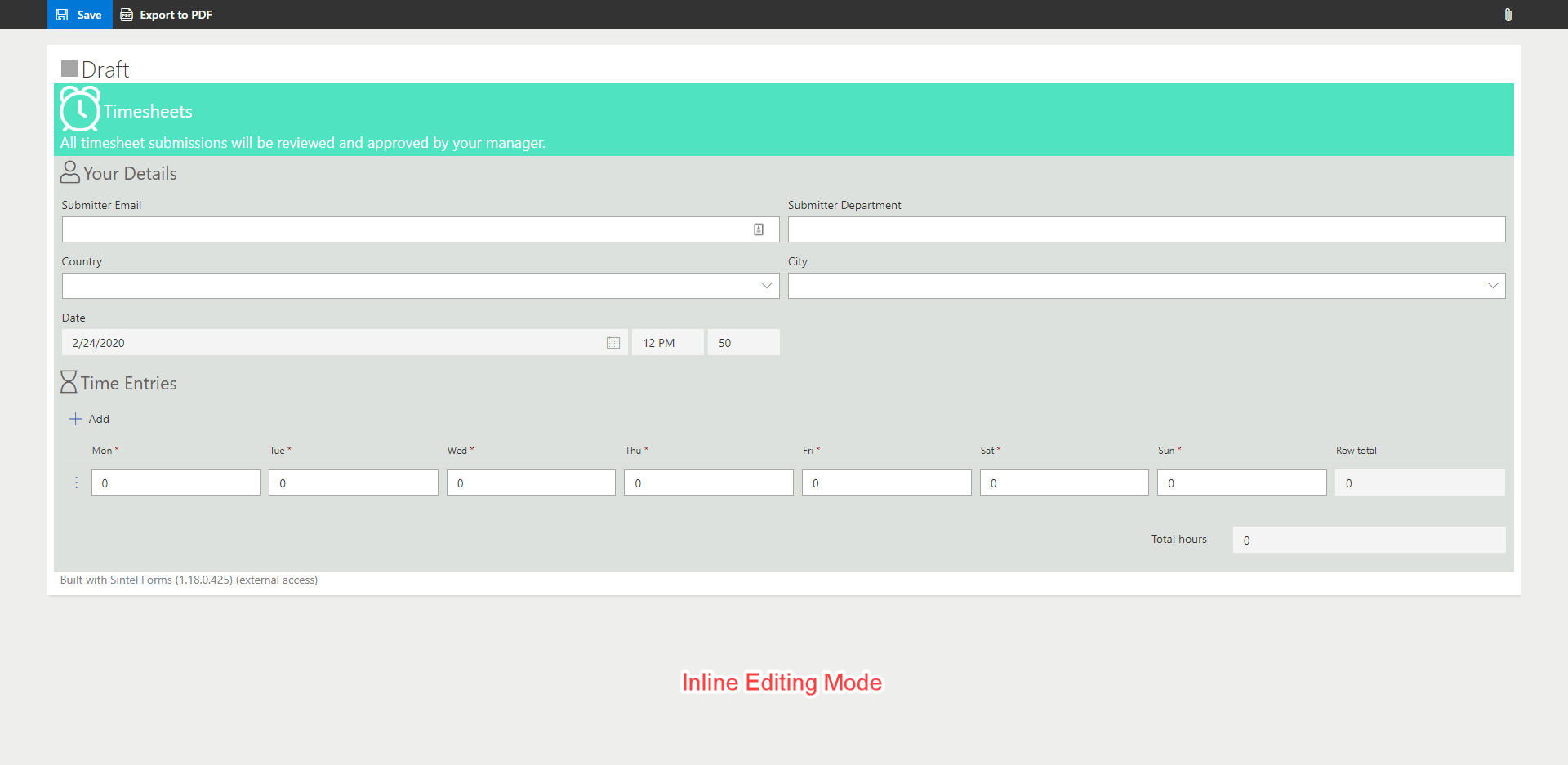
Mode 1 – Inline
This is the most commonly used mode, enabling users to add data directly into the form. It is ideal when there are only a few fields to complete, making data entry quick and efficient.
Mode 2 – Dialog
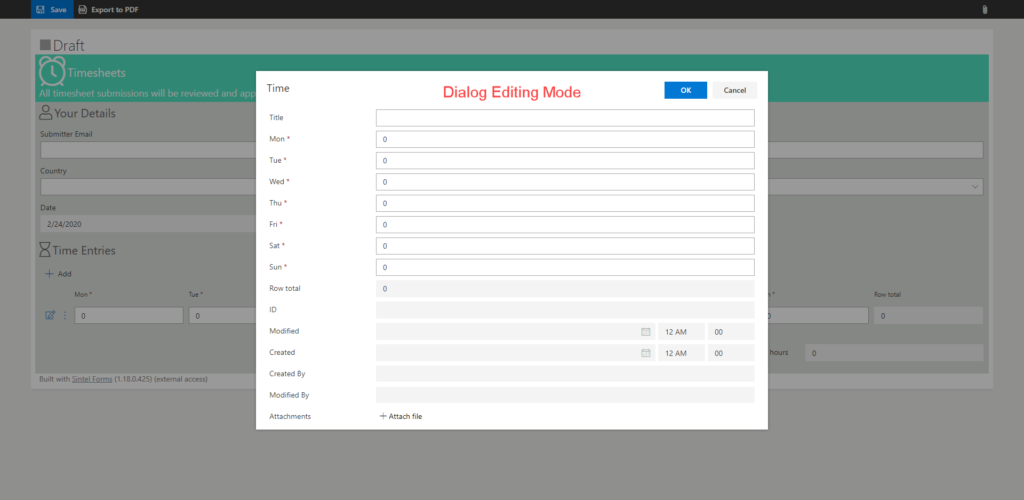
If your linked list contains many columns, this mode is a great option. It allows you to select which fields are displayed on the main form while keeping the full set of fields accessible when editing an item in a pop-up dialog.
When using Dialog mode, the column visibility setting in the Designer does not apply to the Open in Dialog setting. This means that all fields, including system fields (in read-only mode), will be visible in the dialog.
Mode 3 – Sintel Embedded
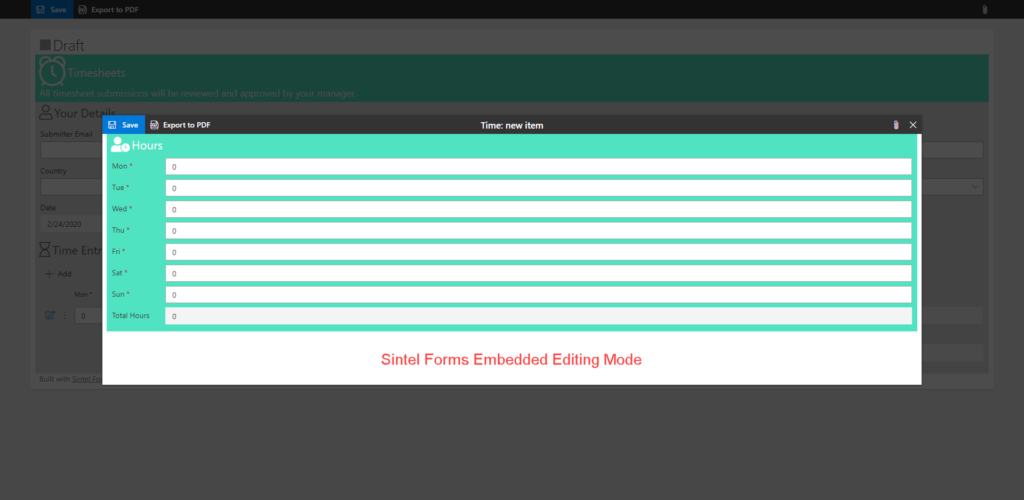
This mode functions similarly to Dialog mode but provides full control over the layout and styling of the linked list items. This ensures your forms align with your branding. Additionally, Sintel Embedded offers extra functionality, such as:
- Export to PDF
- Attachments with image previews
Permissions and Access
When using linked lists or libraries, standard SharePoint permissions apply. To allow users to add items to linked lists from the main form, ensure they have Contribute permissions on the relevant list or library.
By choosing the appropriate editing mode, you can enhance user experience and maintain consistency across your forms.