How can we help?
Search for answers or browse articles about Sintel Forms
Linked Libraries-Using a Document/Picture Library
Sintel Forms supports the use of Related Libraries (Document or Picture Libraries) in addition to Related Sublists (linked lists). This allows users to manage files and images directly within their forms.
Setting Up a Related Document or Picture Library
To use a Document or Picture Library in Sintel Forms:
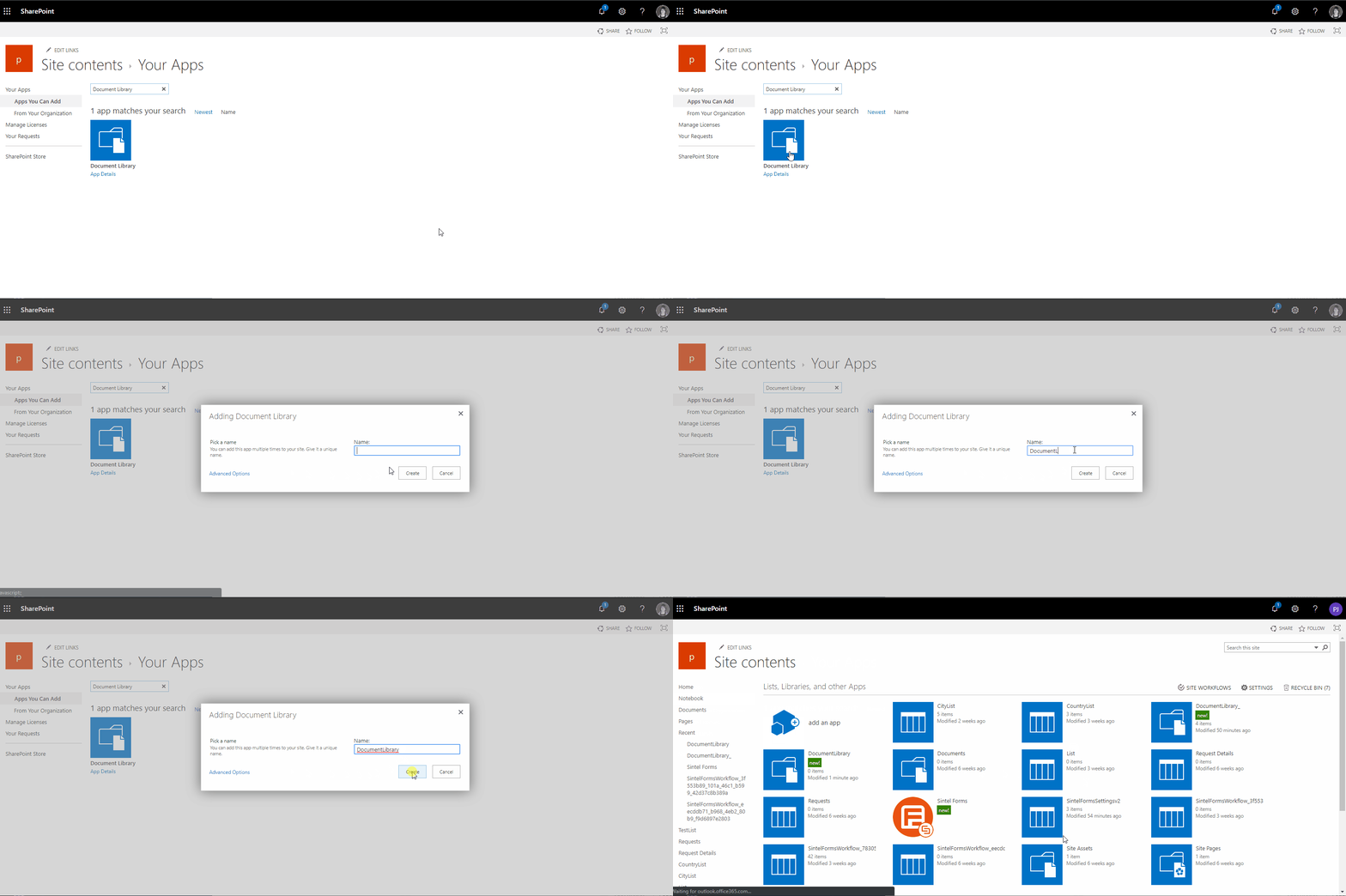
- Create a Document or Picture Library
If you don’t already have a library, create one in your SharePoint site.

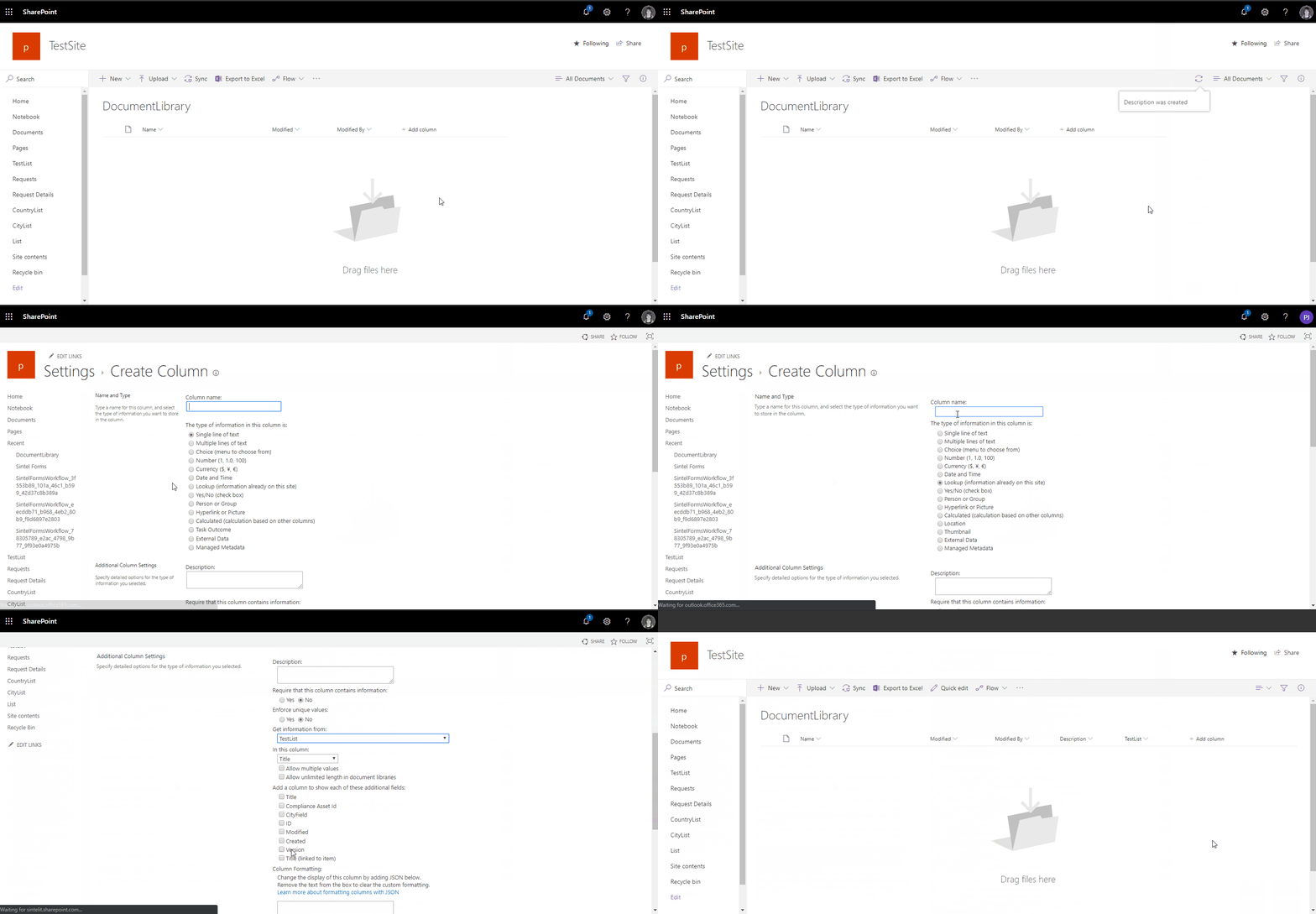
2. Add a Lookup Column
- In the Document or Picture Library, create a Lookup column that links to the main list where Sintel Forms is used.
- This column ensures documents are correctly associated with form entries.

3. Enable Cascade Delete (Recommended)
- When setting up the Lookup column, enable ‘Enforce Relationship Behavior – Cascade Delete’.
- This ensures that when an item from the main list is deleted, all related documents are also deleted, preventing orphaned files.
Adding the Library to a Form
Once the library is set up:
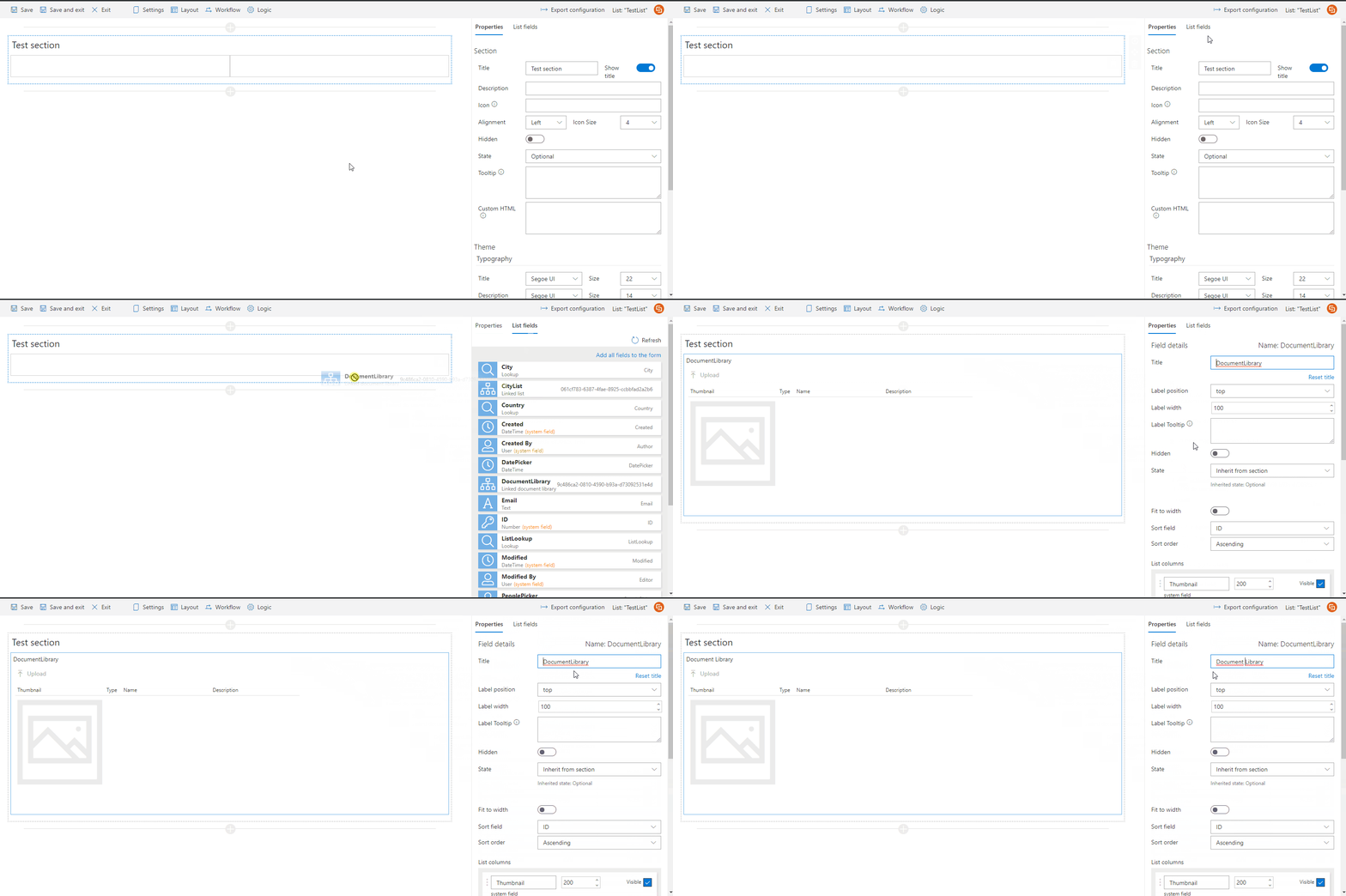
- Open the Sintel Forms Designer.
- Navigate to the Layout screen.
- Add the library into a container within a section.
It is recommended to place libraries in a dedicated section rather than combining them with other fields.
Using the Linked Library
- Files added to the library cannot be downloaded until the form is saved.
- Word, Excel, and PowerPoint documents can be opened and edited directly from the library without needing to download them first.
Permissions & Access
Standard SharePoint permissions apply when using linked lists or libraries:
- Users must have Contribute permissions on the library to add or modify files.
- If permissions are not set correctly, users may be unable to upload or edit documents.