How can we help?
Search for answers or browse articles about Sintel Forms
Adding Sintel Forms to a SharePoint Site
For SharePoint Online
Once you have Sintel Forms installed on your environment, you can add it to any site using the following steps:
- Open Site Contents.
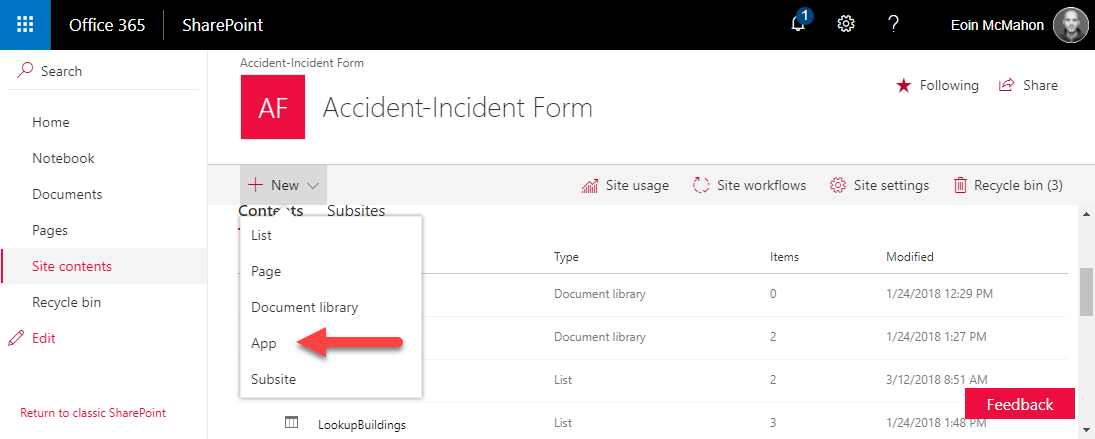
- Click on add an app.
 If you are using the new “Modern Experience” in SharePoint it looks a little different as shown.

- Search for Sintel Forms and once you find the app click on it to add it.
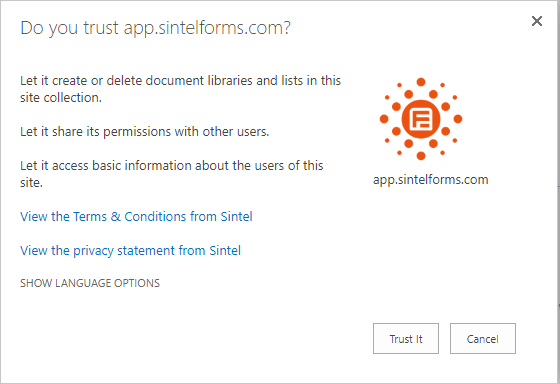
- Click Trust It when asked to complete the deployment.

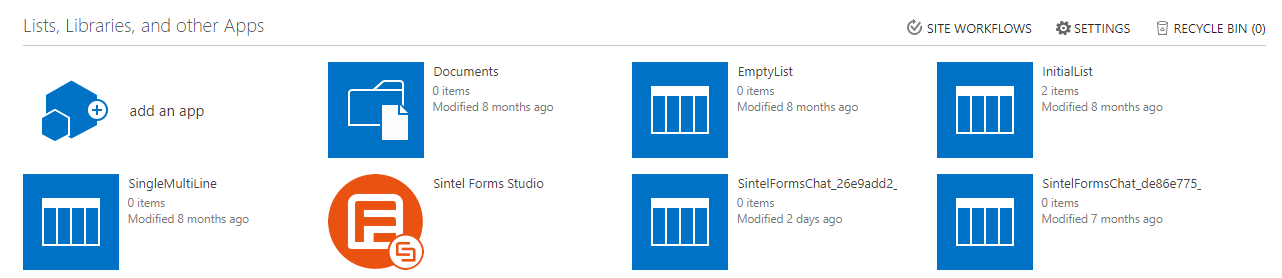
- The installation will proceed and once it’s completed you will see the Sintel Forms App appear in the site.
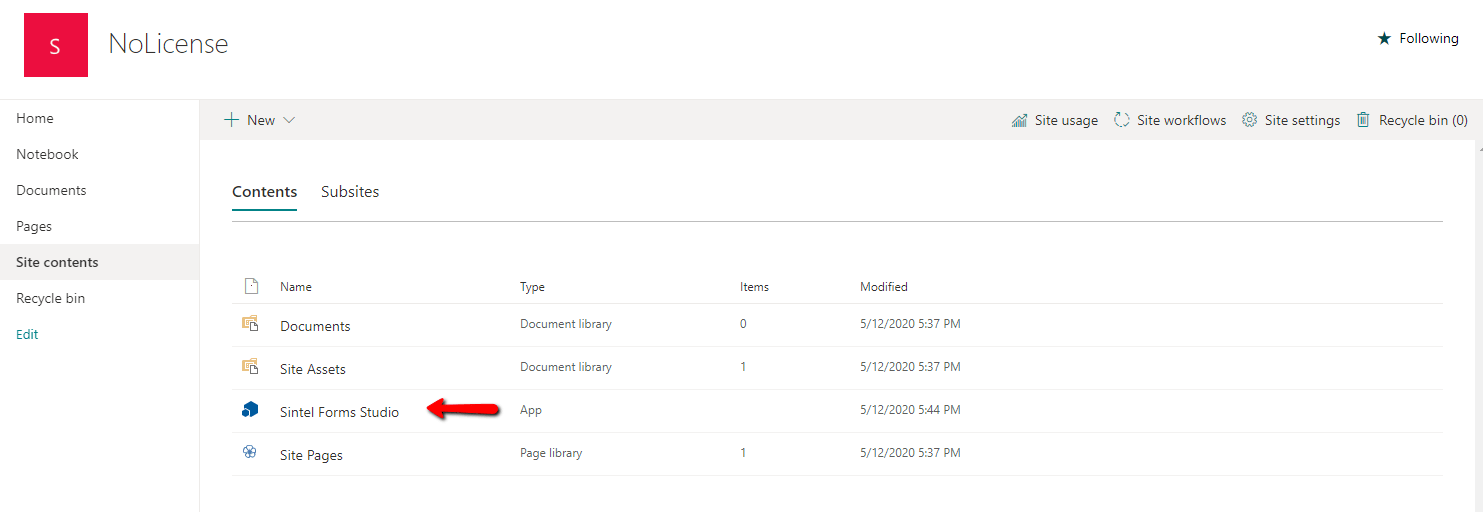
 If you are using the new “Modern Experience” in SharePoint it looks a little different and the app will appear in the site contents as shown.

For SharePoint On-Prem
- If you are using SharePoint On-prem (2013, 2016, 2019 or SE) you simply need to activate the Sintel Forms feature within your site as shown

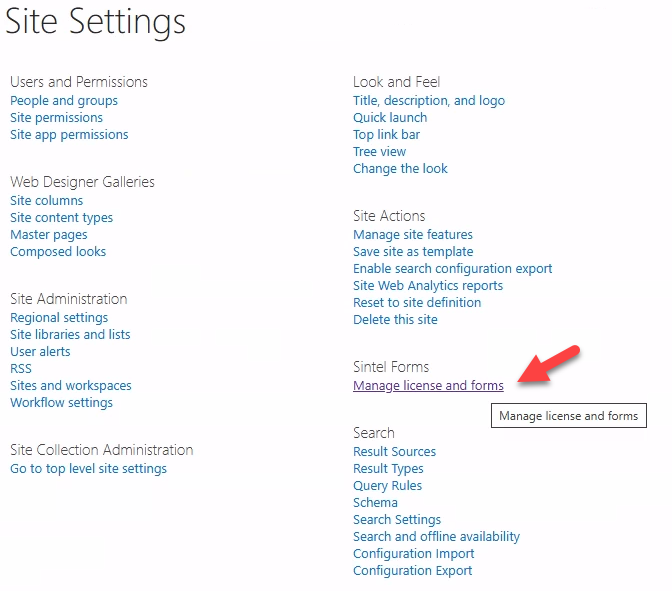
- Once you have done this if you navigate to the Site settings you should see a new heading named Sintel Forms

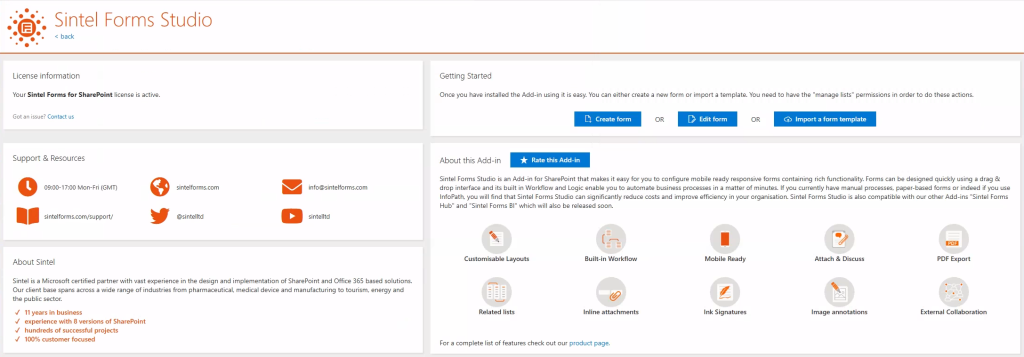
- From this screen you can Create new forms/ Edit existing ones or import a form template

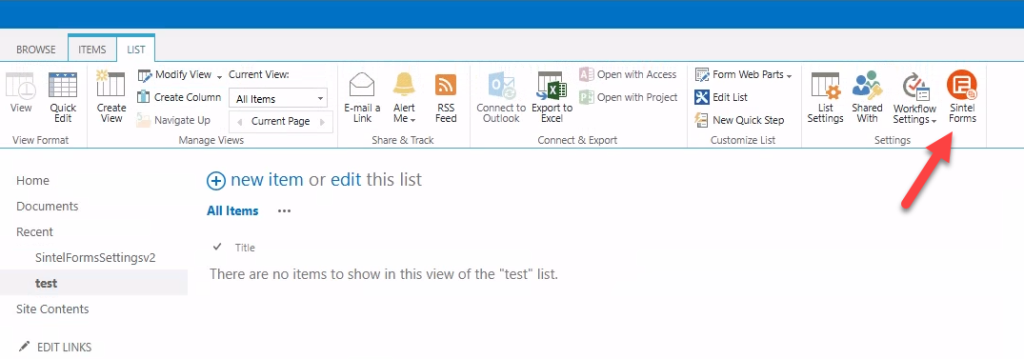
- Alternatively, you can open any list in the site and can find the Sintel Forms Designer in the top menu