Try it
  • Examples
  • Features
  • Testimonials
  • Partners
  • Pricing
  • Support
    • Sintel Apps Help
    • Sintel Apps Release History
    • Sintel BI Help
    • Sintel BI Release History
    • Webinars
    • How to video series
    • Ask the community
    • Submit a ticket
    • Request a demo
    • Compare us
  • Blog
  • Examples
  • Features
  • Testimonials
  • Partners
  • Pricing
  • Support
    • Sintel Apps Help
    • Sintel Apps Release History
    • Sintel BI Help
    • Sintel BI Release History
    • Webinars
    • How to video series
    • Ask the community
    • Submit a ticket
    • Request a demo
    • Compare us
    • For Schools
  • Blog
  • Get Started
How can we help?

Search for answers or browse articles about Sintel Forms

Filter by categories Clear Results
  • About Sintel Forms

    • SharePoint List types supported by Sintel Forms
    • What is Sintel Forms
    • Why we built it
    • Sintel Apps and the security of your data
  • Getting Started

    • How to Install Sintel Forms
    • Adding Sintel Forms to a SharePoint Site
    • Authorizing Sintel Forms
    • Install Sintel Forms for SharePoint On-Prem
    • Sintel Forms Best Practices
  • Product Updates

    • Release History
    • Updating Sintel Forms for SharePoint On-Prem
    • Differences between the Cloud and On-Prem Versions of Sintel Forms
  • Settings

    • External Access Settings

      • Understanding External Access Settings in Sintel Forms
      • External Submissions
      • External Collaboration
      • External Sharing
      • External Access Settings
    • After save script
    • Basic Features
    • Conversations
    • Form Viewer
    • Hide Sintel Branding
    • Payments
    • Theme & Styling 
    • Confirmation screens
    • Localisation
    • How to avoid SharePoints list view threshold
  • Layout

    • About Layout
    • Adding and Editing Linked List items using Inline, Dialog & Sintel Forms Embedded
    • Adding Fields
    • Creating Calculated Fields & Using Formulas
    • Default values & custom values
    • Field and Section Validation
    • Linked Libraries-Using a Document/Picture Library
    • Linked Lists-How to add attachments
    • Sections - Tab order
    • Setting field properties within a Linked List
    • Using a Linked List
    • Form Header and Footer
    • New "Cosy" Form Interface
  • Workflow

    • About Workflow
    • Workflow: Statuses
    • Workflow: Actions
    • Workflow: Email
    • Workflow: Payment Actions
    • Deprecation of the SintelFormsWorkflow list
  • Logic

    • About Logic
    • Logic: Steps
    • Logic: Conditions
    • Logic: Rules
  • Reminders

    • Reminders
  • Basic Customisation

    • Applying a theme and adding icons or graphics
    • Changing button colours or hiding them
    • Embedded Action Buttons (deprecated)
    • Customising Send-From Address for Sintel Apps Emails
  • Advanced Customisation

    • The JavaScript API

      • Articles coming soon
    • Accessing external APIs
    • Creating custom buttons using JavaScript
    • Custom form styling using CSS
    • Programmatically creating Sintel Forms
    • The JavaScript API
    • Using query string parameters for default/calculated values
    • Restrict access to users not found in a SharePoint group
    • Advanced Customisation and Code Samples
    • Advanced Customisations: Quick Navigation Guide
  • FAQs

    • FAQs
    • Activating Sintel Forms on newly created tenants
    • Lists and columns used by Sintel Forms
    • Support and Training
    • Track the usage of Sintel Forms
    • Differences between the Cloud and On-Prem Versions of Sintel Forms
    • Permissions used by Sintel Forms
    • Permissions required to use the Sintel Forms Designer
    • SharePoint Add-Ins are retiring what can you do
  • How To Guides

    • Automatically add linked items or files
    • Change the layout of Choice Fields
    • Configure a cascading drop-down
    • Configure Printing Options
    • Debugging your forms
    • Embedded Action Buttons (deprecated)
    • Export a form template
    • How to complete a form action with Power Automate
    • Import a form template
    • Lookup Columns: Control the sort order
    • Lookup Columns: Retrieve additional columns from Lookup List
    • Make Attachments Mandatory
    • Set & clear field values using rules
    • Share a Form
    • Track the usage of Sintel Forms
    • Transferring your license to another tenant
    • Use Sintel Embedded Mode on a linked list
    • Use a Rule to check if third party cookies are enabled
    • Customising Send-From Address for Sintel Apps Emails
    • Recommended Permissions For Forms and Apps
    • Disable Sintel Forms on a list
    • Show all articles ( 6 ) Collapse Articles
  • Widgets

    • Buttons
    • Workflow History
    • HTML Widget
  • Noteworthy Features

    • Attachments and Image Previews
    • Image Annotations
    • Ink Signatures
    • Sintel Forms Mobile App
    • Workflow History
  • Troubleshooting

    • The redirect URL specified in the request does not match
    • Everything is fine but we had a small problem getting your license
    • "401 Unauthorized" error during form data save
    • "500 internal server error" on form opening
    • Activating Sintel Forms on newly created tenants
    • Ad blockers and Privacy Extensions
    • Attachments option missing in Sintel Forms
    • Changing the Content Approval settings of a list can cause an issue with Sintel Forms
    • Enabling third-party cookies
    • Handling the list view threshold for the Workflow and Conversations features
    • No actions appearing in the actions menu
    • Sintel Forms doesn't appear to be applied to a list
    • Sintel Forms Designer not available in the list command bar
    • Sintel Forms Save Process
    • Site naming and Sintel Forms
    • The remote server returned an error: (401) Unauthorized when importing a form template
    • Workflow emails containing incorrect links to forms
    • Workflow emails not being received by distribution lists or mail-enabled security groups
    • Workflow emails not being received by SharePoint group members
    • Data load error: Connection to SharePoint has been lost. Please reload the page.
    • Data save error: Access denied. You do not have permission to perform this action or access this resource
    • Email address of a Shared Mailbox not recognised by Sintel Forms
    • Add an exception for Sintel Forms instead of enabling third-party cookies
    • Export to PDF not working on SharePoint Subscription Edition
    • "404 FILE NOT FOUND" when attempting to open a new form or existing form
    • Show all articles ( 10 ) Collapse Articles
  • Code Samples

    • Embedded Action Buttons (deprecated)
    • Set email address from person field
    • Validate email addresses
    • Advanced Customisation and Code Samples
    • Advanced Customisations: Quick Navigation Guide
  • Sintel General Info

    • What we do
    • Who we are

HTML Widget

Posted10 August 2022
Updated29 September 2023
ByAmy Dermody
You are here:
  • Main
  • Widgets
  • HTML Widget
0 out of 5 stars
5 Stars 0%
4 Stars 0%
3 Stars 0%
2 Stars 0%
1 Stars 0%
< All Topics

We are very excited about the addition of the HTML widget that can be dragged into a container in the form. The widget supports both HTML and Css.
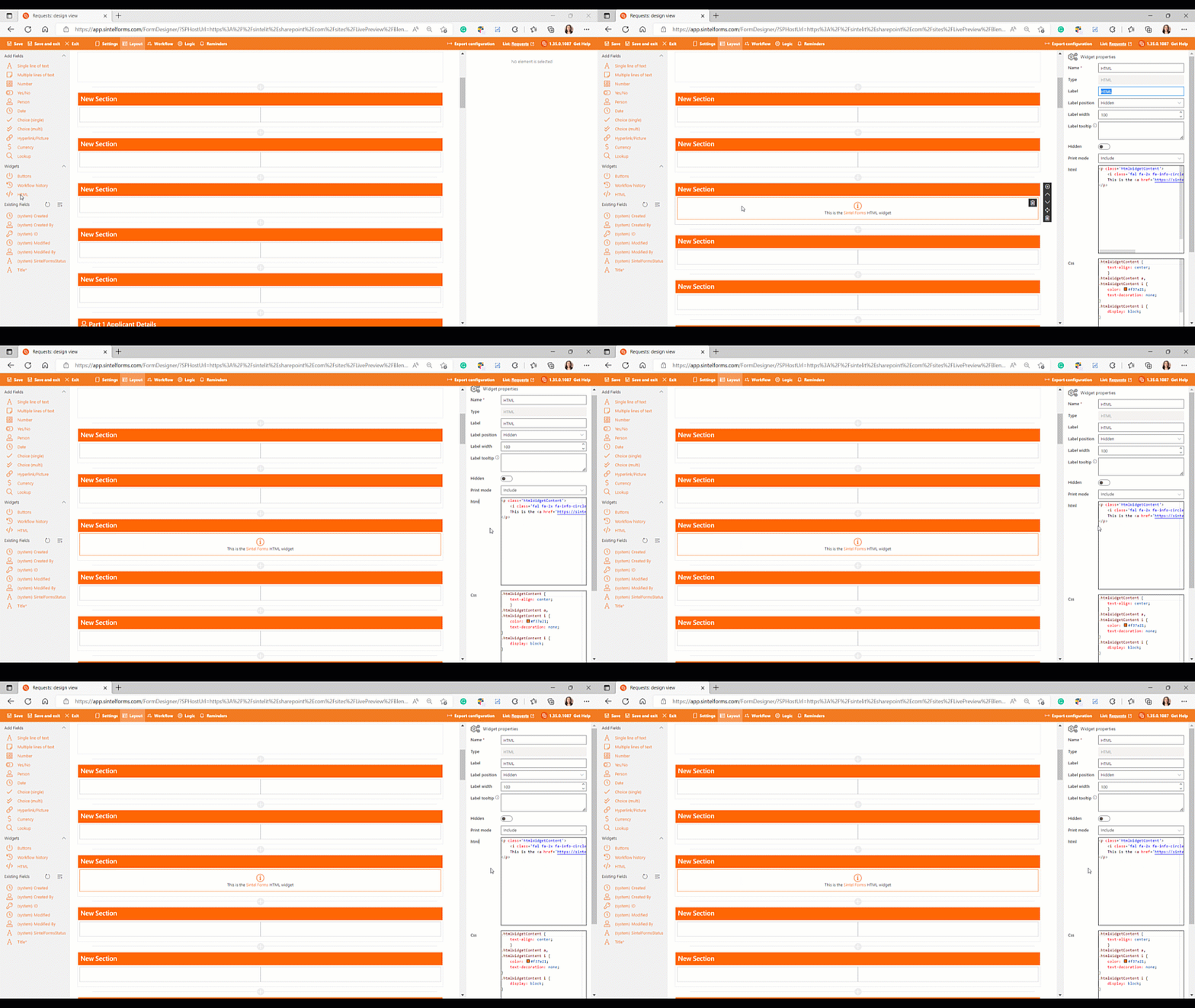
HTML Widget

The widget offers numerous customizable properties, similar to a regular field. You can name it, assign a label, and provide a tooltip. You have the option to display or hide the HTML content and determine its inclusion in the print version of the form.

Furthermore, this widget empowers you to input HTML and tokens for embedding form field values.

Supported field types include:

  • Choice
  • MultiChoice
  • Lookup
  • Currency
  • Number
  • Text
  • Multiline text
  • Boolean

To add one of these field types, simply type “{{” and a list of available tokens will appear. When you add “{{field_name}},” this token will be replaced with a value from the field.

The HTML widget serves as a valuable tool for incorporating images, specialized text, text enriched with form field values, and text with calculated values into your form.

To add the HTML widget to your form, drag the HTML option from the widgets section in the Sintel Forms Designer onto a container on your form.

From there, you can execute custom HTML, CSS, and edit the background and section header colors.

For practical examples of the HTML widget in action, please refer to the video showcasing its usage in the Human Resources Hiring App below:

https://sintelapps.com/wp-content/uploads/HTML-Widget.mp4


Example 1

The first example is the HTML widget being used at the top of the form to embed a customised image.
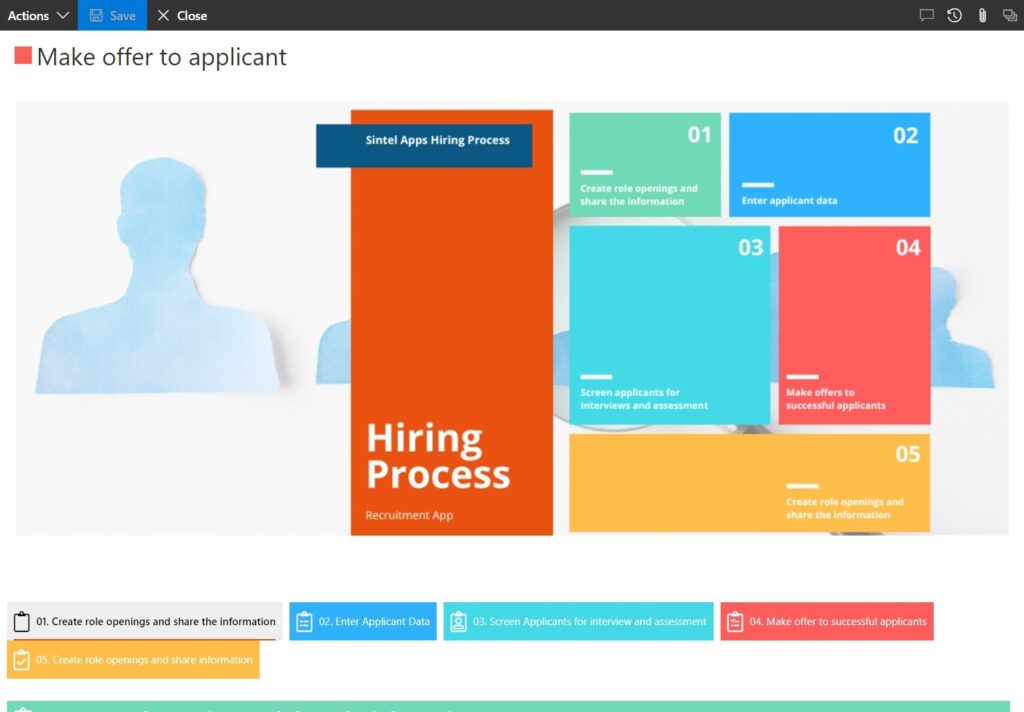
 

Image placed at top of the form


<p><img src="https://s3.eu-west-1.amazonaws.com/sintel.workspace/Amy/Recruitment%20App%20%281400%20%C3%97%20500px%29%20%281%29.png" alt="" width="1400" height="500" /></p>


Example 2

Secondly, it functions as an informative text box that guides the user through the form. When the user indicates an external hiring process, they proceed through the form as usual.

However, if they specify an internal hiring process, the HTML widget appears to convey that the ‘Publishing’ section of the form has been eliminated because it’s unnecessary for internal publishing.

Employing the HTML widget in this manner aids in form guidance and provides users with context for the process flow.
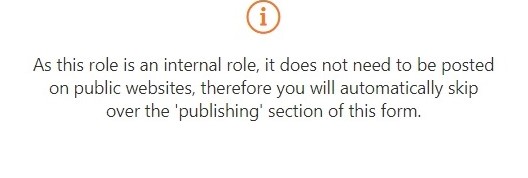
 

A custom message displayed on the form when the user answers certain questions in a specific manner.


<div class='htmlWidgetContent'>
    <i class='fal fa-2x fa-info-circle'></i>
    <p class='text-panel'>
As this role is an internal role, it does not need to be posted on public websites, therefore you will automatically skip over the 'publishing' section of this form.
    </p>
</div>


Example 3

The third application involves the Applicant Offer section of the form. It utilizes form values to consolidate collected details and verifies the user’s intent to proceed to the next step upon reviewing these details.
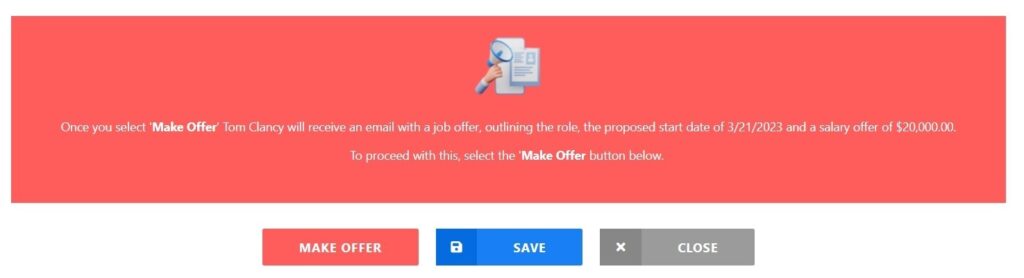
 

A message which uses values gathered on the form to display a message


<p><span style="color: #333333;"><img style="display: block; margin-left: auto; margin-right: auto;" src="https://s3.eu-west-1.amazonaws.com/sintel.workspace/Amy/Black%20White%20Minimalist%20Elegant%20Letter%20Initial%20Name%20Monogram%20Logo.png" alt="" width="90" height="90" /></span></p>
<p style="text-align: center;"><span style="color: #ffffff;">Once you select '<strong>Make Offer</strong>' {{ChosenApplicant}} will receive an email with a job offer, outlining the role, the proposed start date of {{DateYouHopeApplicantCanStart}} and a salary offer of {{SalaryOffer}}.</span></p>
<p style="text-align: center;"><span style="color: #ffffff;">To proceed with this, select the '<strong>Make Offer</strong> button below.&nbsp;</span></p>
<p style="text-align: center;">&nbsp;</p>


Was this article helpful?
0 out of 5 stars
5 Stars 0%
4 Stars 0%
3 Stars 0%
2 Stars 0%
1 Stars 0%
5
How can we improve this article?
Please submit the reason for your vote so that we can improve the article.
Table of Contents

Sintel Apps

Create apps on Microsoft 365 in minutes with no code.

Address

River House
Blackpool Park,
Cork, T23 R5TF,
Ireland

Support

  • Product help
  • Community site
  • Submit a ticket
  • Compare us

    Contact us to

    • Book a demo
    • Request a license
    • Become a partner

    e-mail: info@sintelapps.com
    tel: +353 (0) 21 245 2935

    Follow us

    • Follow
    • Follow
    • Follow

    © Copyright 2026 | End User License Agreement | Privacy Policy | Terms Of Use

    Sintel Apps
    Sintel Apps Assistant
    Get instant answers and support
    Connecting to Sintel Apps Assistant…
    Sintel is thinking…
    We use cookies to collect and analyse information about the users of this website. Please click 'I accept' to consent to the use of this technology.