
Search for answers or browse articles about Sintel Forms
Export a form template
Overview
Sintel Forms allows you to export your form configuration as a template. This includes the form’s layout, workflow, rules, and optionally the data in linked lookup lists. Exporting is useful for:
Develop, Test, Deploy: Design and test a form in one site, then export and import the configuration into another site for deployment.
Troubleshooting: Export your form configuration and share it with our support team to quickly replicate your form and diagnose issues.
What Does Export Include?
The form’s structure: fields, layout, workflow, logic, and rules.
Related lists: lookup lists and child lists used by the form.
Optionally, lookup list data: data from configured lookup lists can be included in the export to allow full recreation of forms across sites.
Important: Exported templates never include user-submitted form data (form submissions). They only include configuration details and optionally lookup list data.
Export File Types
.sfexp — New export format that includes form configuration and optionally lookup list data.
.sfrm — Older export format that contains only the form’s structure and configuration (no data).
Both formats remain supported.
Limitations of Data Export
Some types of lookup lists or fields are not supported in data export:
Document/image libraries are not exportable.
Lookup lists containing lookup fields to other lists will lose those relationships (lookup fields are skipped).
Folders and attachments are not included.
Certain uncommon field types may be skipped.
Common field types supported for export:
Boolean, Choice, Currency, DateTime, Text, Number, MultiChoice, Multiline Text.
Information such as versions, author, editor, and creation/modification timestamps are not stored in the export.
How Export Works
- Open your SharePoint site and launch the Sintel Forms Designer by clicking the Sintel Forms icon in the ribbon.

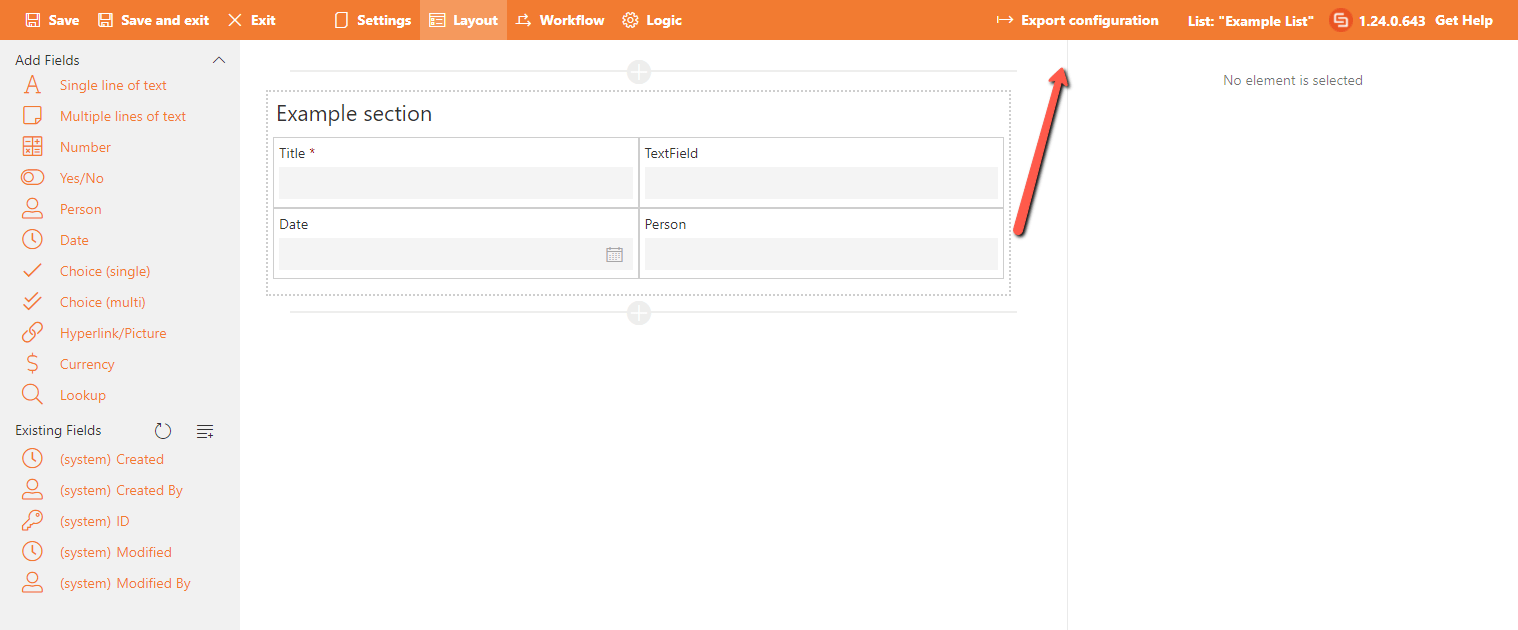
- From the top menu, click Export configuration
- Enter a descriptive title and description for the export package.

- Select which lookup lists’ data to include (optional).
- Click Export.
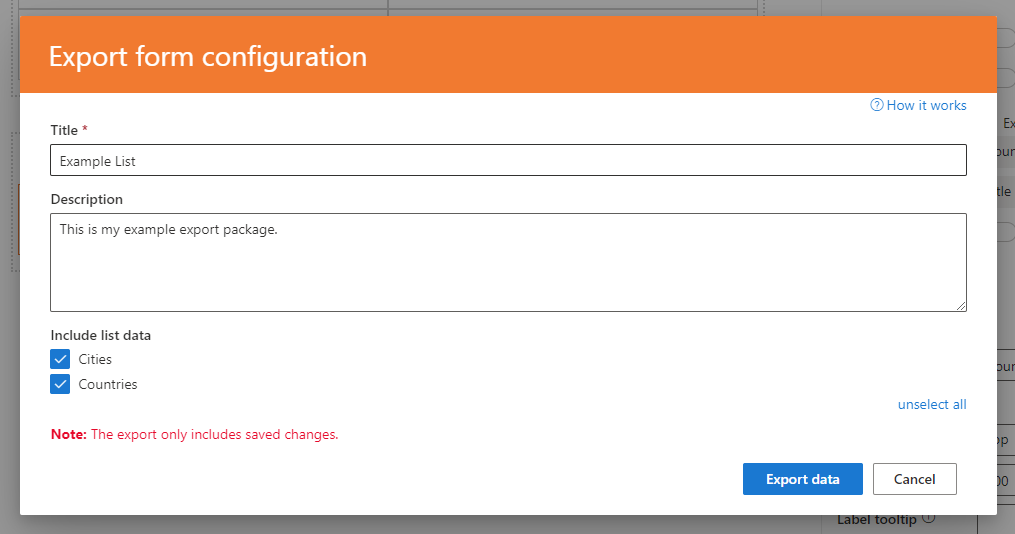
The system generates an .sfexp file, which downloads to your PC.
Tips for Using Exported Templates
Before importing into another site, verify which lookup list data you want to include to avoid duplicates.
Remember, the import process will add new data; it does not check for or overwrite existing data.
When sharing templates for support, ensure they contain no sensitive or personal user data, as form templates do not include form submission data.
Need Help?
If you encounter any issues or want assistance, submit a support ticket attaching your exported form template. This helps us replicate your exact configuration and provide faster help.
