
Search for answers or browse articles about Sintel BI
Sintel BI The Server Isnt Responding Temporary Fix And AppSource
Issue
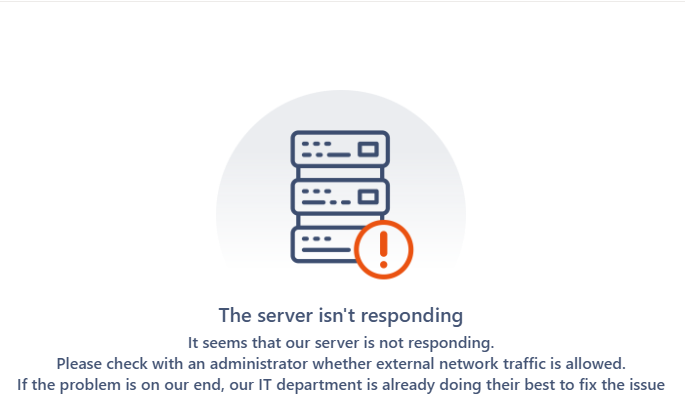
Users of Sintel BI received the following message when opening a dashboard:
Cause
The issue was caused by the failure of a Microsoft certificate to auto-renew.
Resolution
This issue has been resolved and an updated build has been published by Microsoft. Your SharePoint Administartor can upgrade to the latest build by performing the following steps:
- Open your tenant app catalog https://YourTenantName-admin.sharepoint.com/_layouts/15/tenantAppCatalog.aspx
- Open the classic experience
- Select the Sintel BI app
- From the Files tab click on Upgrade Store App
- You may be prompted to trust the app and make the solution available to all sites in the organization (we recommend you check this box)
- Click Deploy
- The process could take up to a minute to complete
- Once the update has been completed, you should be redirected to the AppCatalog and the latest “App version” number should be displayed which should match the latest version number as listed in AppSource.
Important Note – Replacing The Temporary Package
When this issue occured initially, the Microsoft Marketplace was experiencing an issue which meant the publishing of the updated build was delayed. As an interim solution Sintel provided a build of Sintel BI that customers could use while they awaited the release of the official build from Microsoft. This process involved deleting the Sintel BI app from their tenant app catalog and installing a package containing the fix that Sintel provided directly via a download. Any customers that used this downloadable build of Sintel BI can now safely delete it from their tenant app catalog and add then re-add the official build from Microsoft Marketplace (previously know as AppSource). The process (using the modern experience) is as follows:
- Open your tenant app catalog in the modern experience https://YourTenantName-admin.sharepoint.com/_layouts/15/tenantAppCatalog.aspx
- Select the Sintel BI app and click Delete
- On the left menu click the SharePoint Store search for Sintel BI and add it.
- If you are prompted to confim data access we recommend selecting Enable this app and add it to all sites.
This won’t insert the app into every site automatically – it just makes it available to be added. If you prefer to use Only enable this app, this is fine also. - Click Add and after a few seconds the app will be added to the Apps site