Try it
  • Examples
  • Features
  • Testimonials
  • Partners
  • Pricing
  • Support
    • Sintel Apps Help
    • Sintel Apps Release History
    • Sintel BI Help
    • Sintel BI Release History
    • Webinars
    • How to video series
    • Ask the community
    • Submit a ticket
    • Request a demo
    • Compare us
  • Blog
  • Examples
  • Features
  • Testimonials
  • Partners
  • Pricing
  • Support
    • Sintel Apps Help
    • Sintel Apps Release History
    • Sintel BI Help
    • Sintel BI Release History
    • Webinars
    • How to video series
    • Ask the community
    • Submit a ticket
    • Request a demo
    • Compare us
    • For Schools
  • Blog
  • Get Started
How can we help?

Search for answers or browse articles about Sintel BI

Filter by categories Clear Results
  • Getting Started

    • What is Sintel BI
    • How to install Sintel BI
    • How to configure Sintel BI
    • How to use Sintel BI
    • How to install Sintel BI without AppSource
    • Sintel BI Best Practices
  • Data Sources

    • Data Sources
    • MS SQL
    • Excel
    • How to Merge Data Sources
  • Charts

    • Area Chart
    • Column Chart
    • Doughnut Chart
    • Line Chart
    • Pie Chart
    • Pyramid Chart
    • RAG area chart
    • RAG line chart
    • Spline Chart
    • Spline Area Chart
    • Stacked Column Chart
    • Stacked Line Chart
    • Step line chart
    • Polar Charts
    • Gauge Charts
  • Grids

    • Grid
    • Pivot Grid
    • Scheduler
  • Filters

    • Dashboard Level Filtering

      • User Filter
      • Multi-source dropdown filter
      • Dropdown Filter
      • Date Filter
      • Dashboard Override
    • Data Source Level Filtering

      • Data Source Filter
      • Dashboard Override
      • Dynamic Column
    • Filtering Guide: Understanding Your Options
  • General components

    • Image
    • Summary Card
    • Text
    • Maps
    • Kanban Board
    • Card
    • Custom HTML
    • Smart Card
    • Button
  • FAQs

    • Lists used by Sintel BI
    • Components Guide
    • Convert a Classic SharePoint site to a Modern Site
    • Permissions Required to Use Sintel BI
  • Troubleshooting

    • Cannot update the Sintel BI App
    • Cannot open Sintel Forms in a dialog
    • Blank screen when opening a dashboard
    • Warning when opening a dashboard
    • Error when attempting to view data in a data source
    • Error displaying data on a Dashboard
    • Cannot export an app due to outdated data sources
    • Cannot export an app due to error
    • How to remove or reinstall Sintel BI
    • Cannot Export a Sintel App Template due to long internal field names
    • Cannot share dashboards with AD groups
    • Warning SintelBISPSPrinciples does not exist
    • Sintel BI The Server Isnt Responding Temporary Fix And AppSource
  • Product Updates

    • Release History
    • How to update Sintel BI
  • Create App Templates

    • How to Import/Export a Sintel BI App
    • Sintel App Template Permissions
  • Settings

    • Navigation
    • The Sintel BI App Hub
  • Other

    • Web Parts
  • Advanced Features

    • Creating a Custom Landing Page in Sintel BI with CSS

Dropdown Filter

Posted9 December 2021
Updated10 February 2025
ByAmy Dermody
You are here:
  • Main
  • Filters
  • Dashboard Level Filtering
  • Dropdown Filter
0 out of 5 stars
5 Stars 0%
4 Stars 0%
3 Stars 0%
2 Stars 0%
1 Stars 0%
< All Topics

1. What is a Dropdown Filter?

Dropdown Filters in Sintel BI allow users to filter data based on predefined options from a column within a list. This is particularly useful for selecting specific categories such as departments, product types, or other classifications.

For example, a Dropdown Filter can be used to filter feedback details by department, ensuring users can focus on relevant data.

2. How to Add and Configure a Dropdown Filter

⚠️ Important Pre-requisite

For a Dropdown Filter to function correctly, other components or charts on your dashboard must use the same data source. For example, if filtering by department, the associated data grid must contain department-related data.

– Assigning the Dropdown Filter

  1. Drag and drop the Dropdown Filter icon from the toolbox into the design panel.
  2. Resize the widget as required.
  3. Select the newly added Dropdown Filter and open the Properties panel.
  4. Assign a name and configure any necessary settings.
  5. Click Assign Data and select your data source.

– Assigning Data to the Dropdown Filter

  1. Define a data source before adding the Dropdown Filter component.
  2. Select the data source and choose the relevant column containing the data to filter (e.g., ‘Department’ column from ‘Patient Feedback Details’).
  3. Select components to be influenced by the filter. The selected components must contain the same data for the filter to be effective.
  4. Set a default value:
    • Select a single value (e.g., one department).
    • Select multiple values (e.g., several departments).
    • Select all values (showing all available data by default).
  5. Click Save to apply the configuration.

3. Properties Menu Options

The Dropdown Filter includes several configuration options accessible from the Properties menu:

– Title & Appearance

  • Title – Set a name for the component.
  • Subtitle – Add a subtitle for clarity.
  • Description – Display additional information in a tooltip.
  • Icon – Use Font Awesome icons to enhance visual representation.
  • Title Alignment – Adjust text alignment (Left, Centre, or Right).

– Look & Feel

  • Elevated Border – Toggle on/off to customise appearance.

– Basic Settings

  • Read-Only Mode – When enabled, users can only view data within the default selection and cannot modify the filter.

– Example Use Case: Read-Only Filtering

If a default value is set to show only Geriatrics department feedback, enabling Read-Only Mode ensures that users cannot view feedback related to other departments.

After configuring and assigning data to your Dropdown Filter, ensure you save your work to retain the changes.
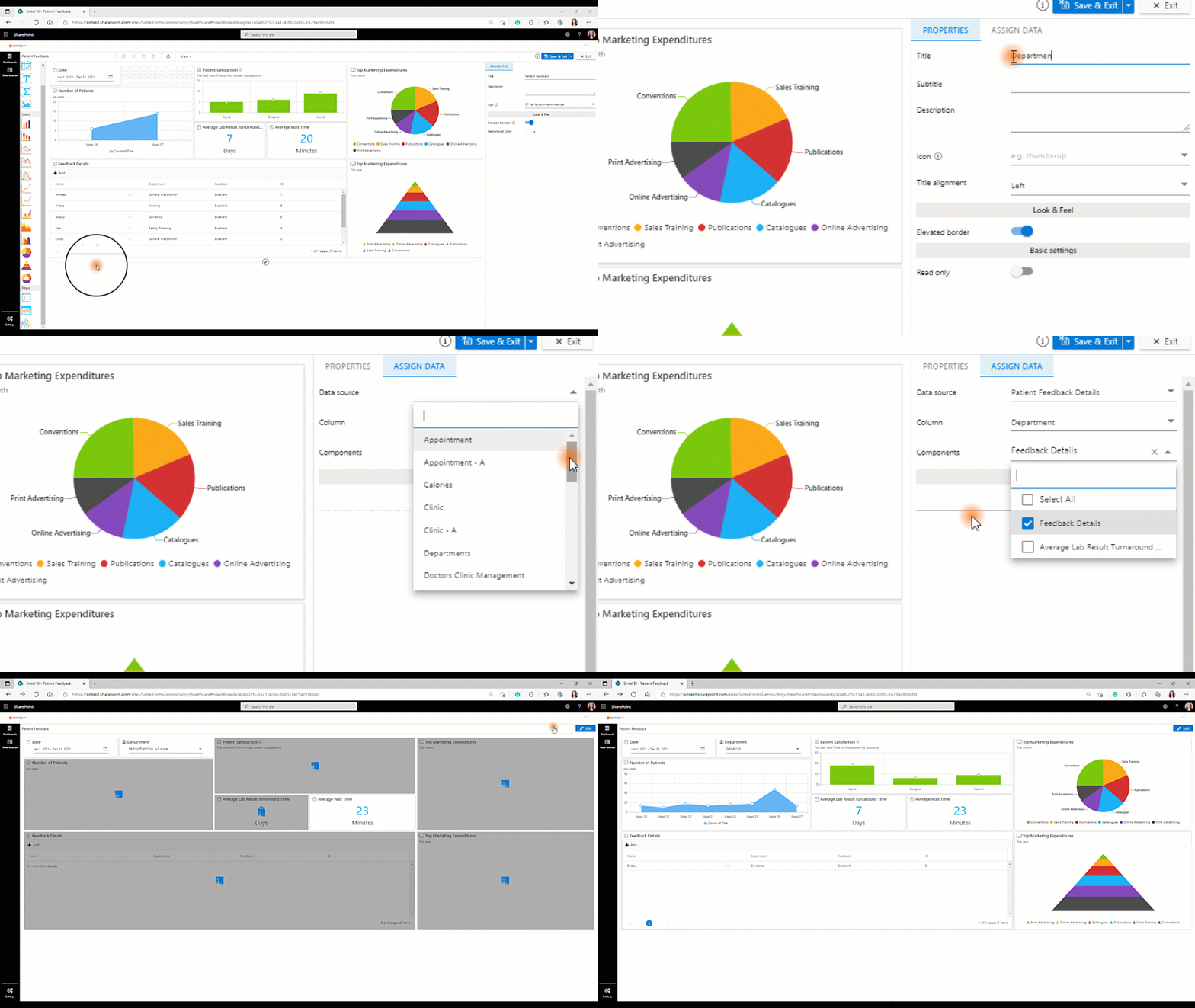
Adding the dropdown filter component
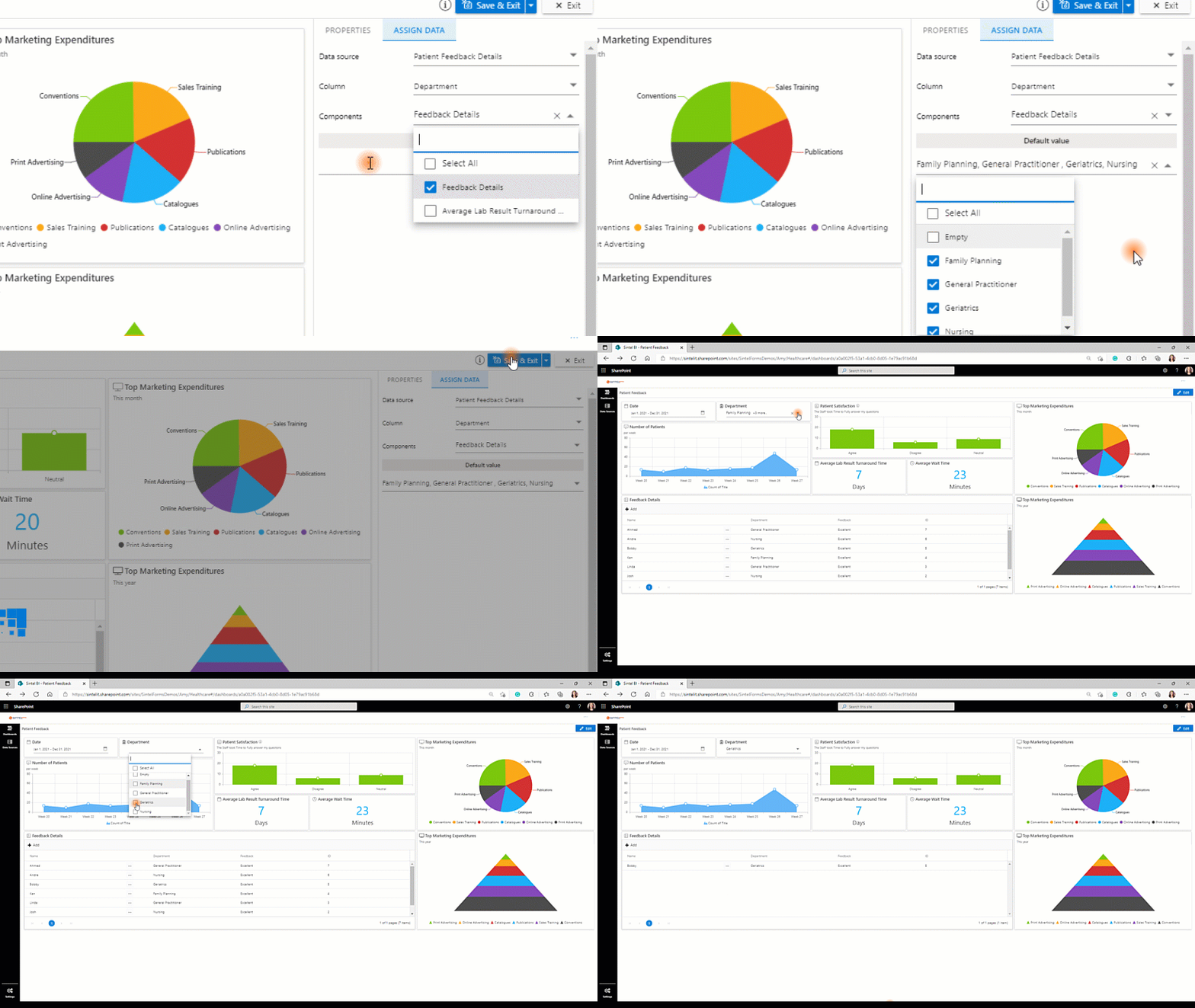
 

Setting Default Value


Learn More

If you found this guide helpful and want to explore other components, click here.

  • Discover more about Sintel BI features or testimonials.
  • Interested in Sintel Forms or Sintel BI?  book a no-obligation demo.
  • Stay updated by following us on LinkedIn/Twitter & YouTube.



Was this article helpful?
0 out of 5 stars
5 Stars 0%
4 Stars 0%
3 Stars 0%
2 Stars 0%
1 Stars 0%
5
How can we improve this article?
Please submit the reason for your vote so that we can improve the article.
Table of Contents

Sintel Apps

Create apps on Microsoft 365 in minutes with no code.

Address

River House
Blackpool Park,
Cork, T23 R5TF,
Ireland

Support

  • Product help
  • Community site
  • Submit a ticket
  • Compare us

    Contact us to

    • Book a demo
    • Request a license
    • Become a partner

    e-mail: info@sintelapps.com
    tel: +353 (0) 21 245 2935

    Follow us

    • Follow
    • Follow
    • Follow

    © Copyright 2026 | End User License Agreement | Privacy Policy | Terms Of Use

    Sintel Apps
    Sintel Apps Assistant
    Get instant answers and support
    Connecting to Sintel Apps Assistant…
    Sintel is thinking…
    We use cookies to collect and analyse information about the users of this website. Please click 'I accept' to consent to the use of this technology.