
Try it
  • Examples
  • Features
  • Testimonials
  • Partners
  • Pricing
  • Support
    • Sintel Apps Help
    • Sintel Apps Release History
    • Sintel BI Help
    • Sintel BI Release History
    • Webinars
    • How to video series
    • Ask the community
    • Submit a ticket
    • Request a demo
    • Compare us
  • Blog
  • Examples
  • Features
  • Testimonials
  • Partners
  • Pricing
  • Support
    • Sintel Apps Help
    • Sintel Apps Release History
    • Sintel BI Help
    • Sintel BI Release History
    • Webinars
    • How to video series
    • Ask the community
    • Submit a ticket
    • Request a demo
    • Compare us
    • For Schools
  • Blog
  • Get Started
How can we help?

Search for answers or browse articles about Sintel Apps

Filter by categories Clear Results
  • About Sintel Apps

    • What is Sintel Apps? (Product Overview)
    • Understanding the Underlying SharePoint List
  • Sintel Forms to Sintel Apps Migration

    • Sintel Forms Is Now Sintel Apps – What You Need to Do
    • Upgrading from Sintel Forms to Sintel Apps – Migration Guide
    • JavaScript API Differences Between Sintel Forms and Sintel Apps
    • Migrating Workflow History using a custom Microsoft Flow
    • What Does Not Migrate Automatically
    • Migration Checklist
    • Information for IT Administrators – Installing Sintel Apps
    • How to Find Existing Sintel Forms in SharePoint
    • Convert a classic SharePoint site to a modern one
  • Getting Started

    • Add Sintel Apps to Your Microsoft 365 Tenant
    • Configure Sintel Apps on a Site
    • Using Site Collection App Catalogs
  • Designer Overview

    • Sintel Apps Designer – Overview (Tour)
    • Layout Tab (Overview)
    • Workflow Tab (Overview)
    • Settings Tab (Overview)
    • Logic Tab: Create your First Rule (Overview)
  • Layout

    • Layout Tab (Overview)
    • Calculated Fields
    • Fields

      • Text Fields (All types explained)
      • Choice Fields (Dropdown vs Multi-Choice)
      • Lookup Fields
      • Person and Group Fields Posted
      • Number, Currency & Percentage Fields
      • Yes/No Field
      • Date & Date Time Fields
      • Hyperlink Field
      • Picture Fields
      • Related List
      • Related Library
      • Enhanced Rich Text Editor
    • Widgets

      • Attachments
      • HTML Widget
      • Workflow Status Widget
      • Workflow History Widget
      • Buttons
    • Theme

      • Data Import Export
      • Theme & Styling
  • Logic

    • Logic Tab: Create your First Rule (Overview)
    • Understanding Conditions
    • Understanding Steps
    • The JavaScript API

      • Using the JavaScript API in Logic
  • Workflow

    • Workflow Tab (Overview)
    • How to Build Common Workflow Patterns in Sintel Apps
    • How to Configure Workflow Email Notifications
    • Actions

      • The Workflow Actions API Integration
      • Workflow Actions – Configuration and Settings
      • Configuring Power Automate Webhook
    • Statuses

      • Workflow Statuses – Configuration and Settings
  • Settings

    • Settings Tab (Overview)
    • PDF Export
    • Conversations
    • After save script
    • Confirmation Screens
    • License Information
    • Upgrade from Sintel Forms
    • Custom Emails
    • Form Viewer

      • Actions Menu Behavior
      • Enable Concurrent Access
      • After save/action redirect to
      • After close redirect to
    • External Access

      • External Access & Sharing
      • Configuring External Access Permissions
  • Product Updates

    • CSP Content Security Policies (CSP) Enforcement for SPFx Apps
    • Sintel Apps Content Delivery Network CDN
    • Release History
    • How to update Sintel Apps
  • Building Forms

    • How to Create a New List
  • End-to-End Examples

    • Articles coming soon
  • Checklists & Best Practices

    • Sintel Apps – Project Planning & Best Practices
    • Project Requirements Template
  • Advanced Configurations

    • The Workflow Actions API Integration
    • Using the JavaScript API in Logic
    • Configuring External Access Permissions
  • Troubleshooting

    • Failed to query permissions
    • Convert a classic SharePoint site to a modern one
  • Administration

    • Sintel Apps Email Delivery
< All Topics
You are here:
  • Main
  • Logic
  • Understanding Steps

Understanding Steps

Posted17 February 2026
Updated17 February 2026
ByAmy Dermody
0 out of 5 stars
5 Stars 0%
4 Stars 0%
3 Stars 0%
2 Stars 0%
1 Stars 0%

Steps define what happens when a rule evaluates to true or false.

If conditions answer “when”, steps answer “what”.

Steps are placed into:

  • Steps when conditions are met

  • Steps when conditions are not met

You can use either of these or both.

Form Steps


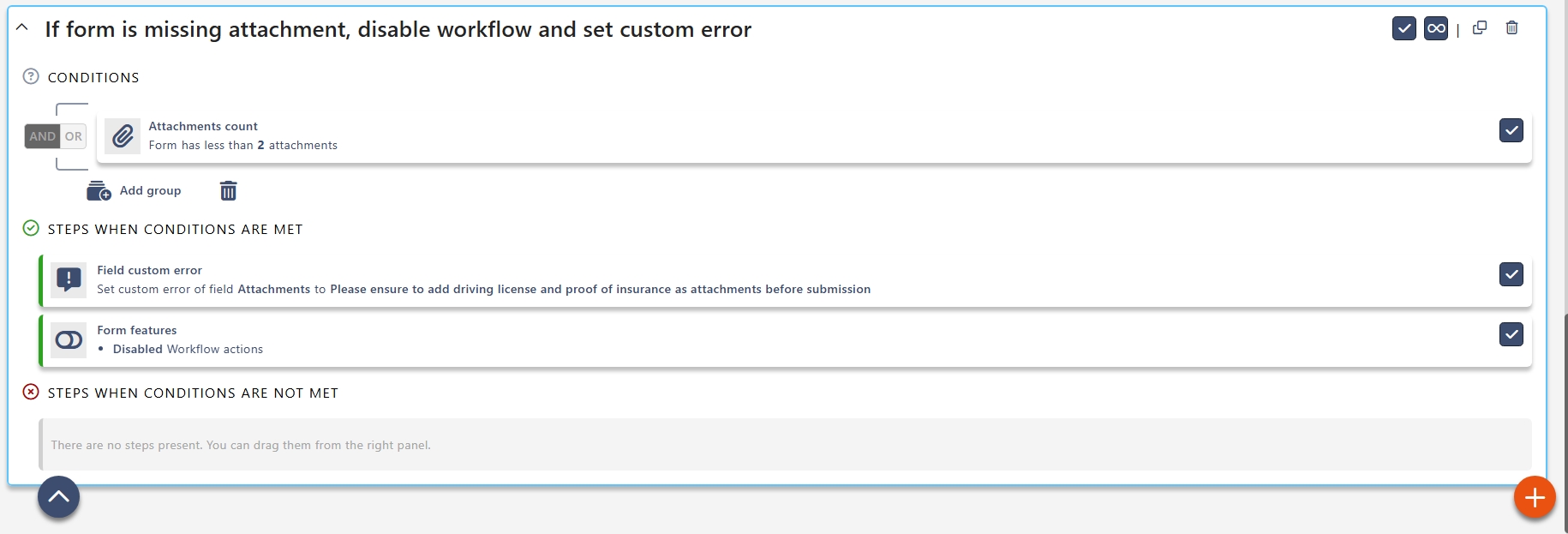
– Form Features 

The Form Features step allows you to control global form components and behaviour.

You can modify elements such as:

  • Save button

  • PDF Export button

  • Workflow history panel

  • Attachments panel

  • Conversations panel

  • Workflow action buttons

  • Entire form read-only mode

Each can be set to:

  • Available – The feature is fully usable.

  • Disabled – Visible but not clickable.

  • Hidden – Completely removed from view


Form Features are useful when:

  • You want to prevent saving under certain conditions.

  • You want to disable attachments after submission.

  • You want to hide workflow history from external users.

  • You need to lock the entire form once it reaches a specific workflow status.

  • You want to restrict PDF export until approval.


– Ignore validation 

The Ignore Validation step allows the form to save even if required fields or validation rules would normally prevent submission.

This applies only to the current save action and should be used carefully.

Common scenarios:

  • Saving a draft before all required information is complete.

  • Allowing a “Save as Draft” workflow action.

  • Allowing administrators to bypass validation rules.

  • Emergency submission processes where incomplete data is acceptable temporarily.


Section Steps


– Set section title


This allows you to dynamically change the heading of a section.

Useful for:

  • Adapting wording based on user selections.

  • Personalising content for internal vs external users.

  • Reflecting workflow stages.

Example:

If Request Type = Project
Set section title to Project Details

If Request Type = Purchase
Set section title to Purchase Details

This avoids duplicating sections and keeps forms cleaner.

– Set section description

This allows you to change the explanatory text under a section heading dynamically.

Useful for:

  • Providing contextual guidance.

  • Displaying instructions only when relevant.

  • Showing policy reminders for specific departments.

Example:

If Department = Finance
Set section description to:
“Please ensure all financial codes are validated before submission.”

– Set section visibility

Controls whether an entire section is:

  • Visible

  • Hidden

This is one of the most commonly used logic steps.

Best practice:

Always define the opposite behaviour in the “not met” section.

Example:

Condition: Request Type equals Project

Steps when met: Project Details section → Visible

Steps when not met: Project Details section → Hidden

This prevents sections remaining visible after values change.

– Set section state

Controls whether a section is:

  • Required

  • Optional

  • Read-only


Useful for:

  • Locking sections after submission.

  • Making entire sections mandatory.

  • Preventing edits during approval stages.

Example:

Condition: Workflow Status equals Submitted

Steps when met: Set Financial Details section to Read-only

This ensures data integrity during review.

Field Steps


Field actions control individual field behaviour.

– Set Field Label

Allows you to dynamically change the display label of a field.

Useful for:

  • Adjusting wording based on context.

  • Reusing the same field for multiple purposes.

  • Localising terminology for different audiences.

Example:

If Request Type = Travel
Set field label from “Reference” to “Booking Reference”

This reduces the need to duplicate fields.


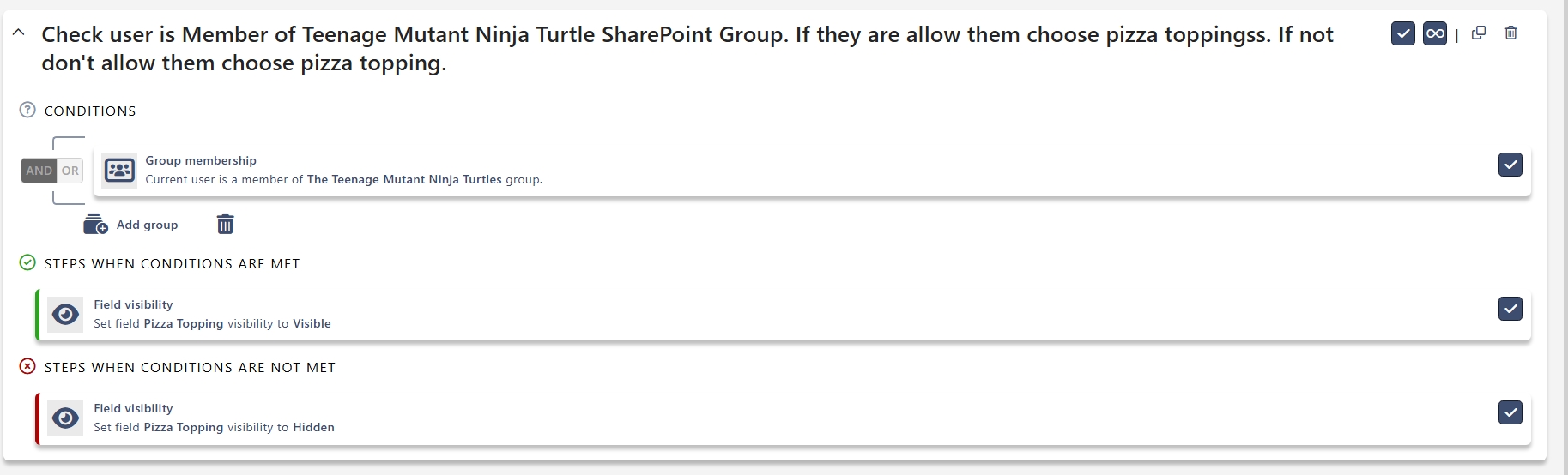
– Set Field Visibility

Controls whether a field is:

  • Visible

  • Hidden

Example: 

Condition: Department equals Finance

Steps when met: Cost Code → Visible

Steps when not met: Cost Code → Hidden
– Set Field State

Controls whether a field is:

  • Required

  • Optional

  • Read-only

Common example:
Make “Cost Code” required when Department = Finance.

– Set Custom Error

Displays a validation message.

Example:
“End Date must be on or after the Start Date.”

Related List Steps


– Related List Behaviour

Controls:

  • Adding

  • Editing

  • Deleting related list items

Useful for:

  • Preventing changes after submission

  • Locking financial line items during approval


Tab Steps


– Set tab visibility

Set a tab’s visibility to:

  • Visible

  • Hidden

Used in large multi-tab forms.

Example use cases:

  • Show “Finance” tab only to Finance users.

  • Hide advanced settings from standard users.

  • Display additional tabs only after submission.


Other Steps


– Workflow Action

Allows you to:

  • Hide or disable specific workflow actions

Example:
Only show “Approve” when:

  • Status = Submitted

  • User is in Approvers group


– Custom Button Visibility


Controls the visibility of custom buttons created in the Buttons widget.

Example:
Show “Generate PDF” only after approval.

– Custom JavaScript

Allows execution of JavaScript when a rule runs.

Used for advanced scenarios such as:

  • Complex calculations

  • External API calls

  • Dynamic behaviour beyond standard steps

Use sparingly and document clearly.

Was this article helpful?
0 out of 5 stars
5 Stars 0%
4 Stars 0%
3 Stars 0%
2 Stars 0%
1 Stars 0%
5
Please Share Your Feedback
How Can We Improve This Article?
Table of Contents

Sintel Apps

Create apps on Microsoft 365 in minutes with no code.

Address

River House
Blackpool Park,
Cork, T23 R5TF,
Ireland

Support

  • Product help
  • Community site
  • Submit a ticket
  • Compare us

    Contact us to

    • Book a demo
    • Request a license
    • Become a partner

    e-mail: info@sintelapps.com
    tel: +353 (0) 21 245 2935

    Follow us

    • Follow
    • Follow
    • Follow

    © Copyright 2026 | End User License Agreement | Privacy Policy | Terms Of Use

    Sintel Apps
    Sintel Apps Assistant
    Get instant answers and support
    Connecting to Sintel Apps Assistant…
    Sintel is thinking…
    We use cookies to collect and analyse information about the users of this website. Please click 'I accept' to consent to the use of this technology.