Try it
  • Examples
  • Features
  • Testimonials
  • Partners
  • Pricing
  • Support
    • Sintel Apps Help
    • Sintel Apps Release History
    • Sintel BI Help
    • Sintel BI Release History
    • Webinars
    • How to video series
    • Ask the community
    • Submit a ticket
    • Request a demo
    • Compare us
  • Blog
  • Examples
  • Features
  • Testimonials
  • Partners
  • Pricing
  • Support
    • Sintel Apps Help
    • Sintel Apps Release History
    • Sintel BI Help
    • Sintel BI Release History
    • Webinars
    • How to video series
    • Ask the community
    • Submit a ticket
    • Request a demo
    • Compare us
    • For Schools
  • Blog
  • Get Started
How can we help?

Search for answers or browse articles about Sintel Apps

Filter by categories Clear Results
  • About Sintel Apps

    • What is Sintel Apps? (Product Overview)
    • Understanding the Underlying SharePoint List
  • Sintel Forms to Sintel Apps Migration

    • Sintel Forms Is Now Sintel Apps – What You Need to Do
    • Upgrading from Sintel Forms to Sintel Apps – Migration Guide
    • JavaScript API Differences Between Sintel Forms and Sintel Apps
    • Migrating Workflow History using a custom Microsoft Flow
    • What Does Not Migrate Automatically
    • Migration Checklist
    • Information for IT Administrators – Installing Sintel Apps
    • How to Find Existing Sintel Forms in SharePoint
    • Convert a classic SharePoint site to a modern one
  • Getting Started

    • Add Sintel Apps to Your Microsoft 365 Tenant
    • Configure Sintel Apps on a Site
    • Using Site Collection App Catalogs
  • Designer Overview

    • Sintel Apps Designer – Overview (Tour)
    • Layout Tab (Overview)
    • Workflow Tab (Overview)
    • Settings Tab (Overview)
    • Logic Tab: Create your First Rule (Overview)
  • Layout

    • Layout Tab (Overview)
    • Calculated Fields
    • Fields

      • Text Fields (All types explained)
      • Choice Fields (Dropdown vs Multi-Choice)
      • Lookup Fields
      • Person and Group Fields Posted
      • Number, Currency & Percentage Fields
      • Yes/No Field
      • Date & Date Time Fields
      • Hyperlink Field
      • Picture Fields
      • Related List
      • Related Library
      • Enhanced Rich Text Editor
    • Widgets

      • Attachments
      • HTML Widget
      • Workflow Status Widget
      • Workflow History Widget
      • Buttons
    • Theme

      • Data Import Export
      • Theme & Styling
  • Logic

    • Logic Tab: Create your First Rule (Overview)
    • Understanding Conditions
    • Understanding Steps
    • The JavaScript API

      • Using the JavaScript API in Logic
  • Workflow

    • Workflow Tab (Overview)
    • How to Build Common Workflow Patterns in Sintel Apps
    • How to Configure Workflow Email Notifications
    • Actions

      • The Workflow Actions API Integration
      • Workflow Actions – Configuration and Settings
      • Configuring Power Automate Webhook
    • Statuses

      • Workflow Statuses – Configuration and Settings
  • Settings

    • Settings Tab (Overview)
    • PDF Export
    • Conversations
    • After save script
    • Confirmation Screens
    • License Information
    • Upgrade from Sintel Forms
    • Custom Emails
    • Form Viewer

      • Actions Menu Behavior
      • Enable Concurrent Access
      • After save/action redirect to
      • After close redirect to
    • External Access

      • External Access & Sharing
      • Configuring External Access Permissions
  • Product Updates

    • CSP Content Security Policies (CSP) Enforcement for SPFx Apps
    • Sintel Apps Content Delivery Network CDN
    • Release History
    • How to update Sintel Apps
  • Building Forms

    • How to Create a New List
  • End-to-End Examples

    • Articles coming soon
  • Checklists & Best Practices

    • Sintel Apps – Project Planning & Best Practices
    • Project Requirements Template
  • Advanced Configurations

    • The Workflow Actions API Integration
    • Using the JavaScript API in Logic
    • Configuring External Access Permissions
  • Troubleshooting

    • Failed to query permissions
    • Convert a classic SharePoint site to a modern one
  • Administration

    • Sintel Apps Email Delivery
< All Topics
You are here:
  • Main
  • Layout
  • Fields
  • Picture Fields

Picture Fields

Posted15 February 2026
Updated15 February 2026
ByAmy Dermody
0 out of 5 stars
5 Stars 0%
4 Stars 0%
3 Stars 0%
2 Stars 0%
1 Stars 0%

This article explains how the Picture field works in the Sintel Apps Designer and how to configure its available options.

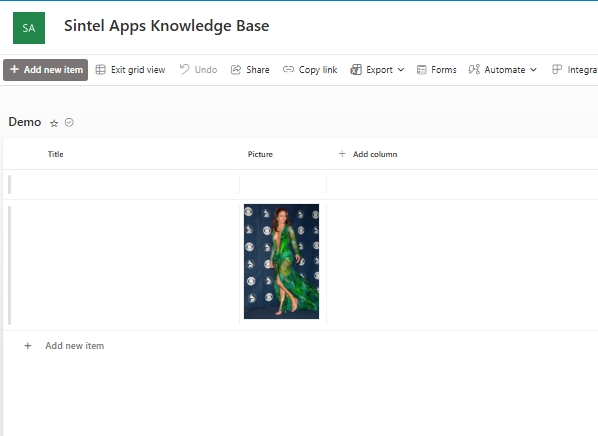
The Picture field allows users to enter an image URL so the image can be displayed directly within the form. When added to a form, it creates a corresponding Picture column in the underlying SharePoint list.

What Is a Picture Field?

A Picture field stores: An image URL and An optional description

It is commonly used for:

  • Product images
  • Site or asset photos
  • Reference diagrams
  • Profile or identification images
  • Evidence images stored elsewhere

This field is ideal when the image is already hosted online (e.g. SharePoint, OneDrive, public site).

How It Appears on the Form

The field contains:

URL – The direct link to the image file
Description – Optional display text

If a valid image URL is entered, the image will render in the SharePoint list

Properties

When selecting the Picture field in the Layout tab, the following properties are available:

Title – The label displayed on the form.

Type – Set to Picture.

Required – If enabled, users must provide an image URL before saving or submitting.

Placeholder – Text shown in the URL field before a value is entered (e.g. “Enter URL”).

Description Placeholder – Text shown in the description field before a value is entered (e.g. “Enter description”).

Behaviour Settings – The State setting controls how the field behaves.

Available options:

  • Inherit from section – Follows the section’s behaviour
  • Mandatory – Always required
  • Optional – Not required
  • Read-only – Cannot be edited by users
  • State can also be modified dynamically using Logic rules.


Label Settings: You can configure:

  • Label text
  • Label position
  • Tooltip

Tooltips are useful if users need instructions, such as “Paste the direct image file URL (ending in .jpg or .png)”.

Picture Field vs Attachments

It is important to understand the difference:

Picture Field

  • Stores a link to an image
  • Image must already be hosted online

Attachments Widget

  • Uploads and stores files within the list item

  • Suitable for user-uploaded photos

  • Does not require a pre-hosted URL

If users need to upload photos directly, use Attachments instead.

➡️ Next article: Attachments Widget – Configuration and Best Practices

Was this article helpful?
0 out of 5 stars
5 Stars 0%
4 Stars 0%
3 Stars 0%
2 Stars 0%
1 Stars 0%
5
Please Share Your Feedback
How Can We Improve This Article?
Table of Contents

Sintel Apps

Create apps on Microsoft 365 in minutes with no code.

Address

River House
Blackpool Park,
Cork, T23 R5TF,
Ireland

Support

  • Product help
  • Community site
  • Submit a ticket
  • Compare us

    Contact us to

    • Book a demo
    • Request a license
    • Become a partner

    e-mail: info@sintelapps.com
    tel: +353 (0) 21 245 2935

    Follow us

    • Follow
    • Follow
    • Follow

    © Copyright 2026 | End User License Agreement | Privacy Policy | Terms Of Use

    Sintel Apps
    Sintel Apps Assistant
    Get instant answers and support
    Connecting to Sintel Apps Assistant…
    Sintel is thinking…
    We use cookies to collect and analyse information about the users of this website. Please click 'I accept' to consent to the use of this technology.