
Search for answers or browse articles about Sintel Apps
Configuring External Access Permissions
This guide explains how permissions work in Sintel Apps following the update introduced in version 1.0.3, and what (if anything) you need to do.
Step 1: Understand How Access Is Structured
Sintel Apps clearly separates Internal Use from External or Anonymous Use. This gives tenant administrators more control and improves overall security.
Internal Use (Standard configuration)
This is the default setup and applies to most customers.
The main Sintel Apps application uses delegated permissions only
These permissions must be approved once by a tenant administrator
Users can only perform actions they are already allowed to do in Microsoft 365
The app never elevates or bypasses user permissions
- The process creates a single Entra ID Enterprise Application named Sintel Apps
External or Anonymous Use (Optional configuration)
If you plan to allow external users or anonymous use, this is handled separately.
- This is only required if external or anonymous access is needed
Approval must be granted by a tenant administrator
- A second, optional Entra ID Enterprise Application is created named Sintel Apps External
If you don’t need external access, you can safely ignore this step
Step 2: Approve Internal Use
To enable normal internal use:
- A tenant administrator signs in when prompted
- The administrator approves the requested Sintel Apps permissions
- Users can then access Sintel Apps based on their existing Microsoft 365 rights
- No extra privilege is granted
- No tenant-wide access beyond what users already have
Step 3: Decide If You Need External or Anonymous Access
External or Anonymous Access is a Sintel Apps feature and is completely optional.
It is a feature of Sintel Apps that enables external or anonymous users to submit forms and optionally access those forms after submitting them without being granted access to the SharePoint site containing those forms. At no point do these users get access to your SharePoint environment.
Ask yourself:
Do people outside your organisation need to be able to submit forms?
Do you plan to share anonymous access links?
If no, you can stop here — no further setup is required.
If yes, continue to Step 4.
Step 4: Enable External or Anonymous Use
To enable external access:
- A tenant administrator opens the admin consent link below
- The administrator approves the Sintel Apps External application
Admin consent link:
Once approved:
External and anonymous access features become available
Internal user permissions remain unchanged
External access can be controlled or removed at any time
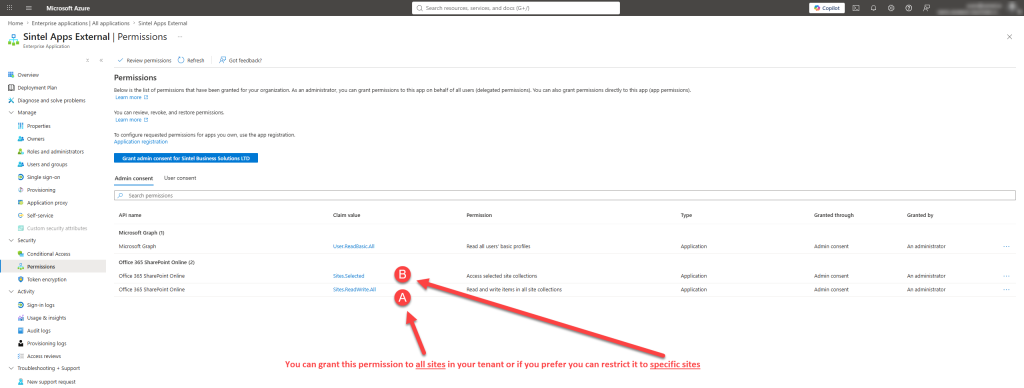
The process you are following will create an Enterprise application in Azure named “Sintel Apps External” and this application will be granted Application permissions to Microsoft Graph and SharePoint Online.
Step 5: Confirmation Message
Once consent is granted, you’ll see a confirmation message as follows:

With this permissions model:
Internal users stay limited to their normal Microsoft 365 permissions
External access is clearly separated and has to be manually enabled
Tenant administrators retain full visibility and control
No unnecessary high-level or tenant-wide permissions are required
This approach improves security while giving you flexibility when external or anonymous access is required.
Background info on this process
Sintel Apps External-What it is for
- The Sintel Apps External Entra ID application is required to support the External Submissions and External Access features available within Sintel Apps.
- It enables external users to create SharePoint list items anonymously using application type permissions without granting those users delegated user permissions.
- In addition to permitting external users to create SharePoint list items, customers can also optionally enable secure list item editing which is provided via secure email-based one-time passcode (OTP) authentication
About the Sintel Apps External Entra ID Enterprise Application
This application connects to your Microsoft 365 environment to allow people outside your organisation to submit and optionally interact with content stored in SharePoint.
- Anyone can submit — no account or login required.
- Editing requires verification — users confirm their identity via a one-time passcode sent to their email.
- Access is scoped — access can be limited to specific SharePoint sites if needed. (using Graph API or PowerShell)
The permissions used by the application
The app uses application-level permissions (not the delegated user permissions that Sintel Apps uses), meaning it operates under its own identity rather than on behalf of any individual user.
| Permission | Purpose |
| User.ReadBasic.All (Graph) | Looks up basic user info to support OTP authentication |
| Sites.ReadWrite.All (SharePoint) | Read/write access to all sites — can be removed if using Sites.Selected |
| Sites.Selected (SharePoint) | Restricts access to nominated sites only — recommended for most organisations |
