Search for answers or browse articles about Sintel Apps
Custom Emails
Custom Email Configurations allow your organisation to send Sintel Apps email notifications using your own Microsoft 365 shared mailbox instead of the default Sintel Apps sender address.
By default, all forms send notifications from:
Sintel Apps <noreply@mail.sintelapps.com>
Using a custom sender is optional. Existing forms continue to use the default Sintel Apps sender until a form owner explicitly selects a custom email address for that form.
Benefits
- Send workflow notifications from your organisation’s own email address.
- Configure up to 10 shared mailboxes per tenant.
- Use different sender addresses for different departments or business processes.
- Choose whether each mailbox can be used for internal notifications only or also for external users.
- Reduce Exchange spam warnings by sending notifications from an in-house mailbox.
Prerequisites
Before configuring custom email senders, ensure the following requirements are met:
- Your tenant includes the Custom Notification Emails licence feature.
- A Microsoft 365 tenant administrator grants the required permissions to Sintel Apps.
- One or more Microsoft 365 shared mailboxes have been created.
Note
Shared mailboxes are created and managed within your Microsoft 365 tenant. If one does not already exist, contact your Microsoft 365 or Entra administrator and provide the desired email address and display name.
1. Check your licence
Open any form and navigate to Settings → Email notifications.
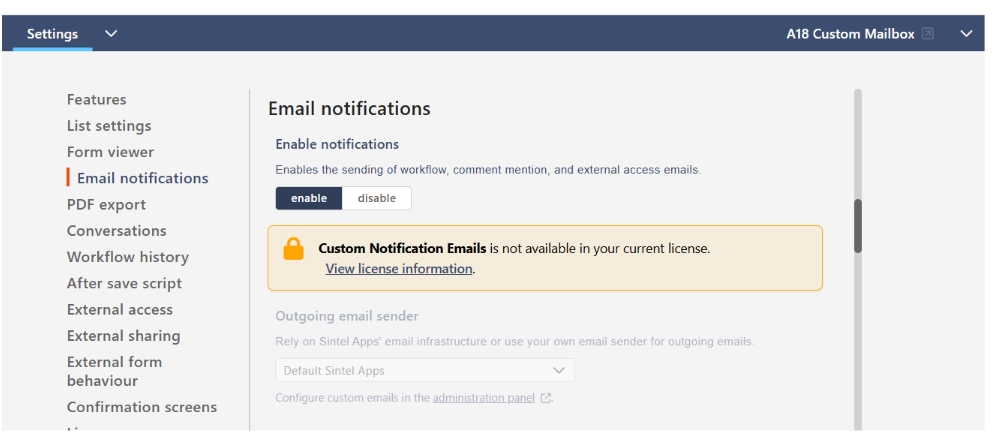
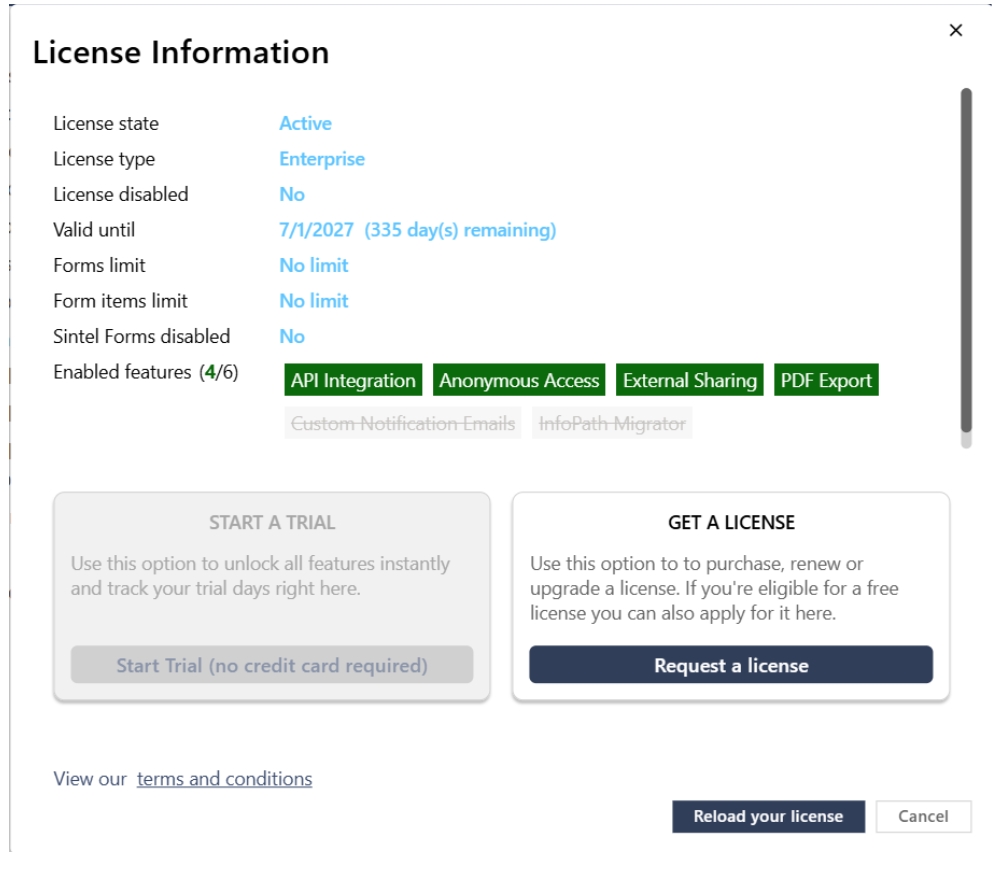
If the feature is not included in your licence, the Custom Notification Emails option is unavailable.
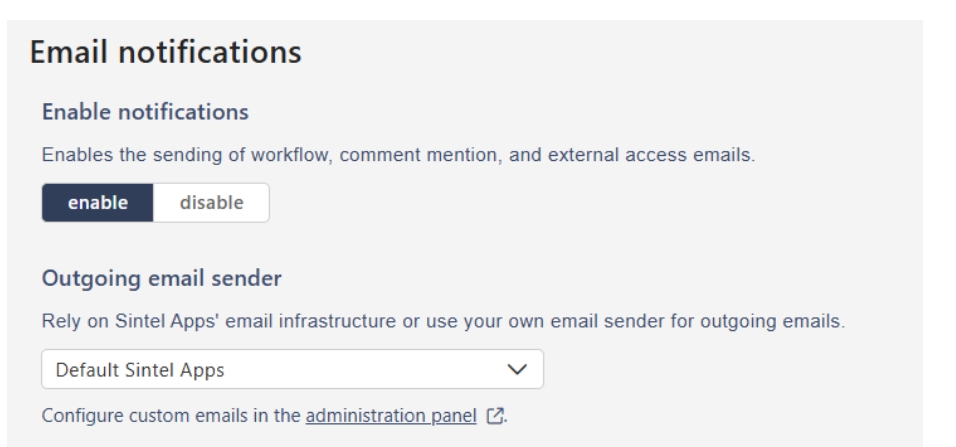
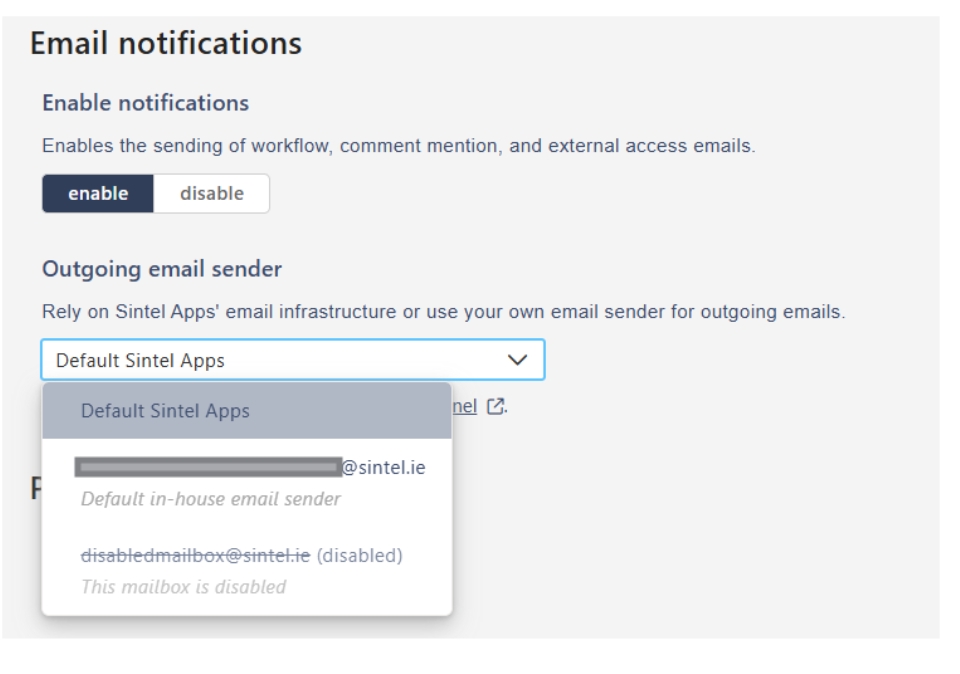
When licensed, the Outgoing email sender section becomes available.
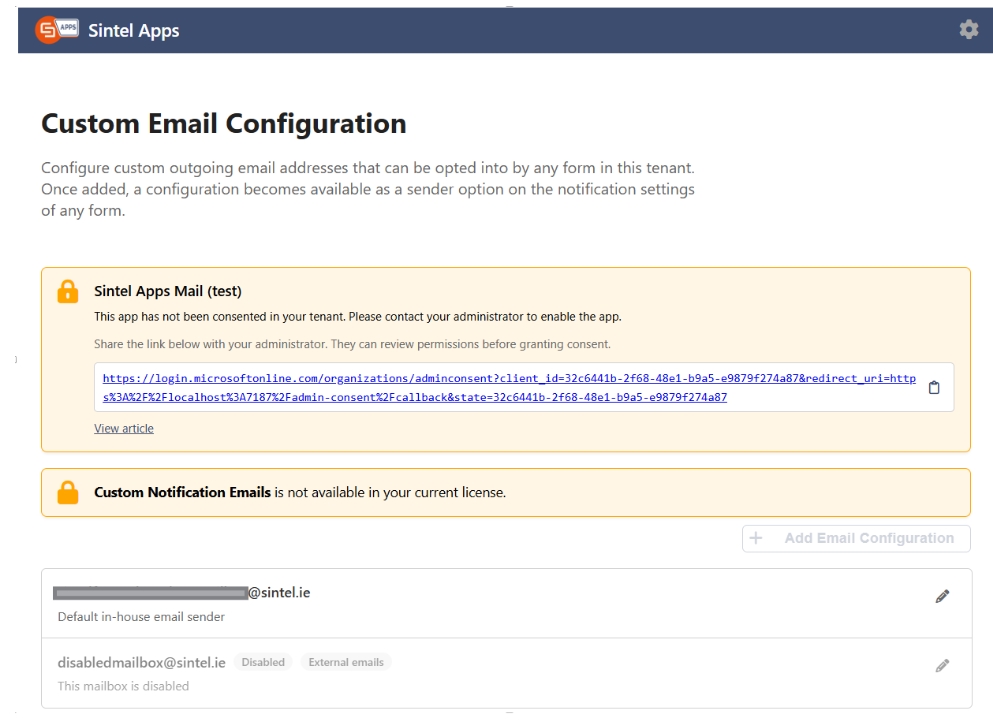
2. Open the Email Configuration page
Select the Administration panel link or browse to https://app.sintelapps.com/admin/emailconfiguration
3. Grant Microsoft 365 consent
Before Sintel Apps can send email using your shared mailbox, a Microsoft 365 administrator must approve the required permissions.
If consent has not yet been granted:
- Open the Email Configuration page.
- Copy or open the consent link.
- Ask a Microsoft 365 administrator to complete the approval process.
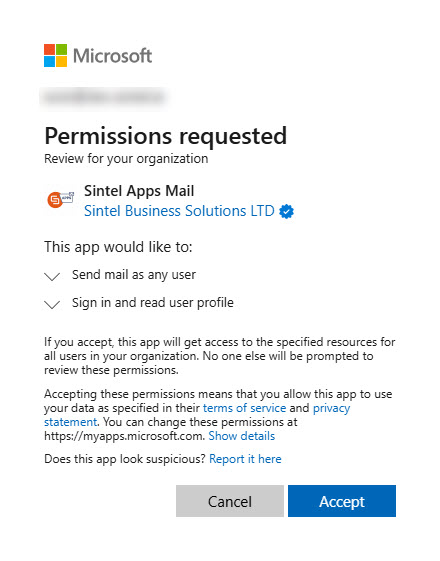
The administrator will review the requested Microsoft permissions before granting consent.
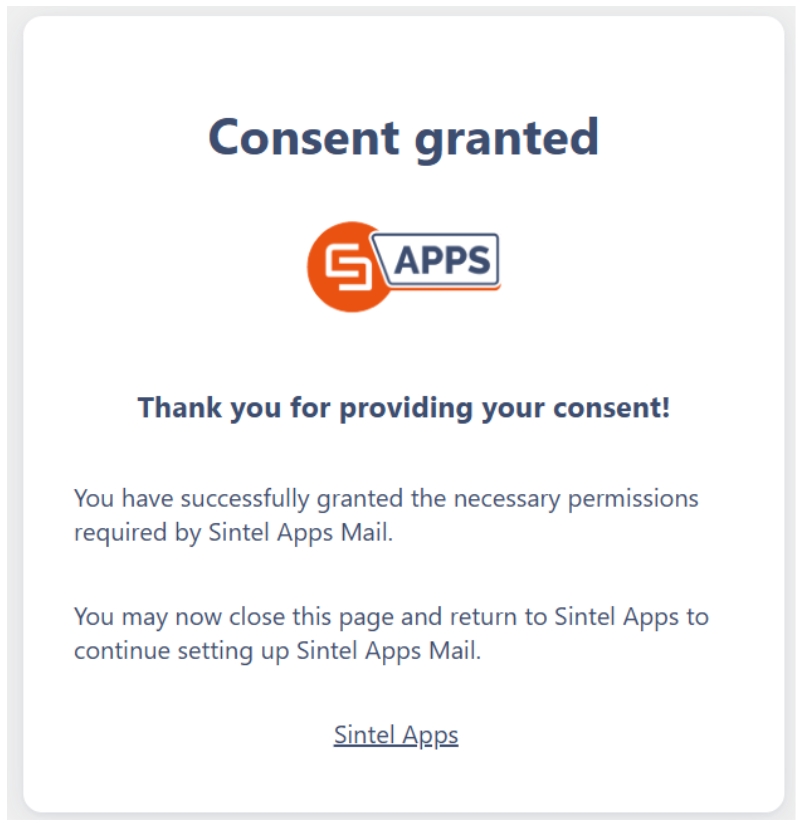
After consent has been granted, a confirmation page is displayed.
Administrator Note
Organisations can further restrict Sintel Apps so it may only access specific shared mailboxes by configuring a Microsoft Exchange Application Access Policy using the
New-ApplicationAccessPolicyPowerShell command. This is an optional Microsoft 365 administration task and is outside the scope of this documentation.
4. Create an Email Configuration
Once the shared mailbox has been created by your Microsoft 365 administrator:
- Open the Email Configuration page.
- Select Add configuration.
- Enter the shared mailbox email address.
- Optionally enter a description.
- Enable the configuration.
- Decide whether the mailbox can also be used for external email communication.
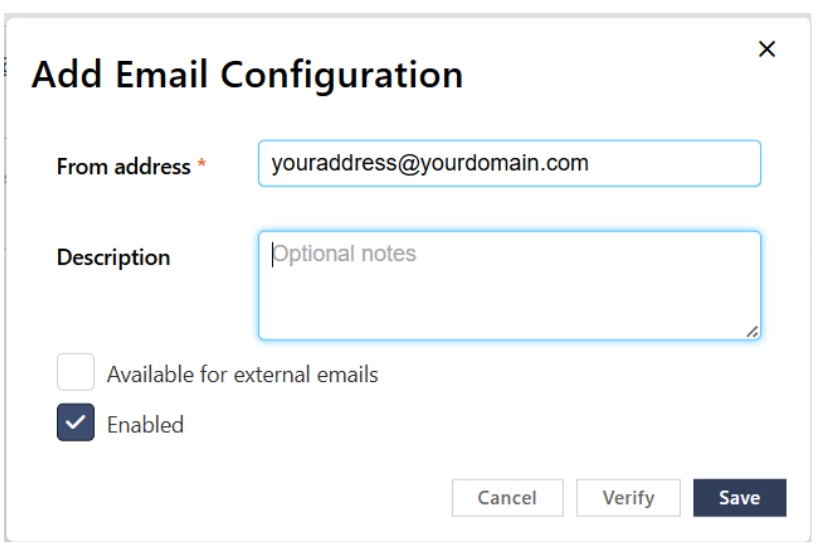 Each tenant can configure up to 10 shared mailboxes.
5. Verify the mailbox
Select Verify to test the configuration.
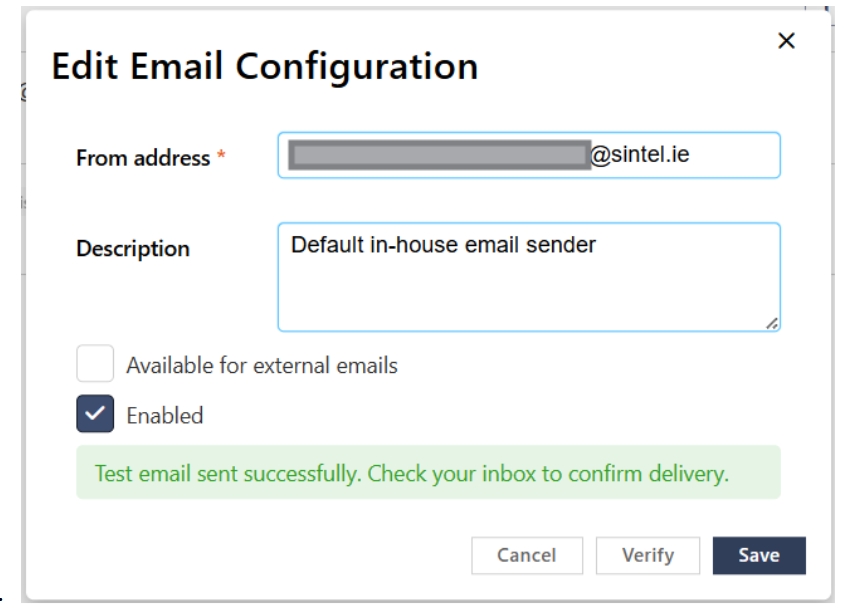
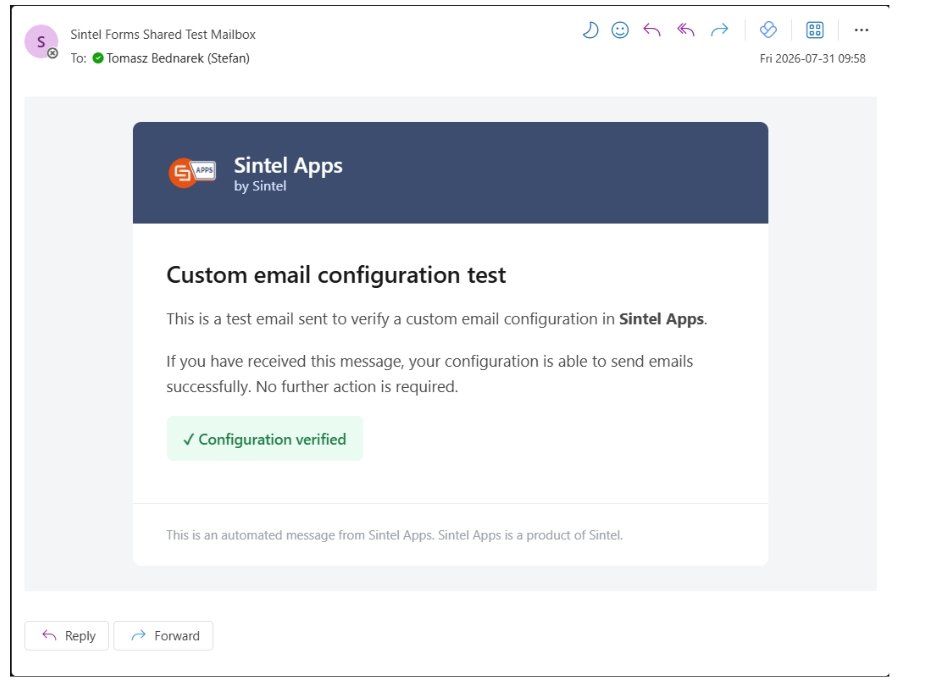
If the configuration is correct:
- a test email is sent to your mailbox from the configured sender address.
If verification fails:
- an error message explains what needs to be corrected (for example, missing permissions or an invalid mailbox configuration).
Using a Custom Sender
Once configured, every form can select one of the available sender addresses from the Outgoing email sender list. Existing forms continue to use the default Sintel Apps sender until a form owner explicitly changes the setting.
Which emails use the custom sender?
Internal notifications
When a custom sender is selected, the following internal notifications use that mailbox:
- Workflow status changes
- Task availability notifications
External notifications
If the mailbox is marked Available for external emails, it is also used for:
- Workflow status changes sent to external collaborators
- Task availability notifications sent to external collaborators
- External collaboration confirmations
- External sharing invitations
- One-Time Password (OTP) emails for external access
Configuration Changes
Each time Sintel Apps sends a notification, it reads the current email configuration.
If a configured mailbox is later disabled or becomes unavailable, forms using that configuration automatically fall back to the default Sintel Apps sender. No changes to individual forms are required.
Failover behaviour
If Sintel Apps cannot send email using a configured shared mailbox—for example because of:
- revoked Microsoft 365 permissions,
- licence changes,
- disabled configurations, or
- mailbox configuration issues,
it automatically retries using the default Sintel Apps sender to help ensure important notifications are still delivered.
This automatic fallback applies only to configuration-related issues. Delivery failures caused by invalid recipient email addresses, disabled user accounts, or recipient mailbox restrictions are handled by Microsoft 365 and are not retried using the default sender.
Frequently Asked Questions
Will existing forms change automatically?
No. Existing forms continue using the default Sintel Apps sender until a form owner explicitly selects a custom sender for that form.
How many sender addresses can I configure?
Up to 10 shared mailboxes per tenant.
Can different forms use different senders?
Yes. Each form selects its own sender.
What happens if a configured sender is disabled?
Sintel Apps automatically falls back to the default sender so notifications continue to be delivered.
What if verification fails?
Review the displayed error message, confirm the shared mailbox exists, and verify that Microsoft 365 administrator consent has been granted.
Does this help with Microsoft Exchange spam warnings?
Yes. Sending notifications from your own Microsoft 365 shared mailbox means the email originates from within your organisation rather than from the default Sintel Apps sender. This can reduce Exchange warnings for external senders and may eliminate the need for custom Exchange mail flow rules that were previously used to prevent legitimate Sintel Apps notifications from being flagged.