Search for answers or browse articles about Sintel Apps
External Access & Sharing
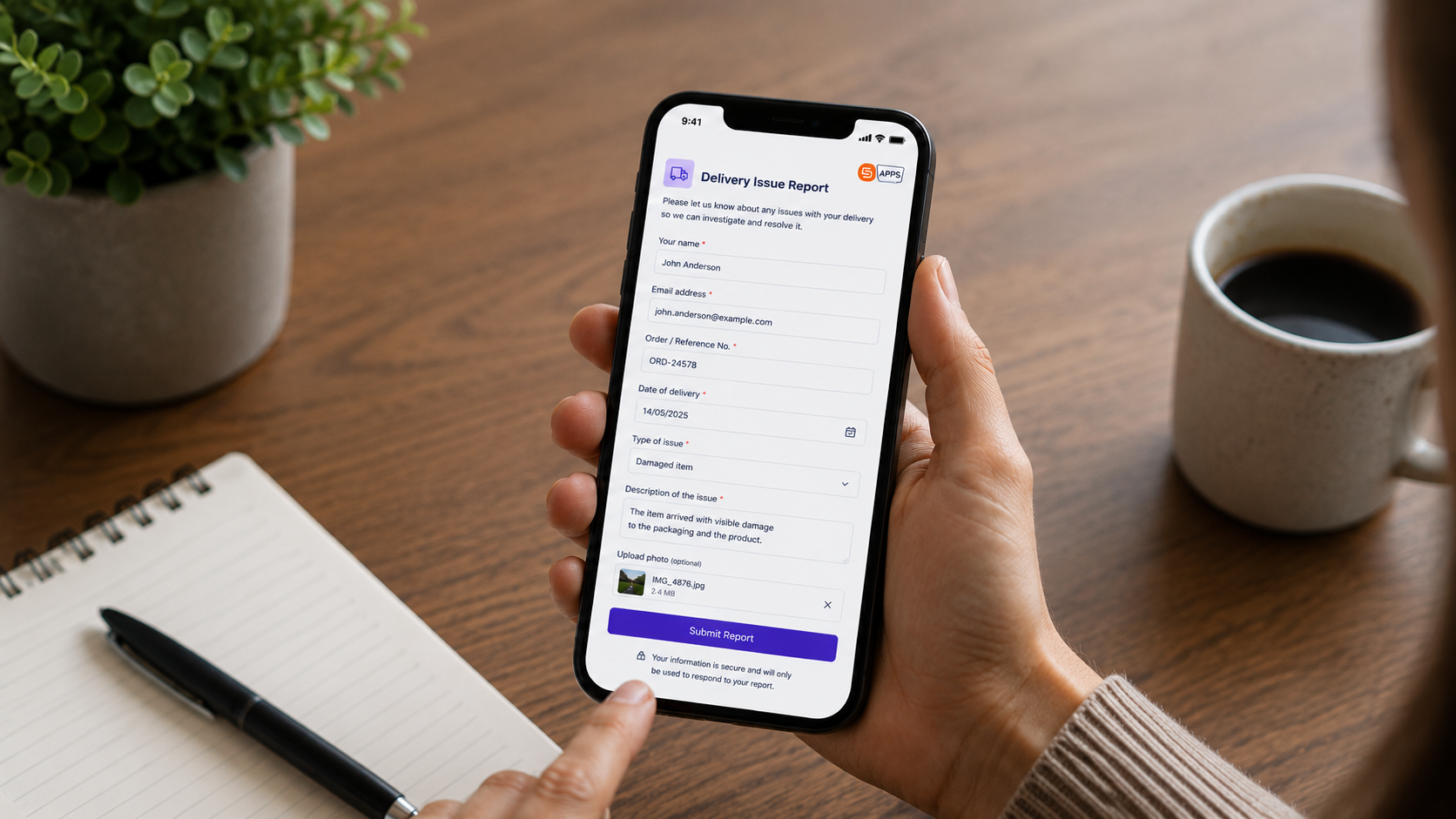
The External access settings control how users outside your Microsoft 365 environment interact with forms created using Sintel Apps.
This feature is completely separate from SharePoint Online external sharing.
External users never receive direct access to your SharePoint environment, sites, or lists.
How it works
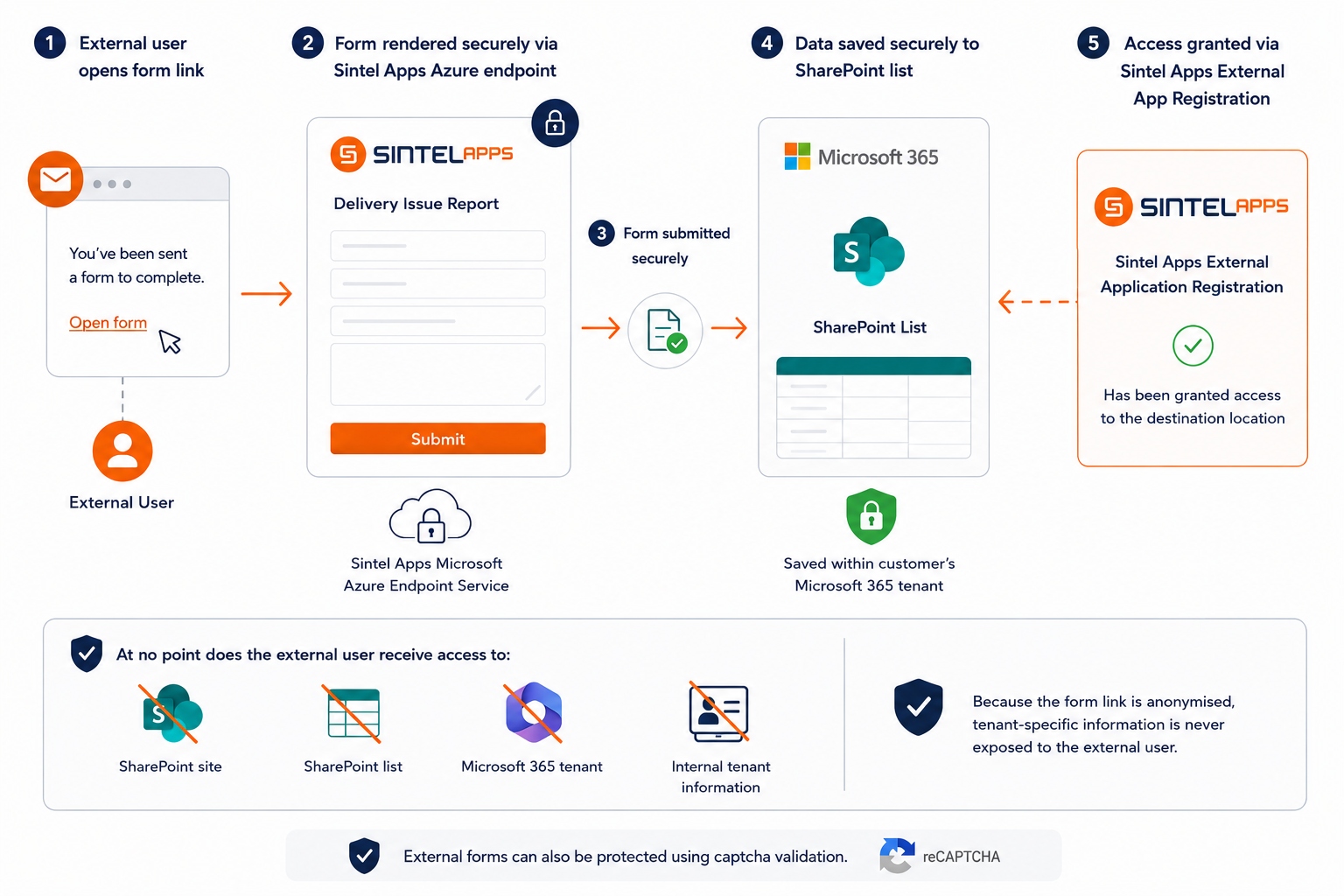
When a user opens the unique anonymised external form link, the Sintel Apps Microsoft Azure endpoint service securely renders the form for them.
When the form is submitted, the Azure endpoint service securely saves the submitted data to the appropriate SharePoint list within the customer’s Microsoft 365 tenant. This is possible because the Sintel Apps External application registration has been granted access to the destination location.
At no point does the external user receive access to:
- the SharePoint site
- the SharePoint list
- the Microsoft 365 tenant
- internal tenant information
Because the form link is anonymised, tenant-specific information is never exposed to the external user.
External forms can also be protected using captcha validation.
External and anonymous access must be explicitly enabled using a separate application registration process, ensuring external access is always a deliberate administrative decision. Read more
External Access Modes
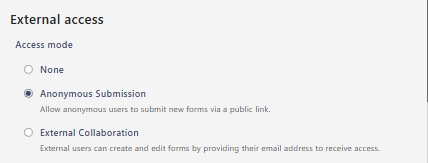
None – Disables all external access functionality for the form.
Anonymous Submission – Allows anonymous users to submit new forms using a secure public link.
External users:
- Do not require a Microsoft account
- Do not need SharePoint access
- Can only submit new forms
- Cannot browse your tenant, sites, or lists
External Collaboration – Allows external users to create and edit forms using secure email-based access links. External collaboration is designed for scenarios where external participants need to return to or update submissions.
External Sharing
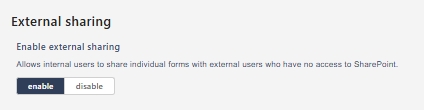
The External sharing section allows internal users to securely share individual forms with external users who do not have SharePoint access.
| Enable external sharing | – Allows internal users to share forms externally without granting SharePoint permissions |
This feature works alongside External Collaboration and secure invitation links.
External Form Behaviour
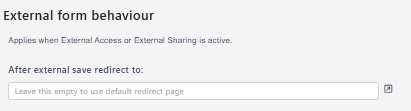
The External form behaviour settings control how forms behave when accessed externally.
These settings apply whenever Anonymous Submission, External Collaboration, or External Sharing are enabled.
– Redirect After Save
After external save redirect to – Redirect external users to a custom page after saving a form. (Leave blank to use the default confirmation page.)
– Captcha Protection
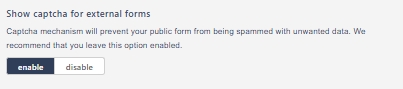
Show captcha for external forms – Enables captcha validation for public forms
Captcha helps protect externally accessible forms against:
- Spam submissions
- Automated bots
- Malicious activity
This setting is enabled by default and should normally remain enabled.
– People Picker Behaviour
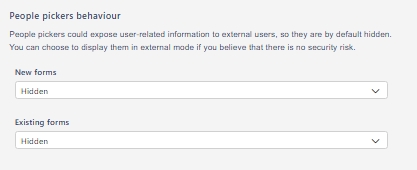
People picker controls are hidden by default for external users because they may expose user-related information.
Hidden – Person fields are hidden from external users
Visible (if configured) – Person fields are displayed externally
Separate settings are available for:
- New forms
- Existing forms
For security reasons, keeping these settings set to Hidden is recommended unless there is a specific business requirement.
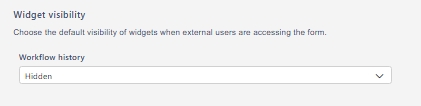
– Widget Visibility
Controls which widgets are visible when external users access forms.
| Widget | Default |
|---|---|
| Workflow history | – Hidden |
This helps prevent exposure of internal workflow or audit information to external users.
– Confirmation Screens
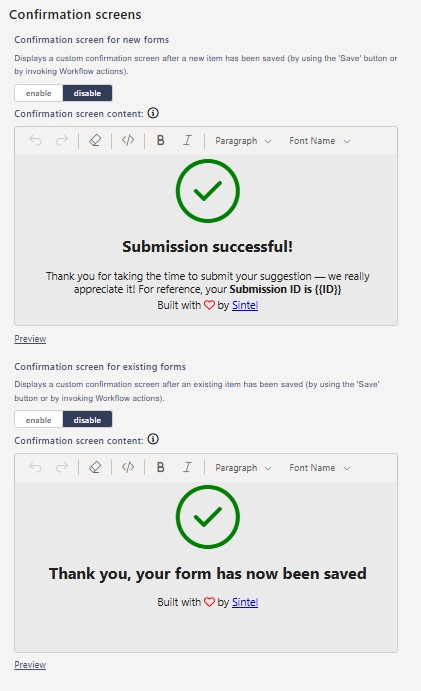
The platform also includes configurable Confirmation screens for external forms.
These screens allow administrators to customise what external users see after form submission or completion.