
Search for answers or browse articles about Sintel Apps
Workflow History Widget
This article explains how the Workflow History widget works in the Sintel Apps Designer and how to use it within your form.
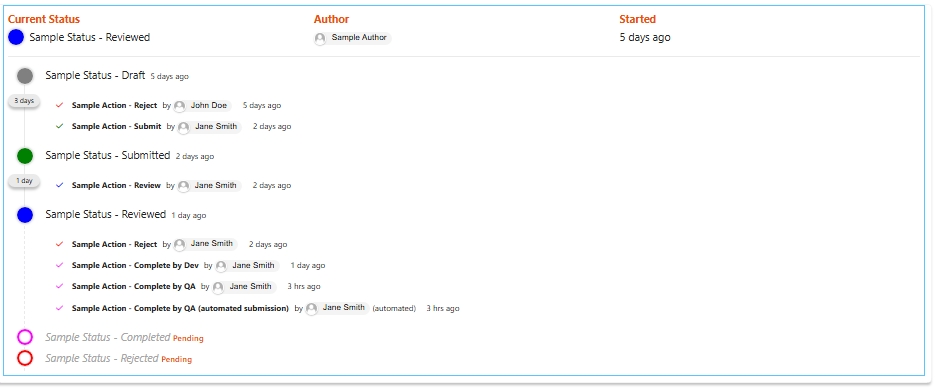
The Workflow History widget displays a chronological record of workflow activity for a form item, including status changes, actions taken, and user involvement.
What Is the Workflow History Widget?
The Workflow History widget shows:
- Status changes
- Actions performed
- Who completed each action
- When actions were completed
- Pending statuses
It provides a full audit trail of the workflow process.
The information displayed is based entirely on the workflow configuration defined in the Workflow tab.
How It Works
Each time a workflow action occurs (e.g. Submit, Approve, Reject), the system records:
- The status transition
- The action name
- The user who performed it
- The date and time
The Workflow History widget then displays this as a structured timeline. If no workflow is configured, the widget will not display meaningful data.
How to Add the Workflow History Widget
- Open the Layout tab in the Designer.
- Select Widgets in the left panel.
- Drag and drop Workflow History onto your form.
- Position it within a section (commonly below the main form content or near the bottom).
Properties
When selecting the Workflow History widget in the Layout tab, the following properties are available:
Title – The label displayed above the widget.
Type – Set to Workflow History.
Statuses – Choose which statuses to display (e.g. All statuses).
Display – Controls how much detail is shown (e.g. Everything).
Sort – Controls the order (e.g. Oldest on the top).
Show Header – Toggle whether the summary header is displayed.
Tips
Place the Workflow History widget near the bottom of the form
Below the main content. This keeps the form clean while still providing visibility.
