
Search for answers or browse articles about Sintel Apps
Workflow Statuses – Configuration and Settings
This article explains how to configure Workflow Statuses in the Sintel Apps Designer and what each status setting controls.
A status represents the current stage of a form in its lifecycle.
What Is a Status?
A status defines:
Where the form currently sits in the process
Which actions are available
What approvals must be completed
Every workflow must have one Initial Status. By default, the designer sets it to New
Example of Statuses:
- New/ Draft
- Submitted
- Approved
- Rejected
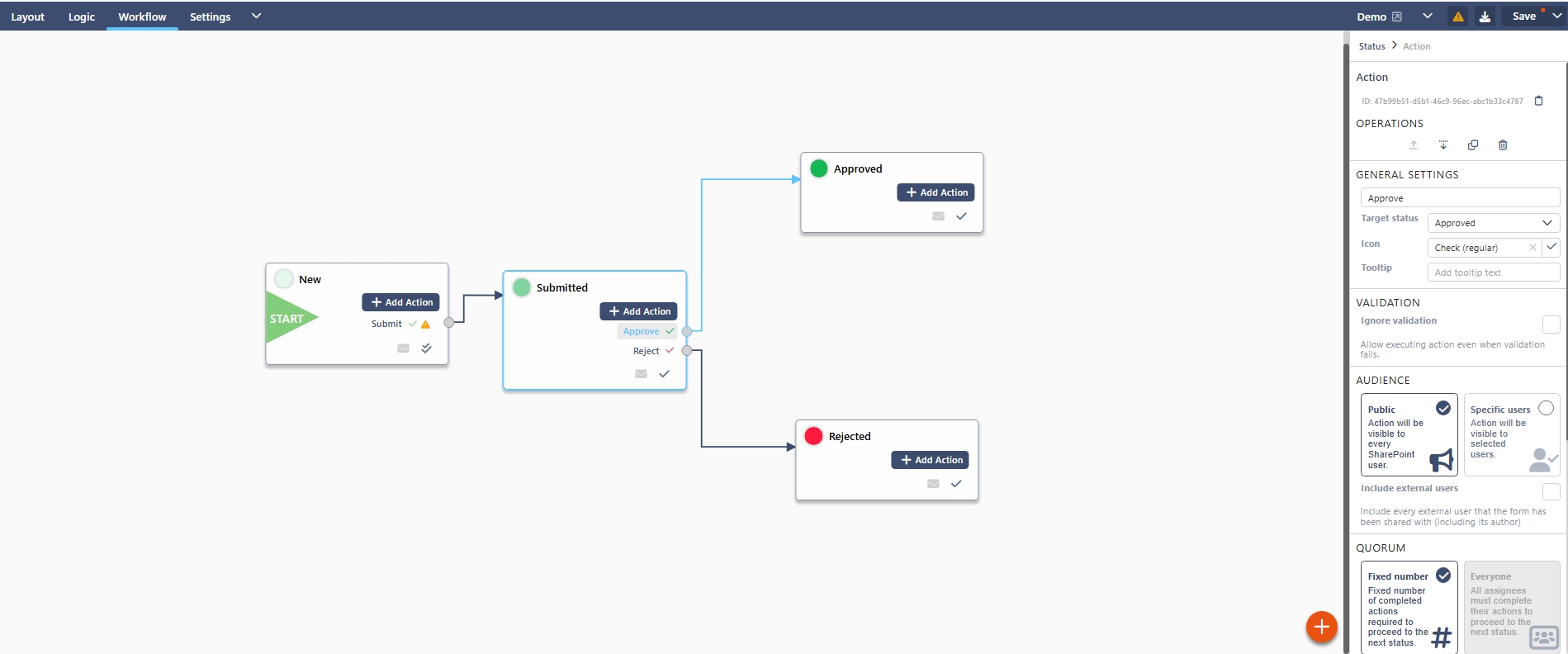
Creating a Status
- Open the Workflow tab.
- Click the orange + button.
- Enter the status name.
- Configure the properties in the right-hand panel.
When a status is selected, the following properties are available:
General Settings
Status Name
The name displayed in the Workflow Status widget.
Colour
Defines the visual colour of the status indicator shown to users.
Use colour consistently:
Green → Approved / Completed
Red → Rejected
Yellow → Pending
Blue → In Review
Quorum Policy
This setting controls how actions within the status behave when multiple approvals exist.
Options typically include:
One quorum
Only one action quorum must be completed to move to another status.
All quorums
All action quorums within the status must be met before moving forward.
This is relevant when you have multiple approval actions inside the same status.
Notifications
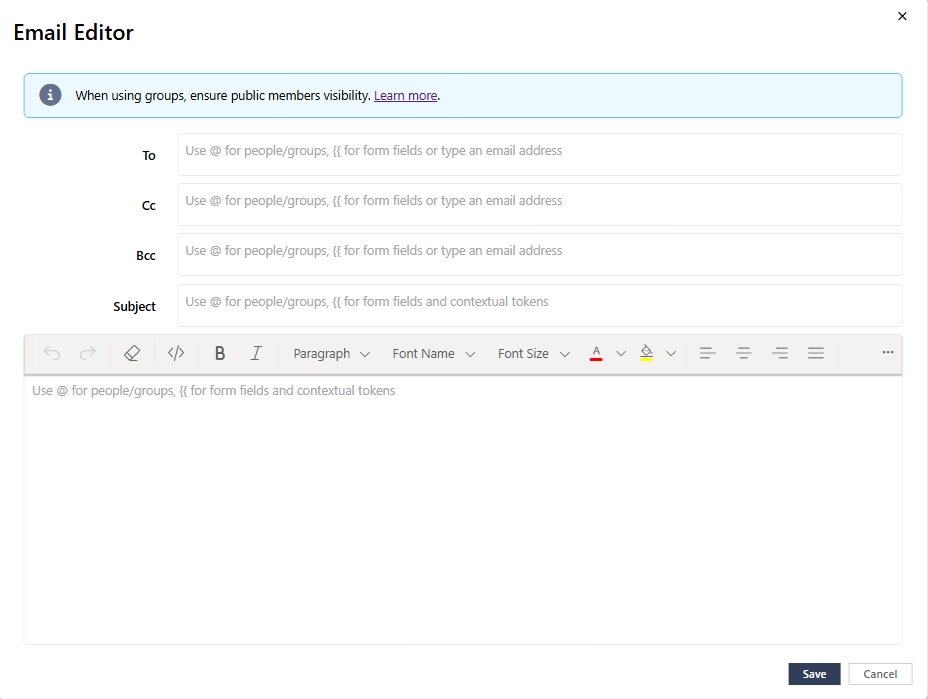
You can enable send email. This sends a notification when the form reaches this status.
Best Practices for Status Design
- Keep status names clear and meaningful.
- Avoid too many intermediate statuses.
- Use colour consistently across forms.
- Always define one clear initial status.
In Summary
Statuses define the structure of your workflow.
They control:
The stage of the form
Which actions are available
What approval conditions apply
Well-designed statuses make workflows easy to understand and maintain
➡️ Next article: Workflow Actions – Full Configuration Guide
