
Search for answers or browse articles about Sintel Apps
Buttons
The Buttons widget allows you to add action buttons to a section, giving users the ability to save, exit, trigger workflow actions, export to PDF, or run custom code.
What Is the Buttons Widget?
The Buttons widget controls the buttons displayed within a form section.
These buttons can include:
- Save
- Exit
- Export to PDF
- Workflow Actions
- Custom Buttons
Buttons can be configured, reordered, styled, and customised.
How to Add the Buttons Widget
- Open the Layout tab.
- Select Widgets in the left panel.
- Drag and drop Buttons into a section.
- Click on the Buttons widget on the canvas.
You will now see:
Left panel – Controls which buttons are included and their order.
Right panel – Button properties and configuration.
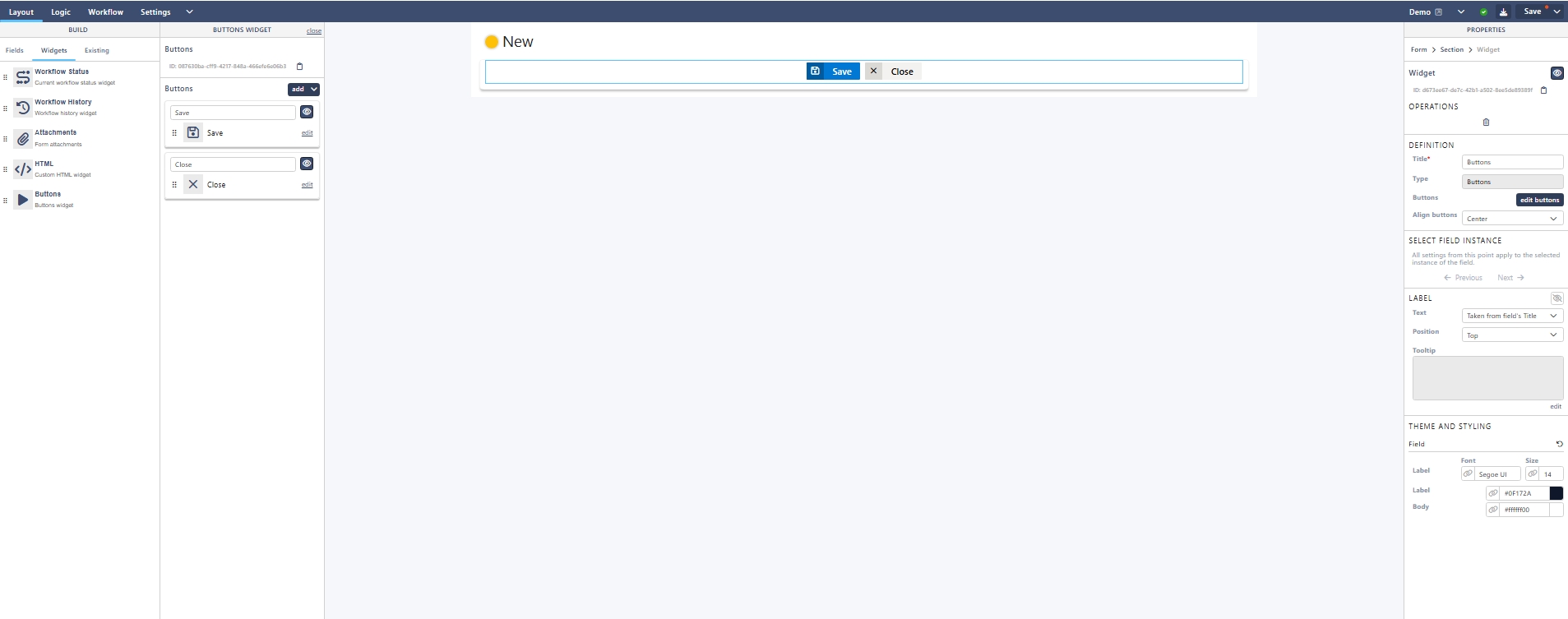
Managing Buttons (Left Panel)
In the left panel, you can:
- Reorder buttons (drag to change position)
- Edit existing buttons
- Add new buttons
To add a new button, click Add.
You can add:
Save Button – Saves the form.
Exit Button – Closes the form.
Export to PDF Button – Allows users to export the form as a PDF (if enabled in Settings).
Action Button – Displays workflow actions (such as Submit, Approve, Reject).
All Missing Actions – Automatically adds all workflow actions that have not yet been included.
Custom Button – Creates a fully custom button using JavaScript.
Button Properties (Right Panel)
When selecting a button, the right-hand panel allows you to configure:
Label – Button text displayed to users
Text size
Text colour
Icon (including Font Awesome icons)
Icon size
Icon position (Left / Right)
Background colour
Width
Tooltip
This allows full visual control over button appearance.
Important: Workflow Actions
Action buttons will only appear if:
Workflow is enabled.
Actions are configured in the Workflow tab.
The current user has permission to see the action.
If no actions are configured, action buttons will not appear.
Custom Buttons
Custom buttons allow you to run JavaScript when clicked.
To add a custom button, click Add > Custom Button, then click Edit. In the Properties panel on the right, you can paste or type your code.
Example:
Open Google in a New Tab
In the Code editor for a Custom button, you can use:
window.open('https://www.google.com', '_blank');
Print Form
window.print();
Reload Form
location.reload();
Open Email Client with Pre-Filled Subject
window.location.href = "mailto:support@yourorg.com?subject=Form%20Query";
Open Microsoft Teams
window.open('https://teams.microsoft.com/l/channel/your-channel-link', '_blank');
