
Search for answers or browse articles about Sintel Apps
-
About Sintel Apps
-
Sintel Forms to Sintel Apps Migration
- Sintel Forms Is Now Sintel Apps – What You Need to Do
- Upgrading from Sintel Forms to Sintel Apps – Migration Guide
- JavaScript API Differences Between Sintel Forms and Sintel Apps
- Migrating Workflow History using a custom Microsoft Flow
- What Does Not Migrate Automatically
- Migration Checklist
- Information for IT Administrators – Installing Sintel Apps
- How to Find Existing Sintel Forms in SharePoint
- Convert a classic SharePoint site to a modern one
-
Getting Started
-
Designer Overview
-
Layout
-
Logic
-
Workflow
-
Settings
-
Product Updates
-
Building Forms
-
End-to-End Examples
- Articles coming soon
-
Checklists & Best Practices
- Articles coming soon
-
Advanced Configurations
-
Troubleshooting
Failed to query permissions
0 out of 5 stars
| 5 Stars | 0% | |
| 4 Stars | 0% | |
| 3 Stars | 0% | |
| 2 Stars | 0% | |
| 1 Stars | 0% |
Issue
When you attempt to open the Sintel Apps page you receive an error “Failed to query permissions”.

Resolution
The error is generally caused by Sintel Apps not having the permissions it requires. There are 3 places to check to overcome this issue.
As a tenant admin please verify the following:
Step 1 – Ensure it’s deployed
Verify the app is deployed from the tenant app catalog by opening
https://YourTenant-admin.sharepoint.com/_layouts/15/tenantAppCatalog.aspx
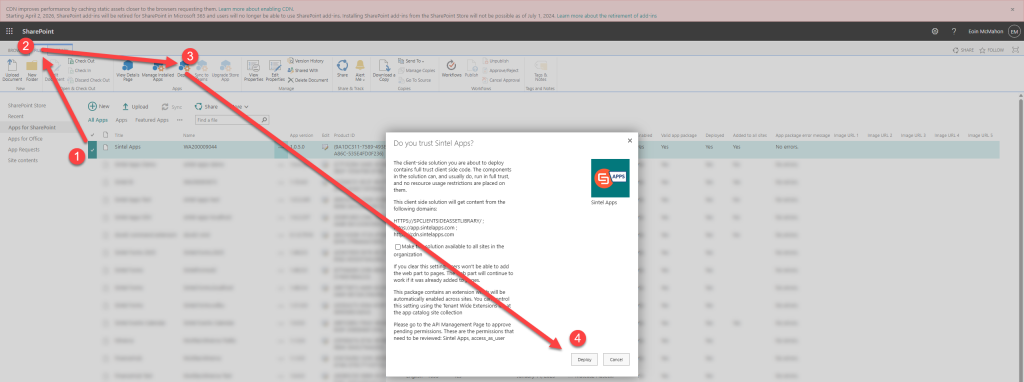
Switch to classic experience, select Sintel Apps app and from the Files tab menu click Deploy if it’s available (you don’t need to add it to all sites).
Step 2 – Ensure it’s approved
Ensure there is an entry in the API access:
https://YourTenant-admin.sharepoint.com/_layouts/15/online/AdminHome.aspx#/webApiPermissionManagement
 If an entry does exist, make sure it’s approved.
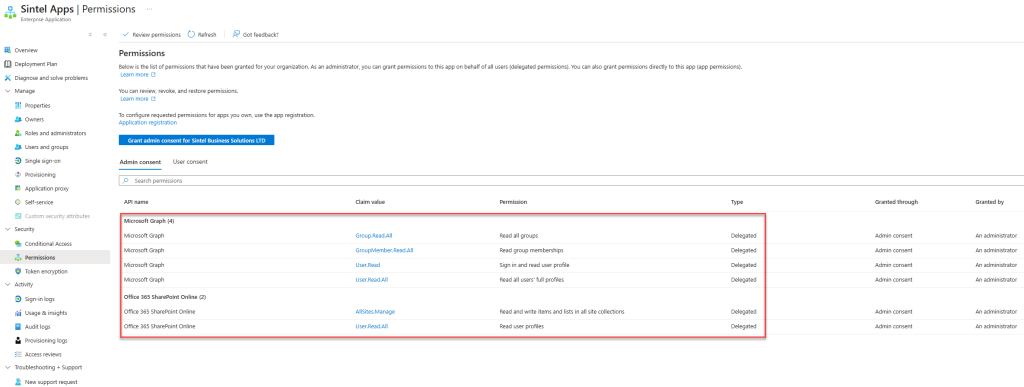
Step 3 – Ensure it’s got permissions
Ensure the app has the permissions it needs in Azure.
0 out of 5 stars
| 5 Stars | 0% | |
| 4 Stars | 0% | |
| 3 Stars | 0% | |
| 2 Stars | 0% | |
| 1 Stars | 0% |