
Search for answers or browse articles about Sintel Apps
Understanding Conditions
A condition defines when a rule should run.
It answers the question: Under what circumstances should this behaviour apply?
Without a condition, a rule cannot evaluate.
Available Condition Types
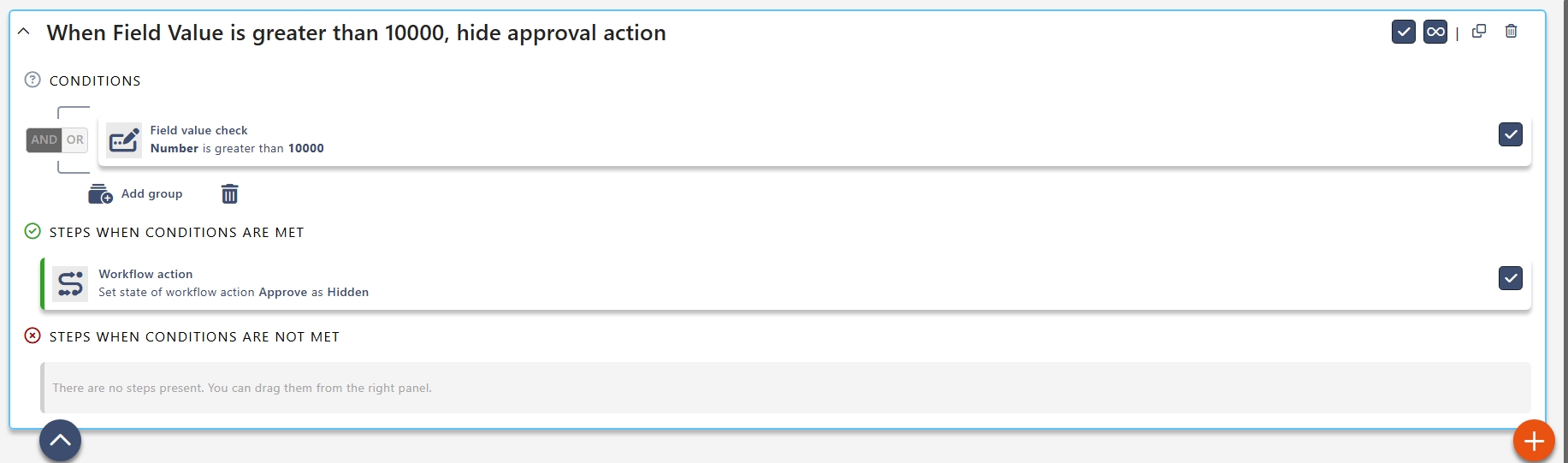
– Field Value Check
Compares a field to a value.
Common operators:
-
Equals
-
Not equals
-
Greater than
-
Less than
-
Contains
Example:
Amount greater than £10,000
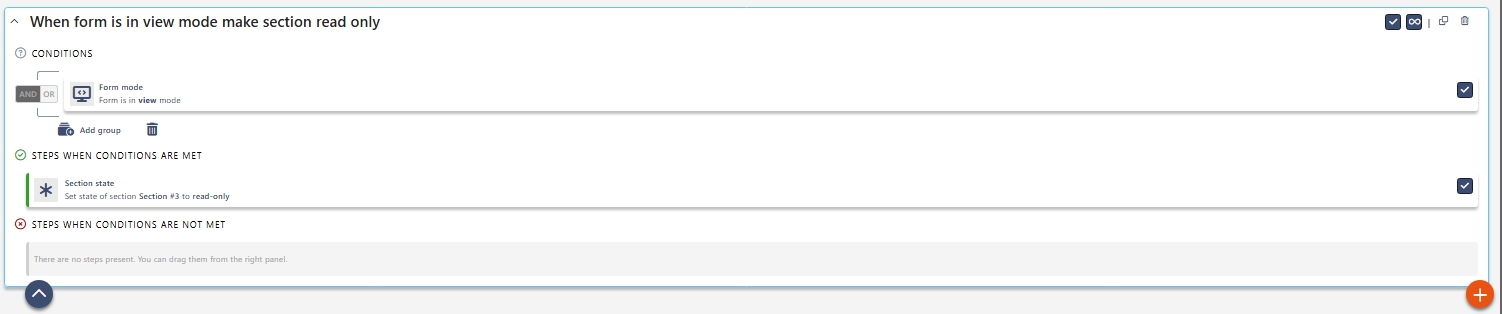
– Form Mode
Checks whether the form is in:
-
New
-
Edit
-
View
Useful for:
-
Showing guidance only during creation
-
Preventing edits after submission
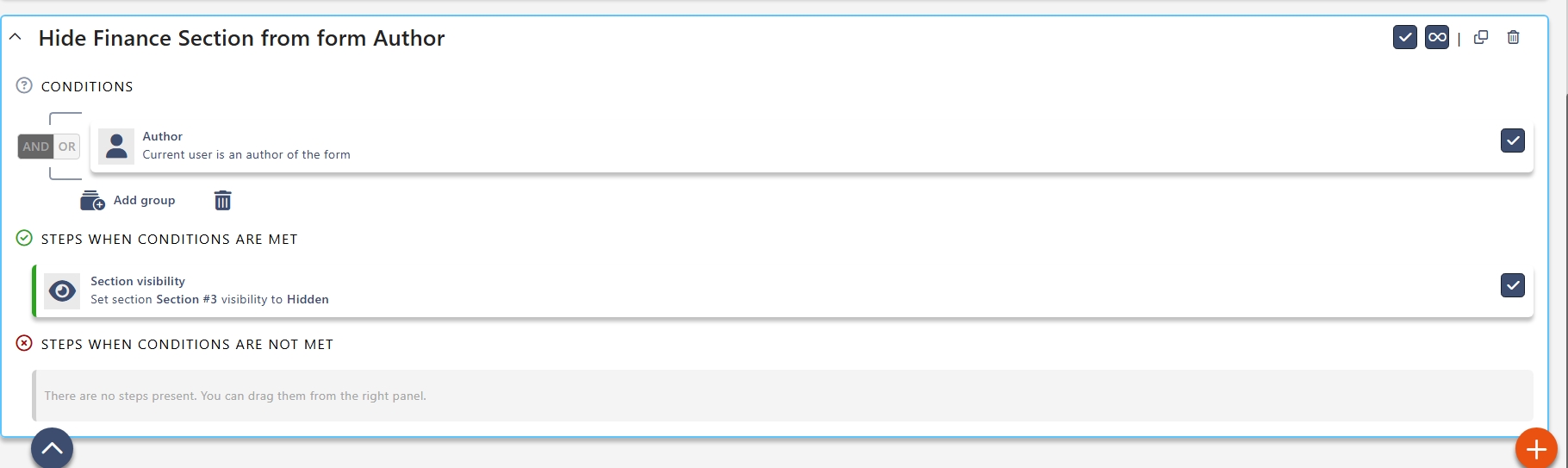
– Author
Checks if the current user is the author of the form item.
Used for:
-
Restricting editing
-
Displaying controls only to the creator
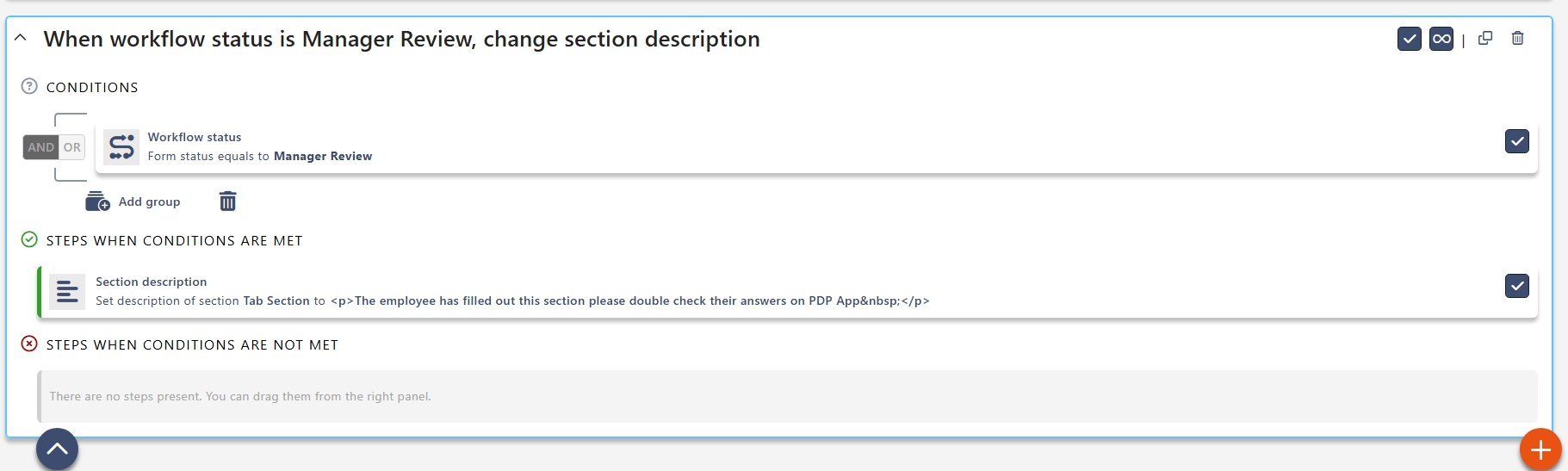
– Workflow Status
Checks the current workflow status.
Example:
Status equals Submitted
Often used to:
-
Show approval buttons
-
Lock sections during review
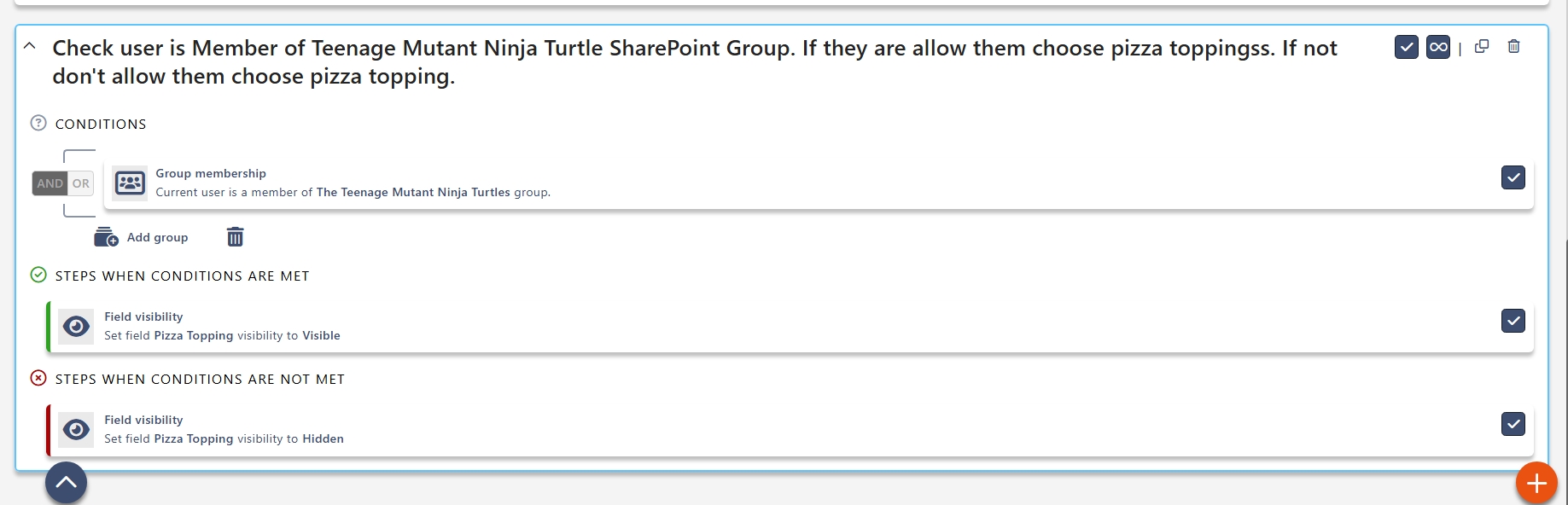
– Group Membership
Checks whether the current user belongs to a specific group.
Used for:
-
Role-based visibility
-
Department-specific controls
– Related List Item Count
Checks how many items exist in a related list.
Example:
Related items count equals 0
Useful for:
- Requiring line items before submission
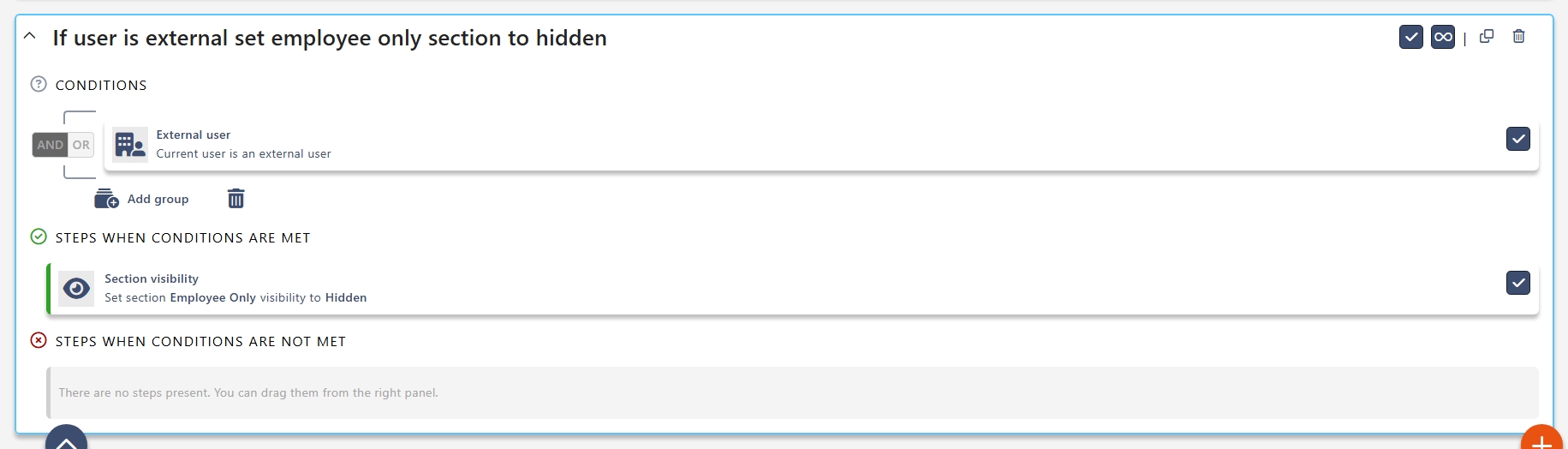
– External User
Checks whether the current user is external.
Useful for:
-
Hiding internal-only sections
- Simplifying forms for external stakeholders
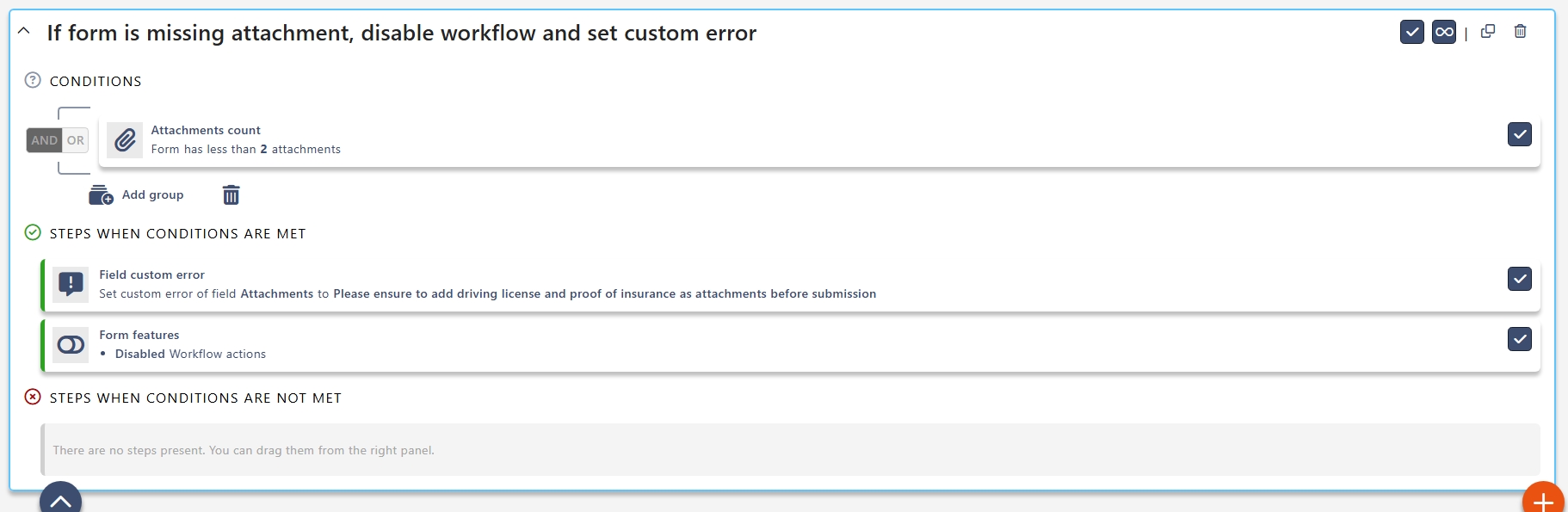
– Attachments Count
Checks the number of attachments.
Example:
Attachments greater than 0
Used to enforce mandatory file uploads
.
– Custom JS Condition
Executes custom JavaScript and evaluates a true/false result.
Intended for advanced scenarios where built-in conditions are insufficient.
Combining Conditions
Conditions can be grouped using:
– AND
All conditions must be true.
– OR
At least one condition must be true.
Example:
Department equals Finance AND Amount greater than £5,000 Both must be true for the rule to apply.