
Search for answers or browse articles about Sintel Apps
Sintel Apps Designer – Overview (Tour)
This article provides a high-level tour of the Sintel Apps Designer and explains how the different areas of the designer work together to build Smart Forms in SharePoint.
It is intended as an orientation guide, not a step-by-step build guide.
What Is the Sintel Apps Designer?
The Sintel Apps Designer is the central interface used to design, configure, and manage Smart Forms built on SharePoint lists.
Using the designer, you can:
- Build user-friendly forms using drag-and-drop
- Add conditional logic and validation
- Configure approval workflows and actions
- Control form behaviour, access, and governance
All configuration is completed directly within your SharePoint site.
Designer Layout at a Glance
The designer is divided into four main tabs, displayed across the top:
Each tab focuses on a different aspect of form configuration.
Layout Tab – Form Design
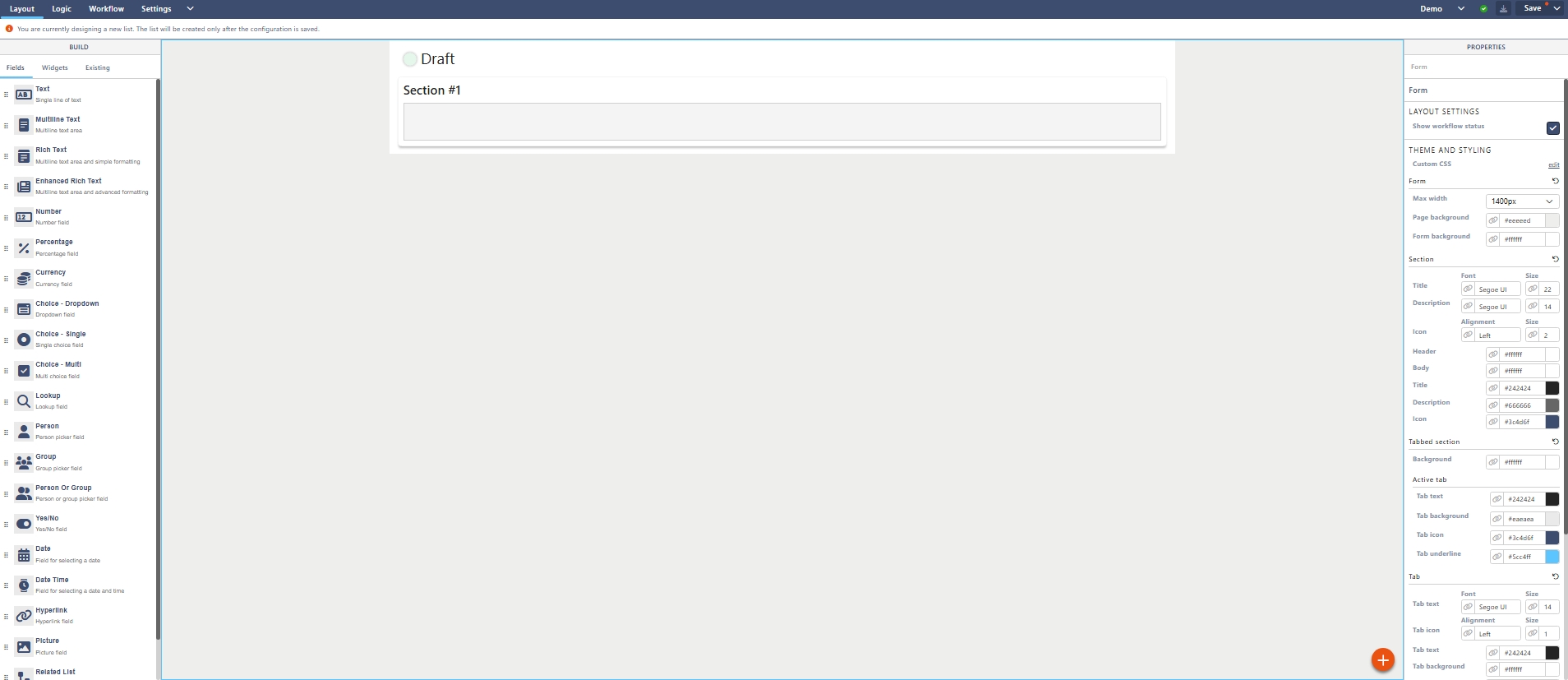
The Layout tab is where you design the visual structure of your form.
What You Use It For
- Adding fields and widgets
- Organising content into sections or tabs
- Styling and formatting the form
- Binding SharePoint list columns to form fields
Key Areas
- Left panel – Fields, widgets, and existing list columns
- Centre canvas – The form layout area
- Right panel – Properties and styling options
This tab controls how the form looks and how users interact with it.
Logic Tab – Rules and Conditions
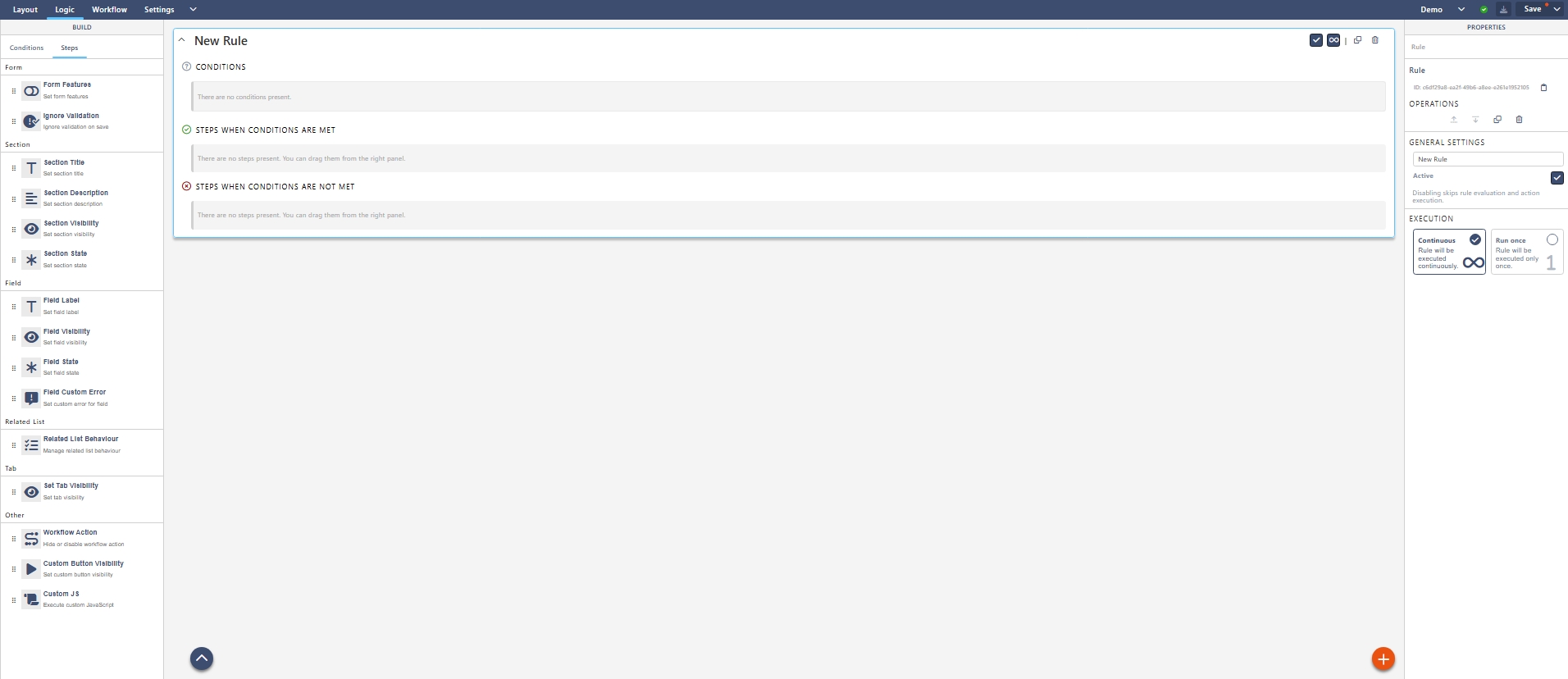
The Logic tab is used to define dynamic behaviour within the form.
What You Use It For
- Showing or hiding fields and sections
- Making fields mandatory based on conditions
- Setting field states (read-only, disabled)
- Adding custom validation messages
How It Works
Logic is built using:
- Conditions (when something is true or false)
- Steps (what happens when conditions are met or not met)
This tab controls how the form responds to user input.
Workflow Tab – Statuses and Actions
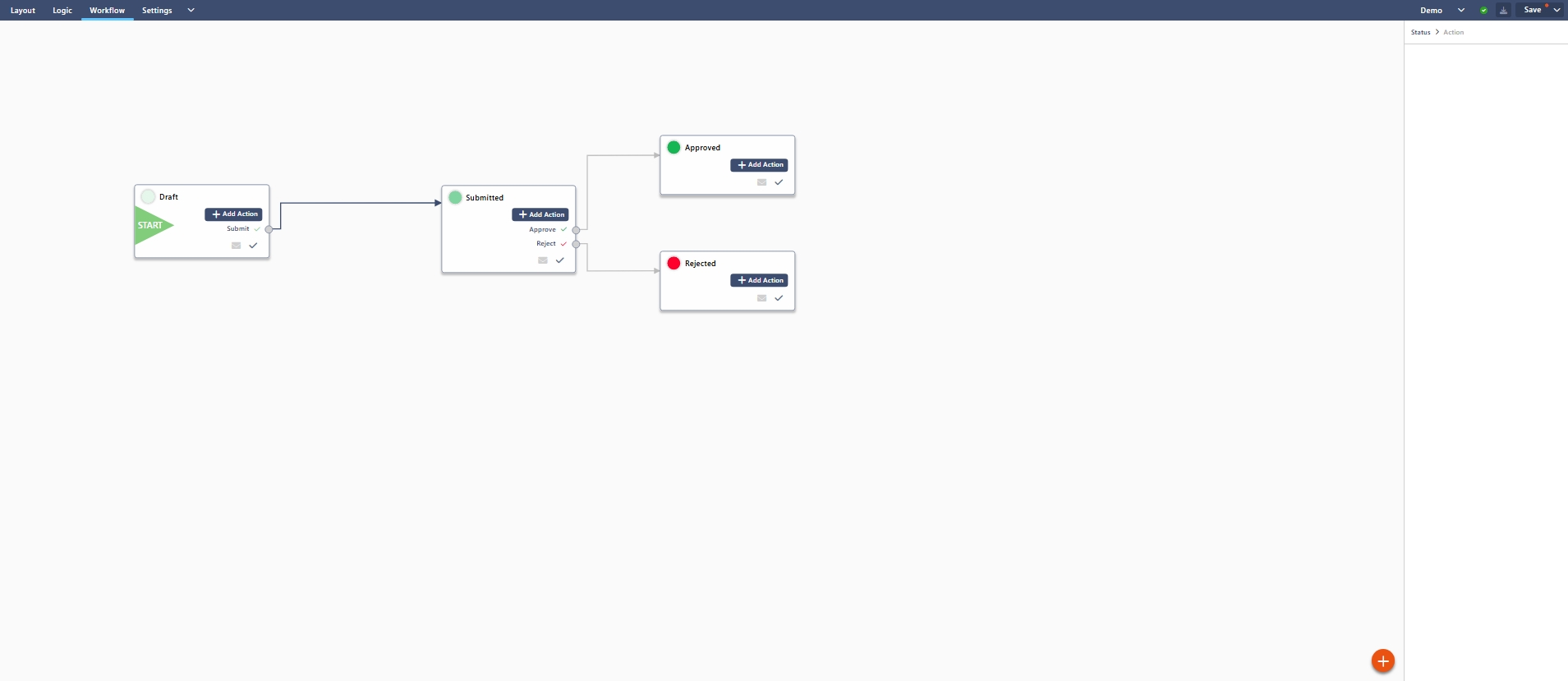
The Workflow tab is used to build structured business processes around your form.
What You Use It For
- Defining form statuses (e.g. New, Submitted, Approved)
- Creating actions users can perform
- Controlling who can see and complete actions
- Configuring approvals and confirmations
Key Concepts
- Statuses represent the state of the form
- Actions move the form between statuses
- Audience and quorum control who must complete actions
This tab controls how the form moves through a process.
Settings Tab – Form Behaviour and Governance
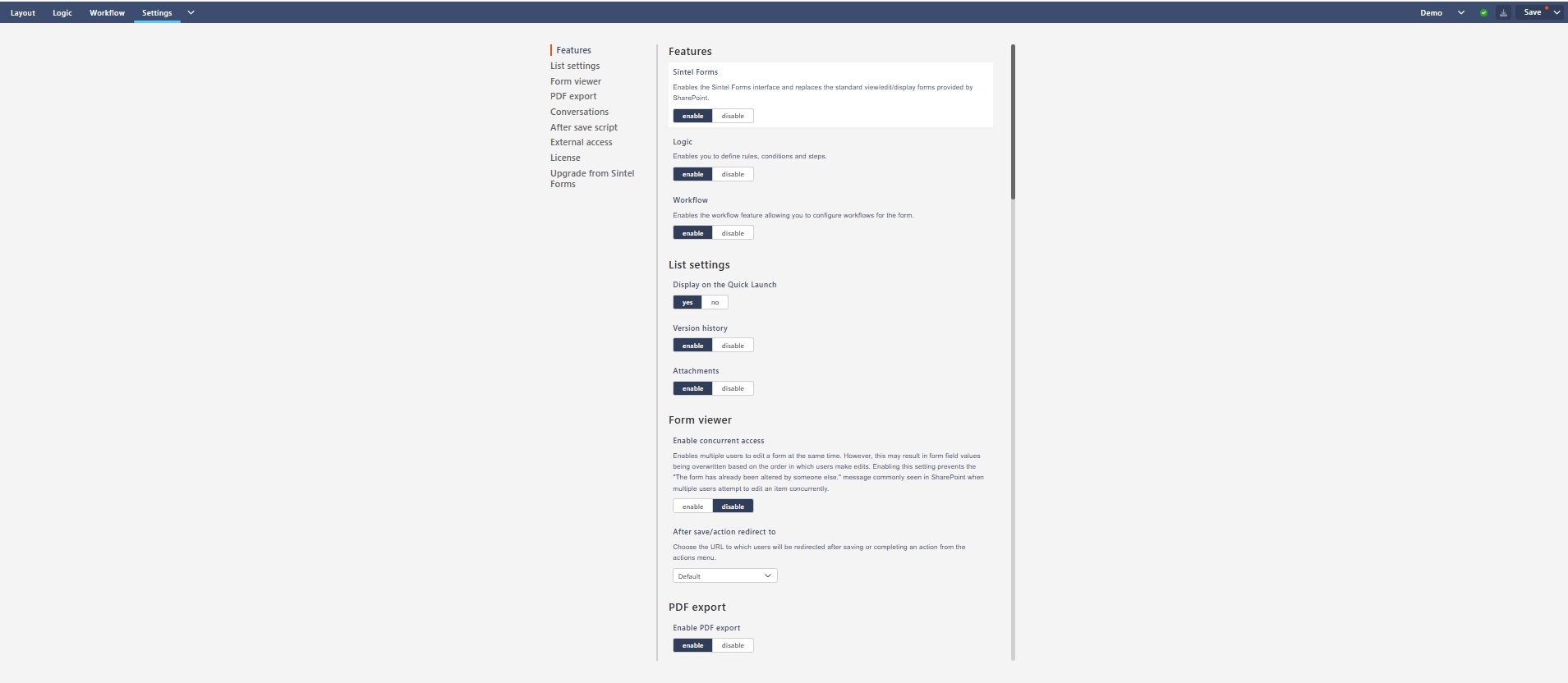
The Settings tab controls overall form behaviour and system-level options.
What You Use It For
- Enabling or disabling features (Logic, Workflow, PDF export)
- Managing list and form behaviour
- Configuring external access and submissions
- Viewing licensing information
- Upgrading from Sintel Forms
Settings apply to the entire form, not individual fields or rules.
How the Tabs Work Together
Each tab has a specific role, but they are designed to work together:
- Layout defines the structure and appearance
- Logic adds intelligence and responsiveness
- Workflow manages business processes
- Settings controls access, features, and behaviour
A typical build flow is:
- Create the form layout
- Add logic for dynamic behaviour
- Configure workflow (if required)
- Finalise settings and access
Key Things to Know
- Changes are not applied until you save the configuration
- Some tabs may not work if features are disabled in Settings
- The underlying SharePoint list is created or updated when the form is saved
- The designer supports both simple forms and complex business solutions
What’s Next?
➡️ Next article: Sintel Apps Designer – Layout Tab (Overview)
This guide will walk through fields, widgets, sections, tabs, and the properties panel in detail