
Search for answers or browse articles about Sintel Apps
How to Find Existing Sintel Forms in SharePoint
This article explains how to locate existing Sintel Forms on a SharePoint site before beginning an upgrade to Sintel Apps.
If you are planning an upgrade, it is useful to first identify:
-
How many forms exist
-
Which SharePoint lists they are attached to
-
Which sites contain them
You can do this using the Sintel Forms Designer (the original Sintel Forms application).
⚠️ Important
This process uses the Sintel Forms Designer, not Sintel Apps.
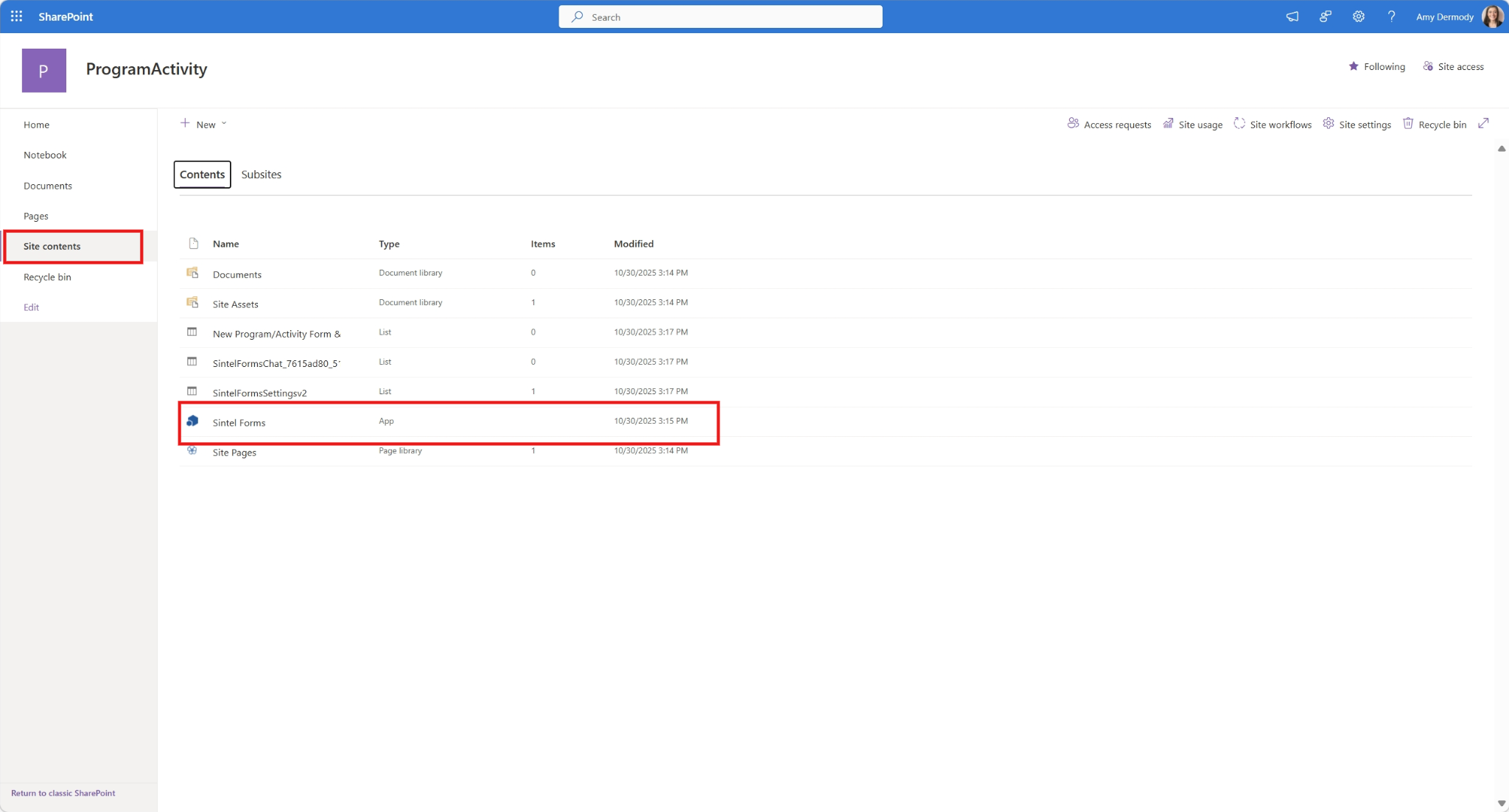
Step 1 – Open Site Contents
Navigate to the SharePoint site and open Site contents from the left navigation menu, or from the Settings (⚙️) menu in the top-right corner.
Step 2 – Open Sintel Forms
Locate the Sintel Forms application in the Site Contents list. Select Sintel Forms.
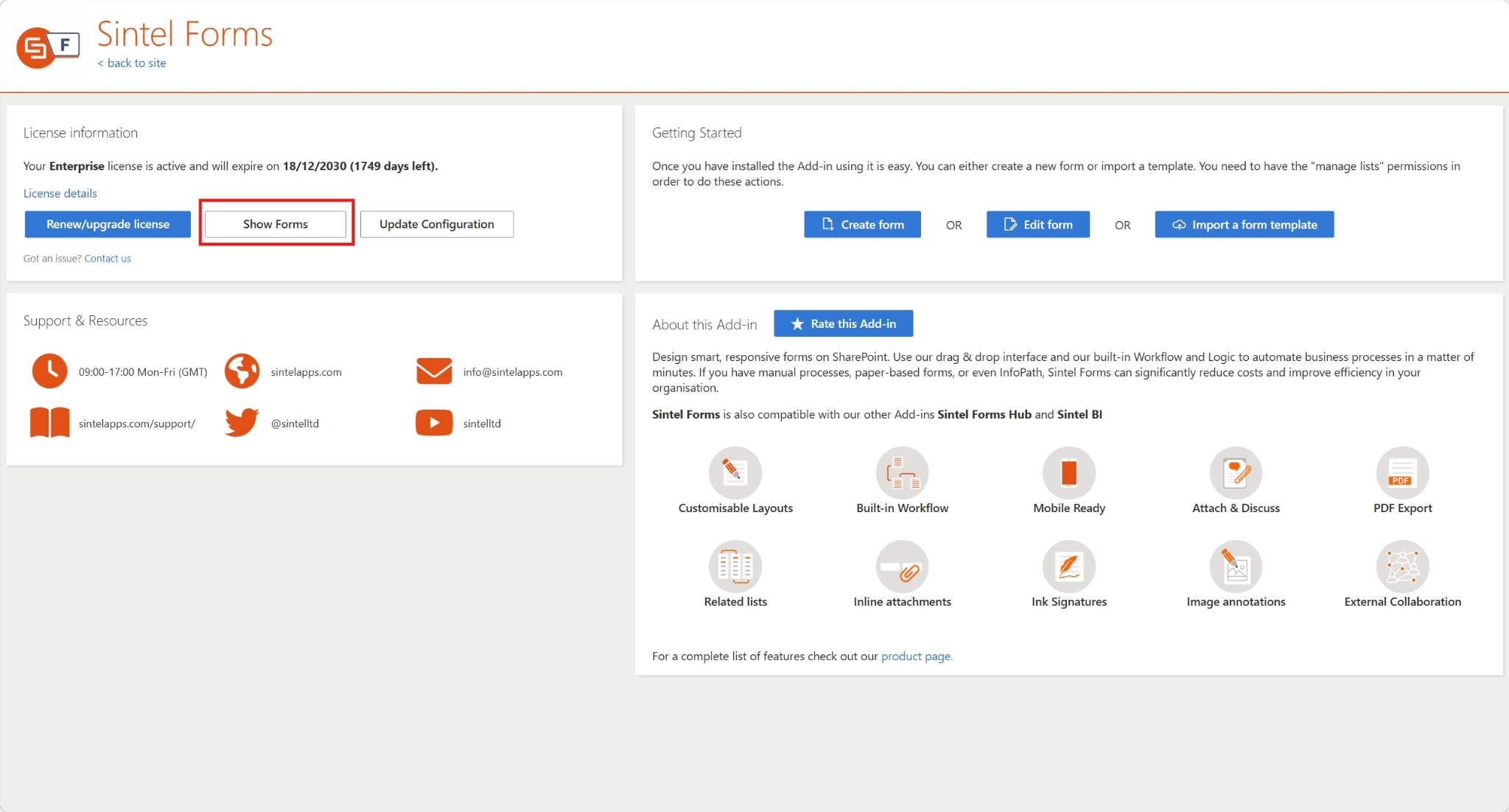
Step 3 – View All Forms on the Site
Once the Sintel Forms designer opens, click: Show Forms
Step 4 – Review the Forms List
The Show Forms view displays all sites which Sintel Forms is configured on and how many forms are on those sites.
Why This Step Is Important
Before beginning the upgrade to Sintel Apps, it is recommended that you first:
-
Identify all existing forms
-
Review their complexity
-
Decide the order in which they should be upgraded
This ensures a structured and controlled upgrade process.