
Search for answers or browse articles about Sintel Apps
How to Configure Workflow Email Notifications
This article explains how to send automated email notifications from Workflow in Sintel Apps.
Emails can be triggered:
-
When a form reaches a specific status
-
When a workflow action becomes available
-
When an action is completed
You will also learn how to use dynamic tokens, people references, and form field values in email recipients and subject lines.
When Can Emails Be Sent?
In Sintel Apps, emails can be configured:
1. On Status Change
Attach an email to a workflow action that moves the form into a specific status.
Example:
-
When a request moves to Approved
-
When a form is Rejected
-
When it enters Manager Review
2. When an Action Becomes Available
You can notify users when they are assigned an action.
Example:
-
Send email to Manager when “Approve” becomes available
-
Notify Finance team when review is required
Configuring an Email
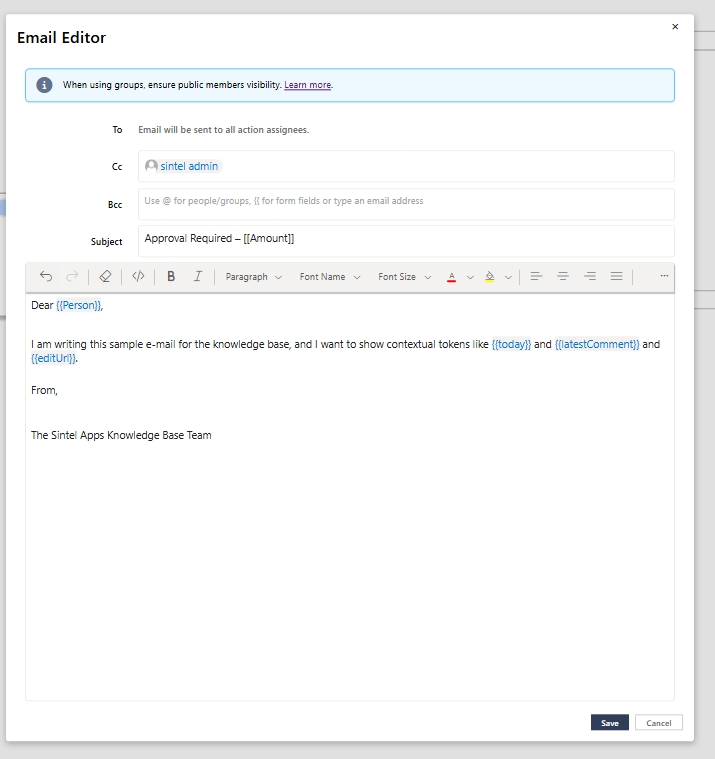
Inside the workflow action, select: Add Email; This opens the Email Editor.
Adding Recipients
In recipient fields (To, Cc, Bcc), you can:
Use @ to reference:
-
Specific users
-
Groups
-
People picker fields
Example: @Manager @Finance Team @Created By
-
Type a direct email address
-
Use people/group tokens
Using Dynamic Form Data
You can insert dynamic content into your email body.
In the Body
Use: {{
-
Form fields
-
Created By
-
Date fields
-
Currency fields
-
Contextual tokens (now, today, status, etc.)
Example: The request amount is {{Amount}}. Submitted by {{Created By}}. Current status: {{formStatus}}.
Using Dynamic Data in Subject Line
In the Subject field:
- Use @ for people or groups
- Use [[ for form fields and contextual tokens
Example subject: Request [[Title]] – Awaiting Approval
Best Practices
✔ Keep subject lines short and searchable
✔ Avoid over-notifying large groups
✔ Use contextual tokens instead of hardcoding text
✔ Test emails in each workflow state