
Search for answers or browse articles about Sintel Apps
Confirmation Screens
Confirmation Screens in Sintel Apps allow you to display a custom message after a user submits or saves a form. This helps confirm that the request was successfully submitted and can provide next steps, reference information, or links.
These screens can be configured for:
-
New Forms – when a user submits a new request
-
Existing Forms – when a user edits and saves an existing request
This feature improves the user experience by clearly confirming successful submissions and guiding users on what happens next.
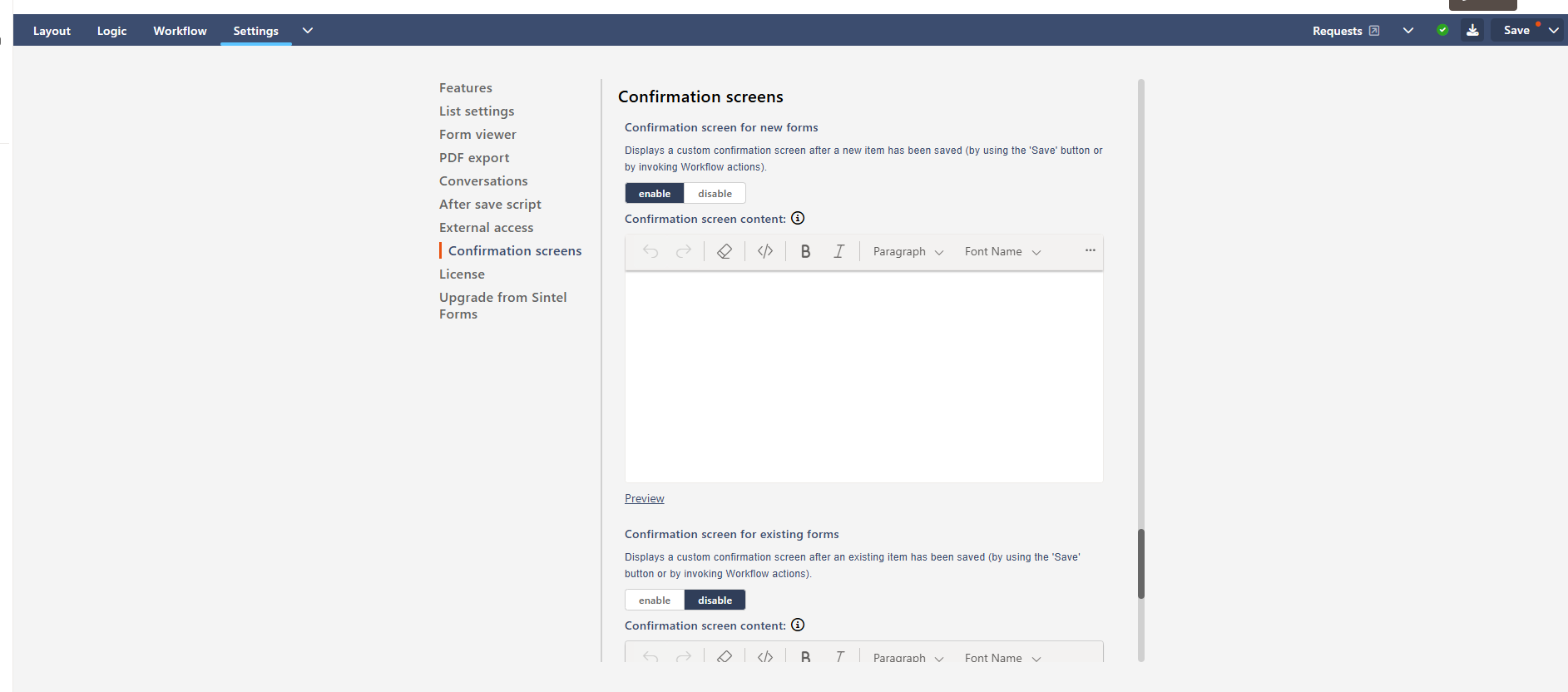
Where to Find the Setting
- Open your Sintel App form.
- Navigate to Settings.
- Select Confirmation screens from the left menu.
- Choose whether to enable confirmation messages for:
-
-
New forms
-
Existing forms
-
You can then enter a custom message in the Confirmation screen content editor.
Example Configuration
Below is an example confirmation message for a Talent Acquisition Support Request form.
Confirmation screen for new forms
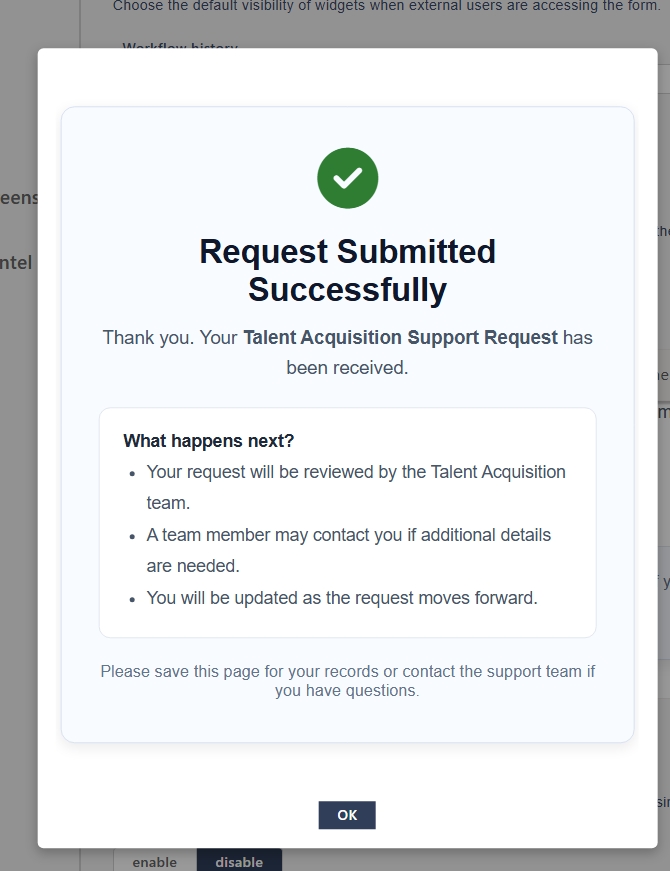
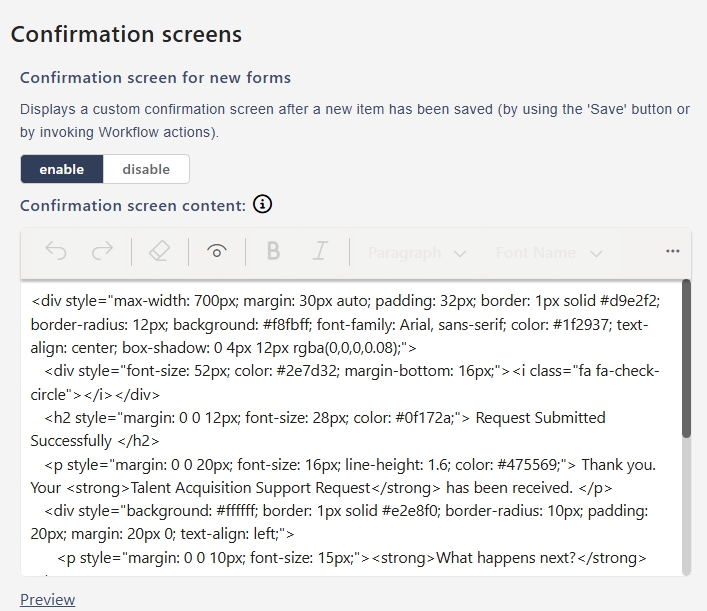
<div style="max-width: 700px; margin: 30px auto; padding: 32px; border: 1px solid #d9e2f2; border-radius: 12px; background: #f8fbff; font-family: Arial, sans-serif; color: #1f2937; text-align: center; box-shadow: 0 4px 12px rgba(0,0,0,0.08);">

  <div style="font-size: 52px; color: #2e7d32; margin-bottom: 16px;">
    <i class="fa fa-check-circle"></i>
  </div>

  <h2 style="margin: 0 0 12px; font-size: 28px; color: #0f172a;">
    Request Submitted Successfully
  </h2>

  <p style="margin: 0 0 20px; font-size: 16px; line-height: 1.6; color: #475569;">
    Thank you. Your <strong>Talent Acquisition Support Request</strong> has been received.
  </p>

  <div style="background: #ffffff; border: 1px solid #e2e8f0; border-radius: 10px; padding: 20px; margin: 20px 0; text-align: left;">
    <p style="margin: 0 0 10px; font-size: 15px;"><strong>What happens next?</strong></p>
    <ul style="margin: 0; padding-left: 20px; color: #475569; line-height: 1.8; font-size: 15px;">
      <li>Your request will be reviewed by the Talent Acquisition team.</li>
      <li>A team member may contact you if additional details are needed.</li>
      <li>You will be updated as the request moves forward.</li>
    </ul>
  </div>

  <p style="margin-top: 18px; font-size: 14px; color: #64748b;">
    Please save this page for your records or contact the support team if you have questions.
  </p>
</div>
Confirmation screen for existing forms
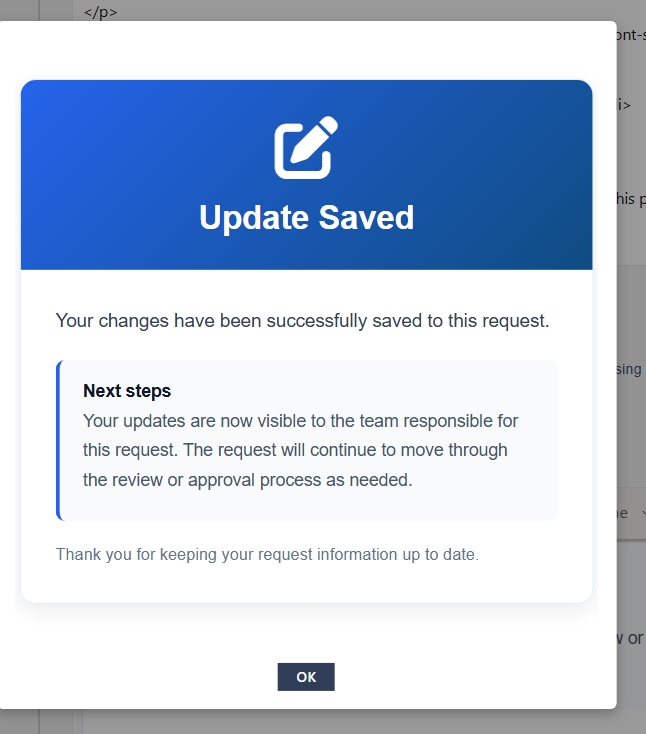
<div style="max-width: 720px; margin: 30px auto; border-radius: 14px; overflow: hidden; font-family: Arial, sans-serif; box-shadow: 0 6px 18px rgba(0,0,0,0.08); border: 1px solid #dbeafe;">

  <div style="background: linear-gradient(135deg, #2563eb, #0f4c81); padding: 28px; text-align: center; color: white;">
    <div style="font-size: 54px; margin-bottom: 12px;">
      <i class="fa fa-pen-to-square"></i>
    </div>
    <h2 style="margin: 0; font-size: 28px;">Update Saved</h2>
  </div>

  <div style="background: #ffffff; padding: 30px;">
    <p style="font-size: 16px; line-height: 1.7; color: #334155; margin-top: 0;">
      Your changes have been successfully saved to this request.
    </p>

    <div style="background: #f8fafc; border-left: 4px solid #2563eb; padding: 18px 20px; border-radius: 8px; margin: 20px 0;">
      <p style="margin: 0 0 10px; font-size: 15px; font-weight: bold; color: #0f172a;">Next steps</p>
      <p style="margin: 0; font-size: 15px; line-height: 1.7; color: #475569;">
        Your updates are now visible to the team responsible for this request.
        The request will continue to move through the review or approval process as needed.
      </p>
    </div>

    <p style="font-size: 14px; color: #64748b; margin-bottom: 0;">
      Thank you for keeping your request information up to date.
    </p>
  </div>
</div>
Example Use Cases
| Scenario | Example Message |
|---|---|
| Request Submission | “Your request has been submitted successfully. Our team will review it within 2 business days.” |
| IT Ticket | “Your IT support request has been logged. Please reference ticket ID #[ID] for future communication.” |
| HR Form | “Your HR request has been received and will be processed shortly.” |
Best Practices
-
Confirm success clearly – Start with a clear success message.
-
Include helpful details – Reference request ID or next steps.
-
Keep it concise – Users only need confirmation and guidance.
-
Use formatting – Bullets and spacing improve readability.
-
Use the Preview option to see how the confirmation screen will appear to users.