
Search for answers or browse articles about Sintel Apps
Choice Fields (Dropdown vs Multi-Choice)
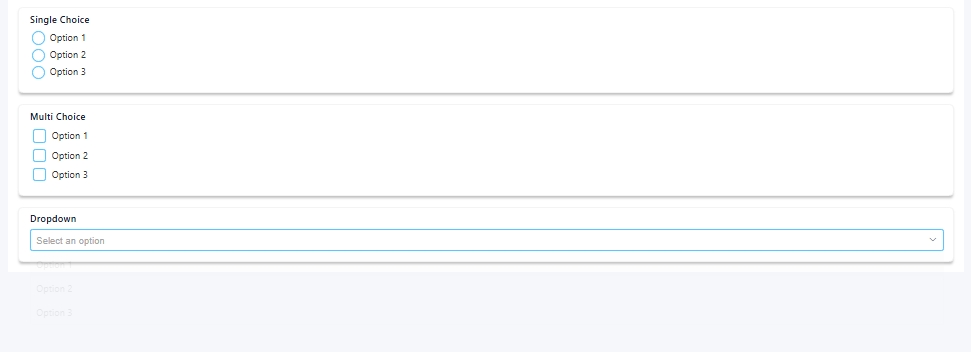
This article explains how Choice fields work in the Sintel Apps Designer and the difference between:
- Choice – Dropdown
- Choice – Single
- Choice – Multi
Choice fields are used when users must select from predefined options instead of typing free text. When added to a form, they create a corresponding column in the underlying SharePoint list.
What Is a Choice Field?
A Choice field allows you to define a fixed list of options such as:
-
Department
-
Request Type
-
Priority
-
Category
-
Status
Using predefined choices improves:
-
Data consistency
-
Reporting accuracy
-
Filtering and grouping
-
Workflow logic reliability
1. Choice – Dropdown
What It Is: A single-selection field displayed as a dropdown menu.
How It Appears: Users click the dropdown and select one option.
Best Used For:
-
Department
-
Request Type
-
Priority
-
Region
-
Category
Key Characteristics
-
Only one option can be selected
-
Compact and clean appearance
-
Ideal for structured processes
-
Works very well with Logic and Workflow
When to Use:
Use Dropdown when:
-
Only one value should ever apply
-
You want a cleaner layout
-
The field drives workflow or approvals
This is the most common and recommended option for process-driven forms.
2. Choice – Single
What It Is
A single-selection field displayed as visible selectable options (typically radio buttons).
How It Appears
All options are shown on screen. Users select one.
Best Used For
-
Yes/No alternatives
-
Short option lists (2–4 options)
-
High-visibility decisions
-
Critical branching questions
Key Characteristics
-
Only one option can be selected
-
All options are visible immediately
-
Good for important decision points
When to Use
Use Single Choice when:
-
The number of options is small
-
You want users to see all options at once
-
The decision significantly affects form behaviour
Avoid using it for long lists — it can make forms cluttered.
3. Choice – Multi
What It Is: A multi-selection field allowing users to select more than one option.
How It Appears: Displayed as checkboxes.
Best Used For:
-
Services required
-
Systems impacted
-
Applicable policies
-
Tags or categories
-
Skills or competencies
Key Characteristics:
-
Multiple selections allowed
-
Stored as multiple values
-
Can be used in Logic rules
-
Requires careful configuration if driving workflow
When to Use
-
More than one option may apply
-
You are collecting tags or classifications
-
The field does not require strict single-value control
Avoid using Multi if only one selection should be valid.
Comparison Overview
| Feature | Dropdown | Single | Multi |
|---|---|---|---|
| Selections allowed | One | One | Multiple |
| Display style | Dropdown list | Radio buttons | Checkboxes |
| Best for | Structured processes | Small option sets | Flexible tagging |
| Space usage | Compact | Moderate | Larger |
| Workflow simplicity | High | High | Moderate |
Configuring Choice Fields
When creating a Choice field, you can configure:
-
Label
-
Option list (one per line)
-
Default value
-
Required state
-
Visibility
-
Read-only state
-
Validation message
-
Styling
Carefully define your option list before publishing the form.
Using Choice Fields in Logic
Choice fields are commonly used to:
-
Show or hide sections
-
Make other fields required
-
Trigger workflow transitions
-
Change field states
Example:
If Request Type = Project, show the “Project Details” section.
For Multi fields:
If “Systems Impacted” contains “Finance”, display additional validation fields.
Best Practices
-
Use Dropdown for most structured fields.
-
Use Single when visibility of options is important.
-
Use Multi only when multiple answers are genuinely required.
-
Keep option lists consistent and clearly named.
-
Avoid long lists in Single or Multi fields.
Common Mistakes to Avoid
-
Using Multi when only one option should be allowed.
-
Creating similar or duplicate options.
-
Adding new options after building Logic without reviewing conditions.
-
Using free text instead of structured choices.
Key Things to Know
-
Choice fields create SharePoint choice columns.
-
Existing items retain their stored values if options change.
-
Multi-choice values may require more careful logic configuration.
-
Choice fields are ideal for workflow-driven forms.
➡️ Next article: Lookup Fields – When and How to Use Them