
Search for answers or browse articles about Sintel Apps
Add Sintel Apps to Your Microsoft 365 Tenant
This guide is for IT administrators who need to add Sintel Apps to their organisation’s Microsoft 365 tenant.
Once the app has been added, site owners will be able to install it on their individual SharePoint sites as needed.
Alternatively, you can choose to make it available across all sites during the setup process (recommended).
Step 1: Access the SharePoint Store
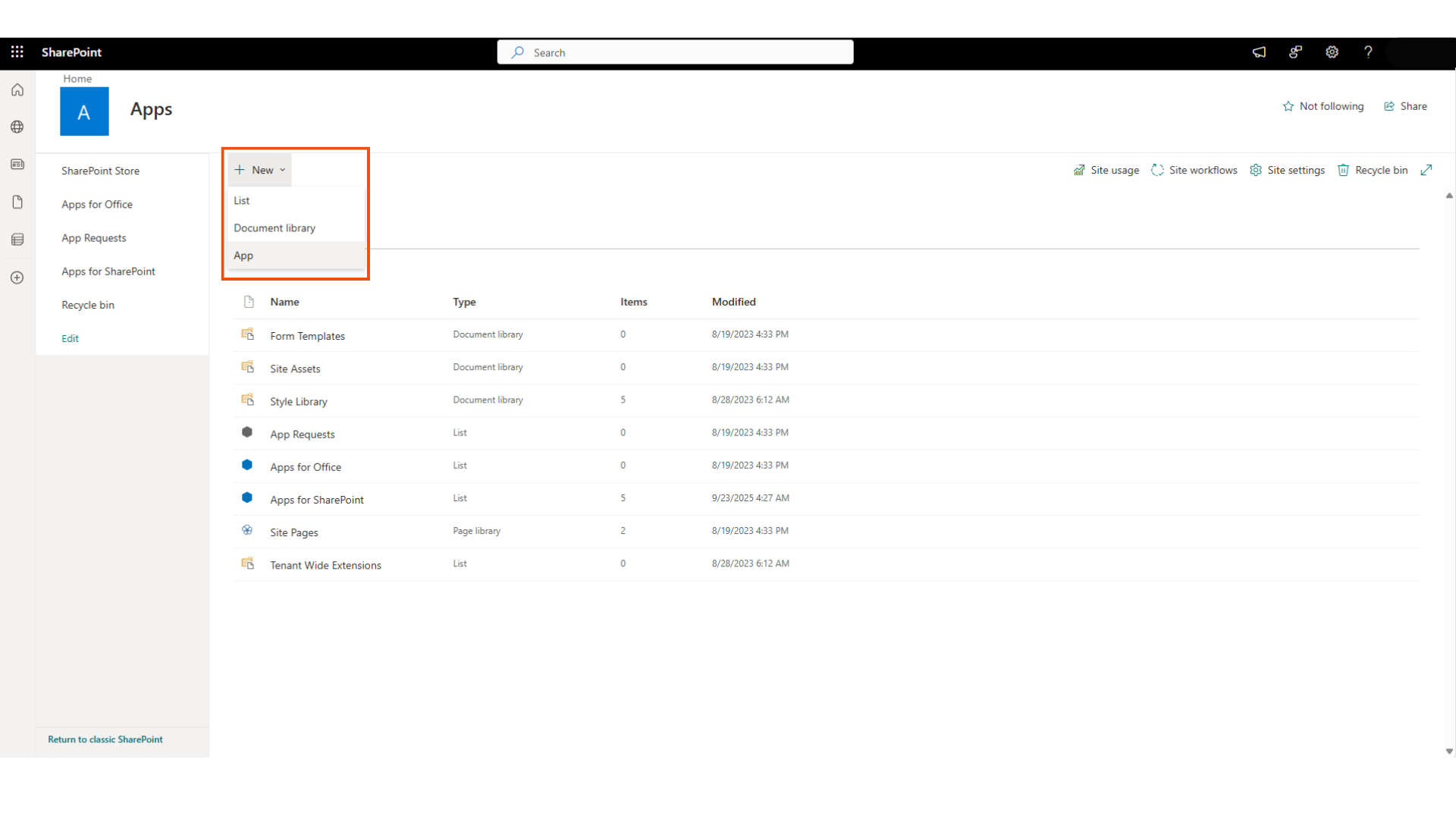
- Navigate to your SharePoint site.
- Go to Site contents from the left-hand menu.
- Click Add an app.
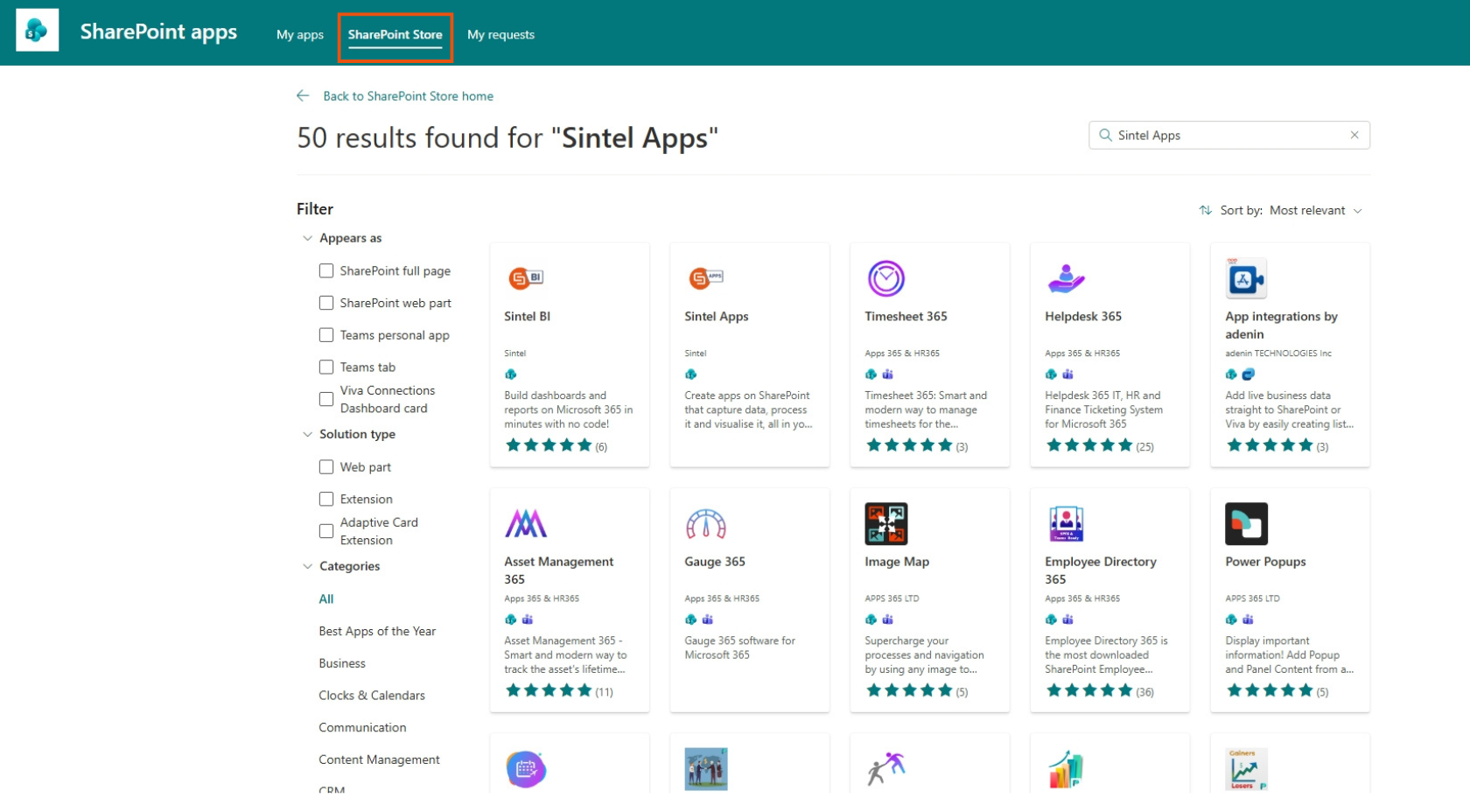
- On the top banner, select SharePoint Store.
Step 2: Find and Add Sintel Apps
- In the SharePoint Store, search for “Sintel Apps”.
- Click the Sintel Apps tile in the search results.
- Select Add.
Step 3: Choose App Availability
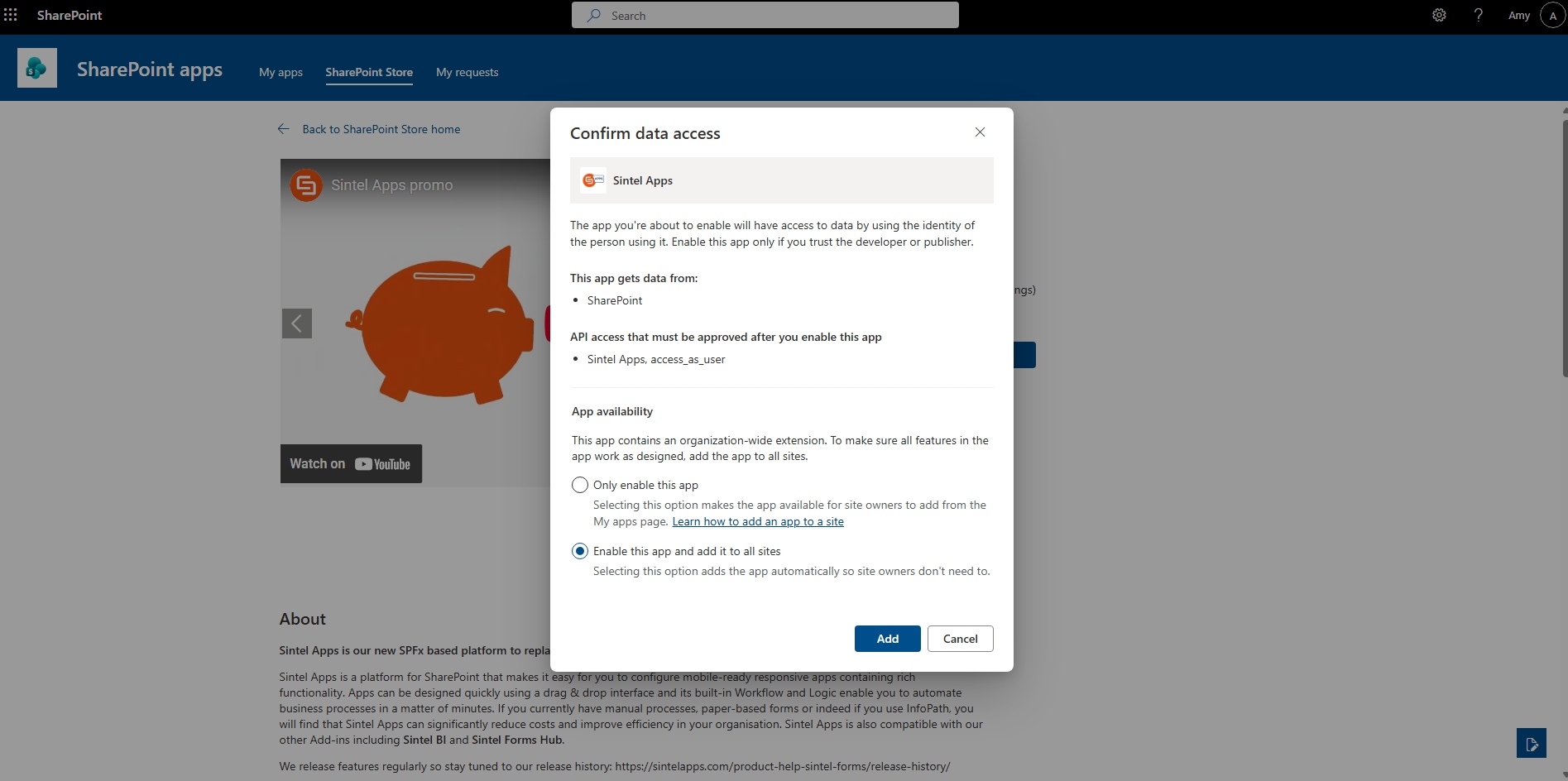
You will now see a pop-up window asking you to confirm data access.
In the pop-up:
-
Under App availability, you’ll see an option to make the app available to all sites.
-
As Sintel Apps includes an organisation-wide extension, it’s recommended that you enable it for all sites to ensure all features work correctly.
Click: Enable this app and add it to all sites, and then click Add.
Step 4: Approve API Access
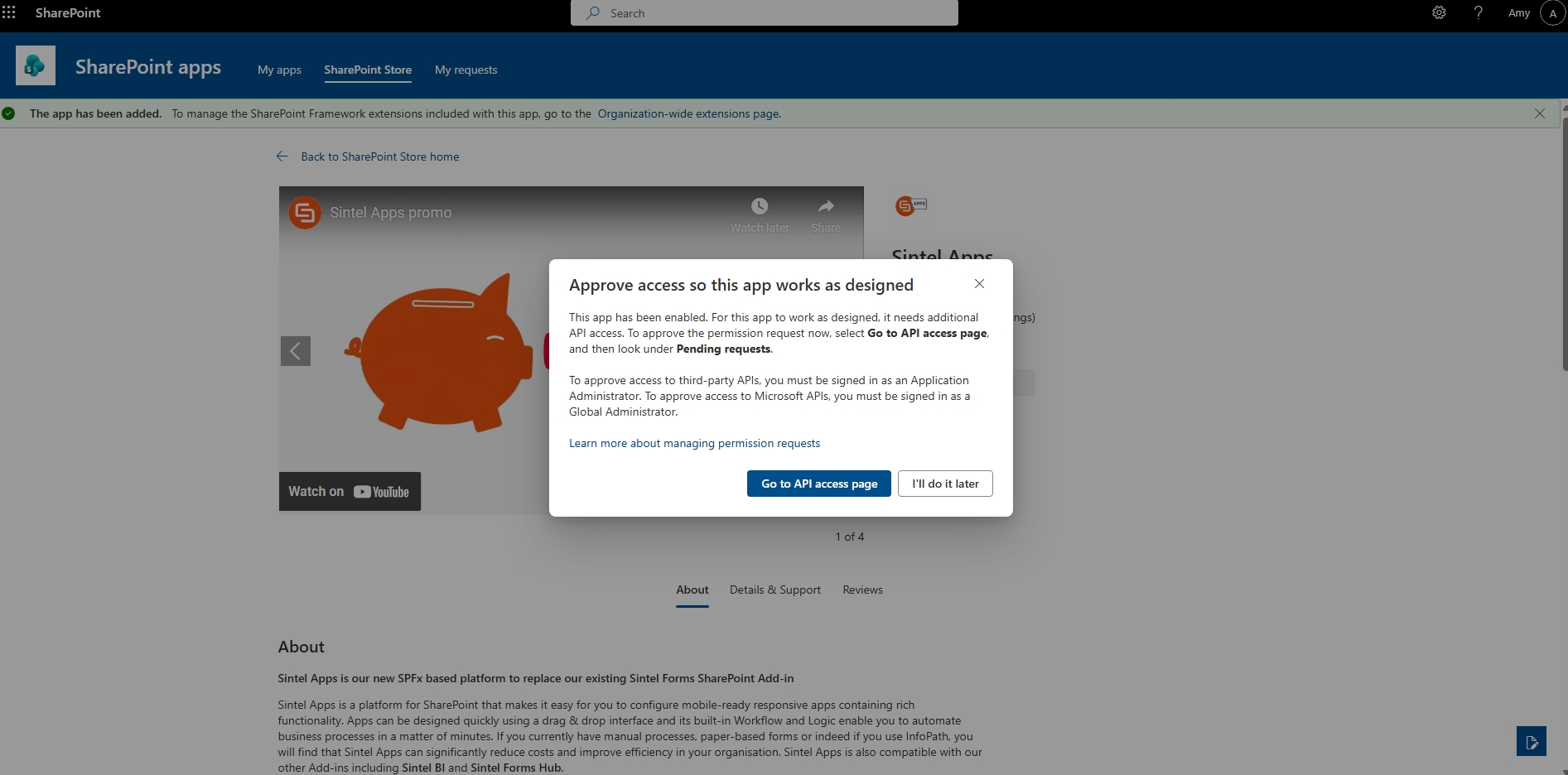
After adding the app, you’ll be prompted to approve its required permissions:
- Click Go to API access page when prompted.
- On the API access page, you’ll see pending requests.
- Select the Sintel Apps request and click Approve (top left).
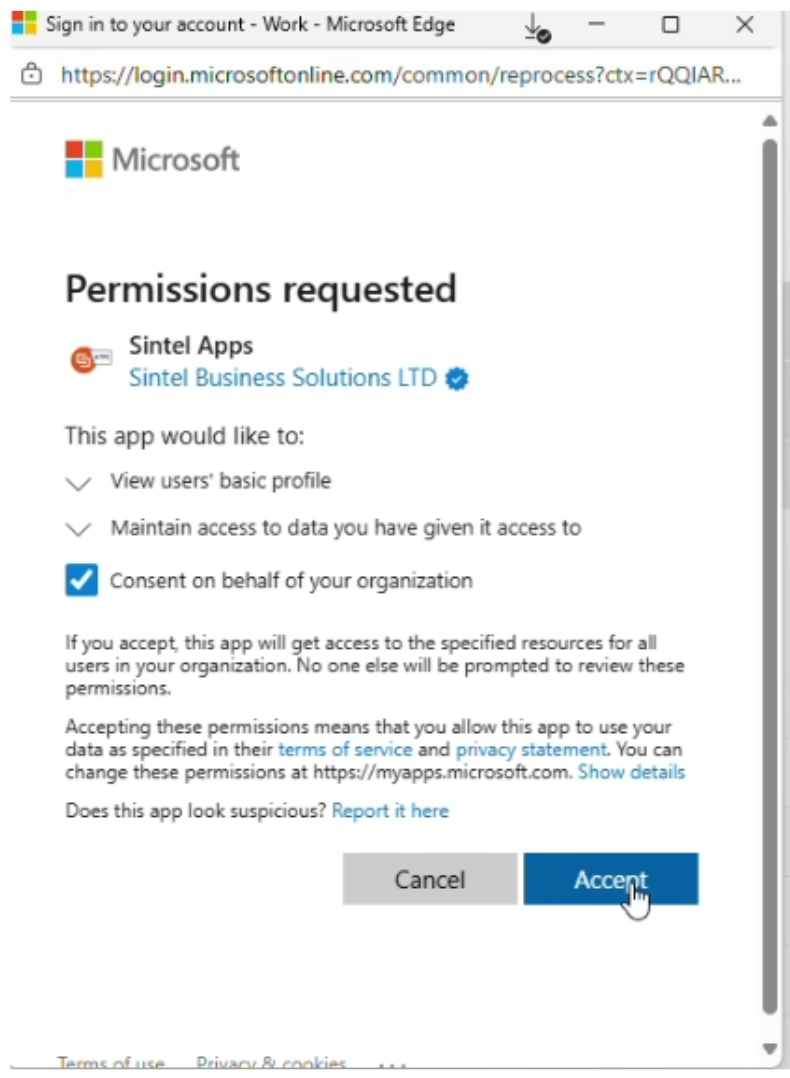
You’ll then see a Permissions requested pop-up:
-
Tick Consent on behalf of your organisation.
-
Click Accept.
Another pop-up will appear, outlining what the app will access: such as groups, memberships, permissions, and site collections.
- Click Accept again.
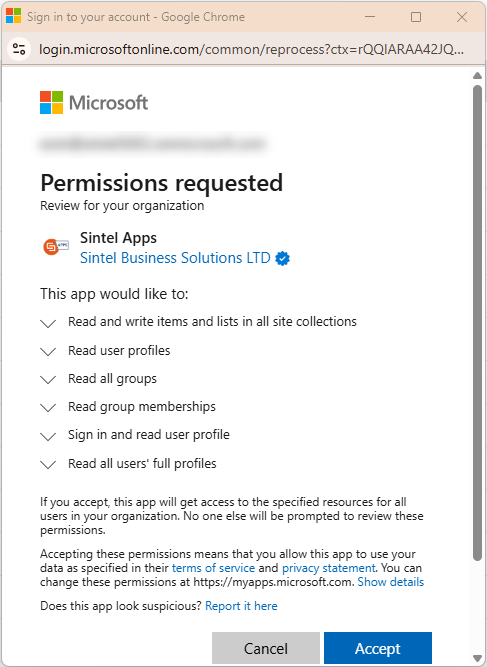
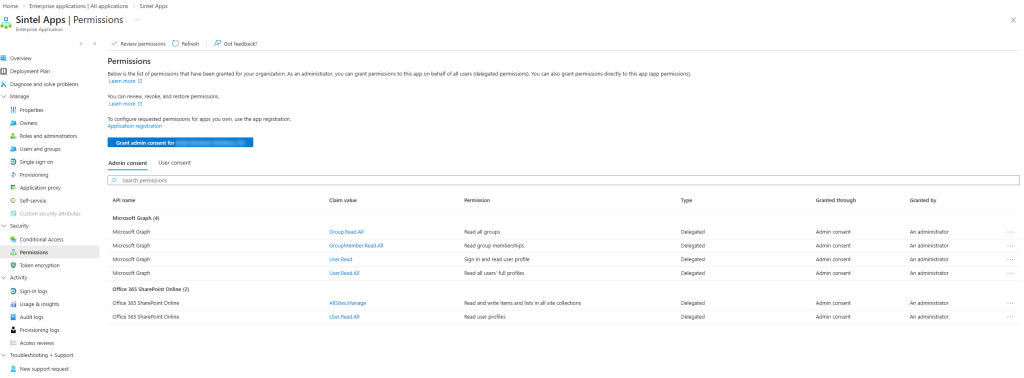
The process you are following will create an Enterprise application in Azure named “Sintel Apps” and this application will be granted Delegated permissions to Microsoft Graph and SharePoint Online. This means that the application will essentially inherit the permissions of the user who is using it and this ensures that the application can only access data the the users has access to.
Step 5: Confirm Installation
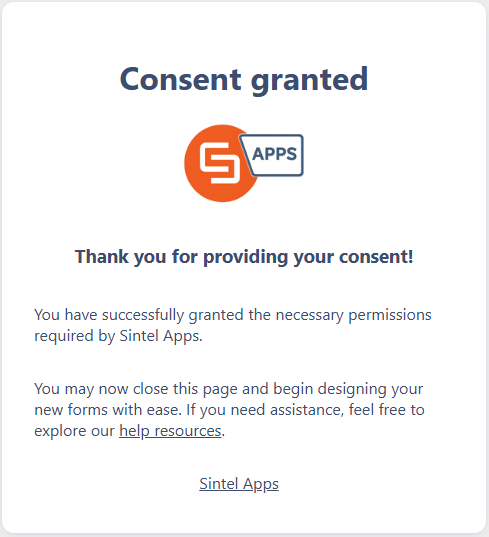
Once consent is granted, you’ll see a confirmation message as follows:
To confirm the installation:
-
Return to your SharePoint site’s Site contents page.
-
You should now see Sintel Apps listed there.
That’s it!
Sintel Apps has now been successfully added to your tenant and is ready for use. Next, you should follow the article in the link so that Site owners can start using its features across their sites.
Permissions Tip
If you have any issues with permissions on Sintel Apps a tenant admin can:
- Remove any pre-existing permission for Sintel Apps from the API Access screen here:
https://YourTenant-admin.sharepoint.com/_layouts/15/online/AdminHome.aspx#/webApiPermissionManagement - Grant the required permissions using the following link:
https://app.sintelapps.com/admin-consent