
Search for answers or browse articles about Sintel Apps
How to Build Common Workflow Patterns in Sintel Apps
This article explains four common workflow patterns used in business solutions and how to build them in Sintel Apps.
Each example includes:
-
When to use it
-
Status structure
-
Actions required
-
Key configuration settings
1. Simple Linear Approval
When to Use
-
Standard request forms
-
Low-risk approvals
-
One decision-maker
Examples:
Leave requests, Basic purchase approvals, Access requests
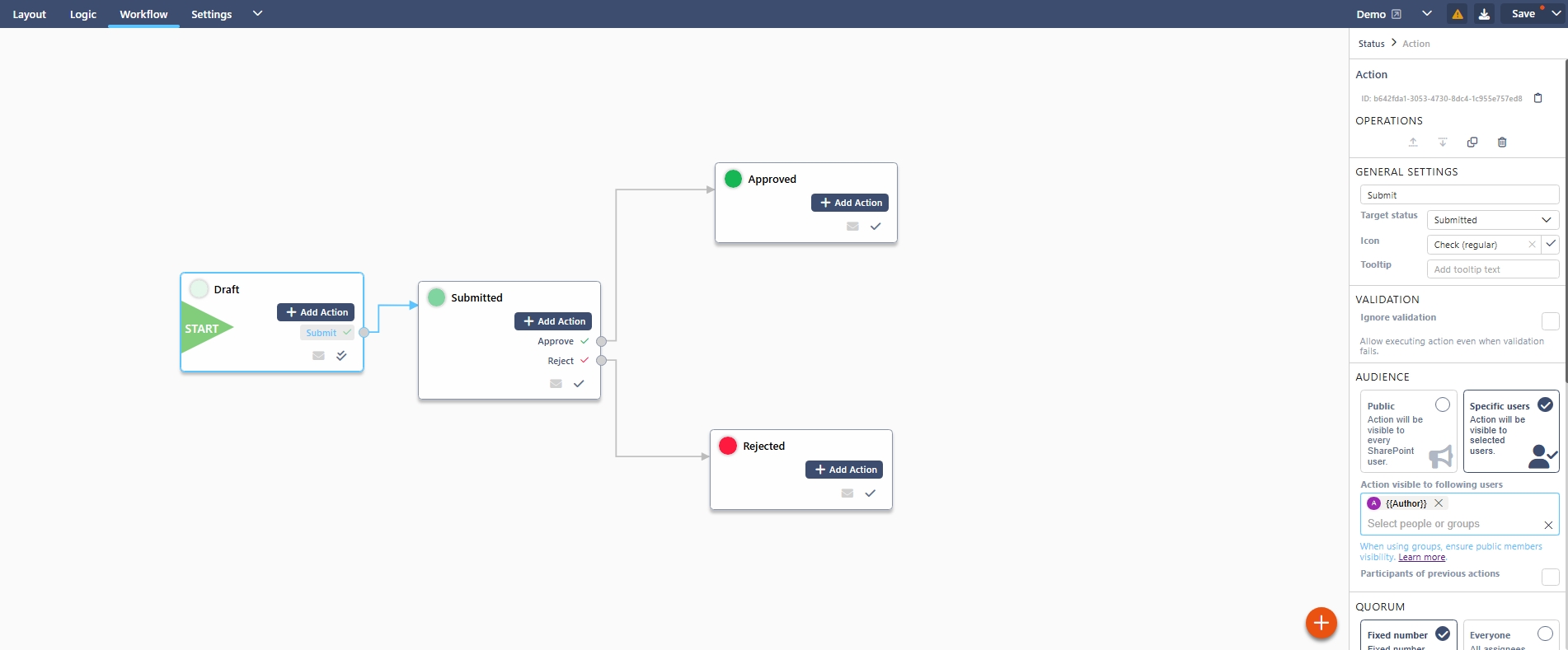
– How to Build It
Step 1 – Create Statuses
Create:
-
Draft (Initial)
-
Submitted
-
Approved
-
Rejected
Step 2 – Add Actions
From Draft:
-
Action: Submit
-
Target Status: Submitted
-
Audience: Created By
From Submitted:
-
Action: Approve
-
Target Status: Approved
-
Audience: Approver group
-
Action: Reject
-
Target Status: Rejected
-
Confirmation: Mandatory comment
2. Multi-Level Approval
When to Use
-
Financial approvals
-
HR processes
-
Procurement
-
Any approval with hierarchy
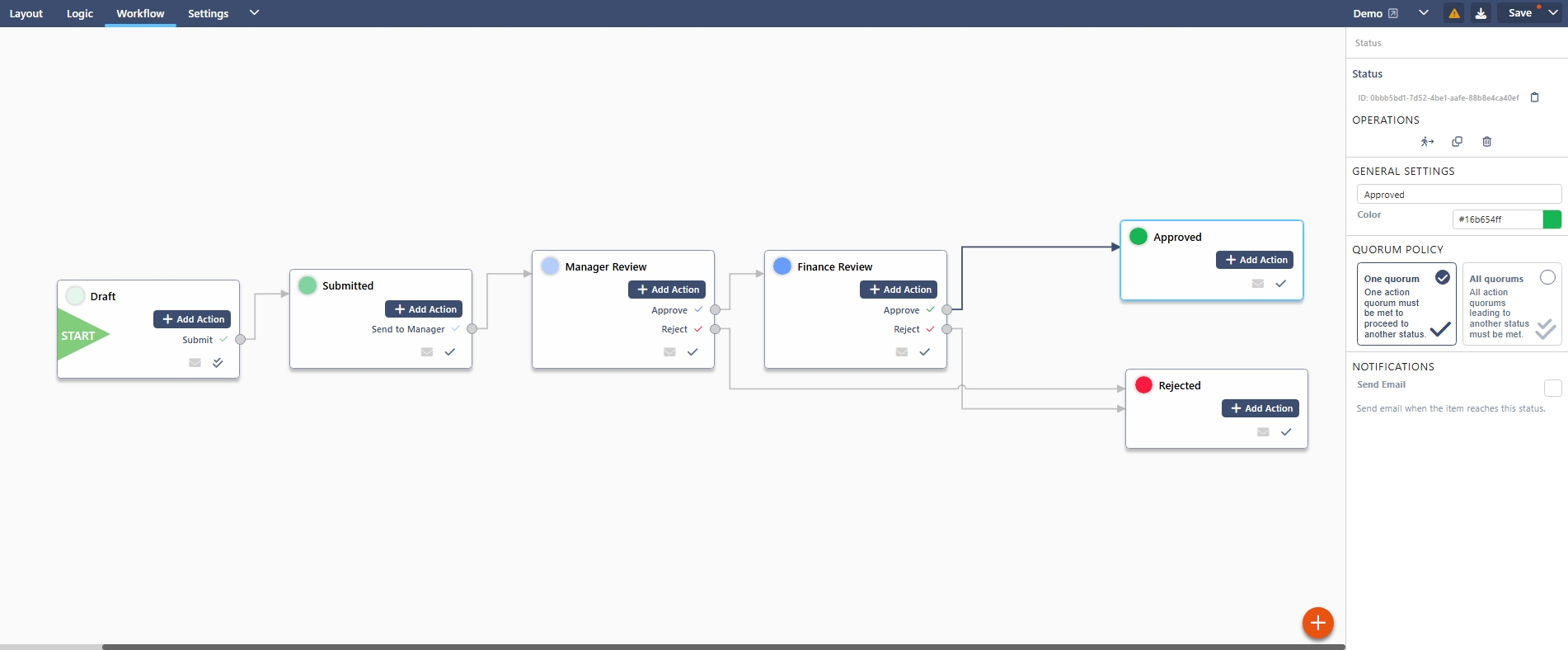
– How to Build It
Step 1 – Create Statuses
-
Draft (Initial)
-
Submitted
-
Manager Review
-
Finance Review
-
Approved
-
Rejected
Step 2 – Configure Actions
From Draft: Submit → Submitted
From Submitted: Send to Manager → Manager Review (Audience: Manager)
From Manager Review: Approve → Finance Review and Reject → Rejected
From Finance Review: Approve → Approved and Reject → Rejected
3. Parallel Approval (Quorum-Based)
When to Use
-
Committee approvals
-
Risk boards
-
Compliance sign-off
-
Multi-reviewer validation
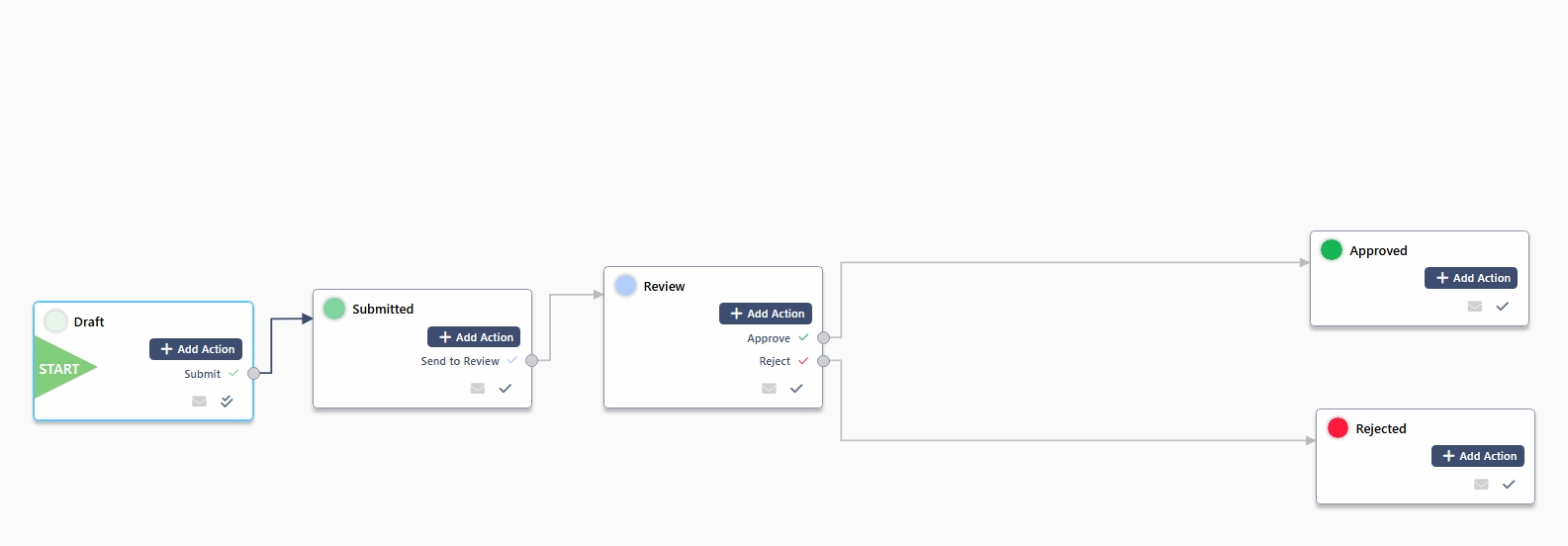
– How to Build It
Step 1 – Create Statuses
-
Draft (Initial)
-
Submitted
-
Review
-
Approved
-
Rejected
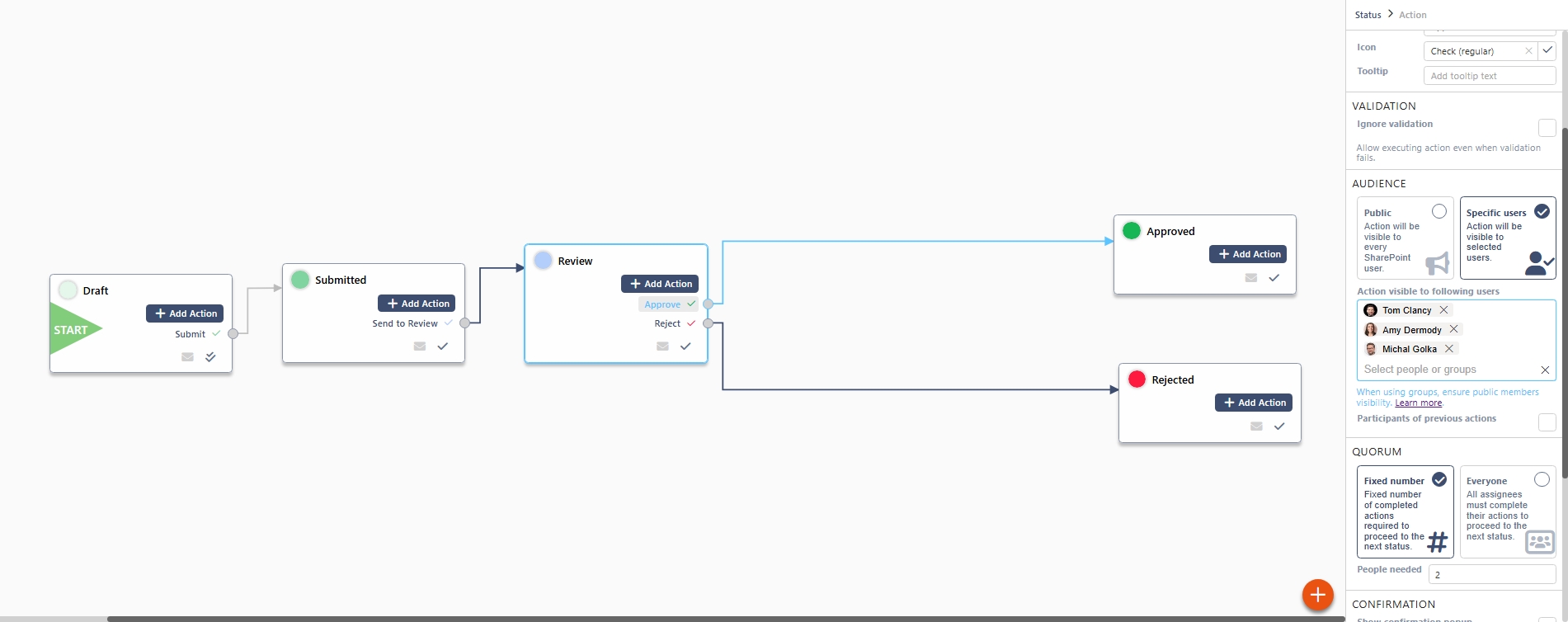
Step 2 – Configure Review Status
From Submitted: Action: Send to Review and Target: Review
From Review:
Action: Approve
Audience: Specific Users (add multiple users or a group)
Quorum: Fixed number (e.g. 2) OR Everyone
Target Status: Approved
Add Reject action → Rejected
4. Conditional Approval (Threshold-Based)
When to Use
-
Financial limits
-
Risk scoring
-
Category-based routing
-
Policy-driven processes
Example Scenario
If Amount > £10,000 → Require Director Approval
If Amount ≤ £10,000 → Skip Director stage
– How to Build It
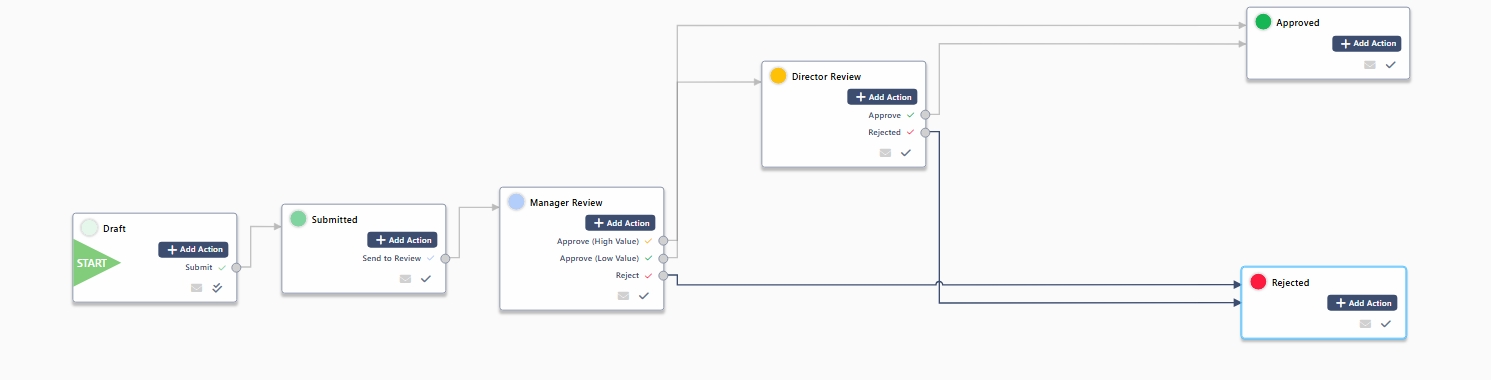
Step 1 – Create Statuses
-
Draft
-
Submitted
-
Manager Review
-
Director Review
-
Approved
-
Rejected
Step 2 – Configure Workflow Transitions
In Manager Review, create two separate approval actions:
- Approve (High Value)
Next Status → Director Review
- Approve (Low Value)
Next Status → Approved
Also create: Reject
Next Status → Rejected
At this stage, the workflow contains both possible approval paths.
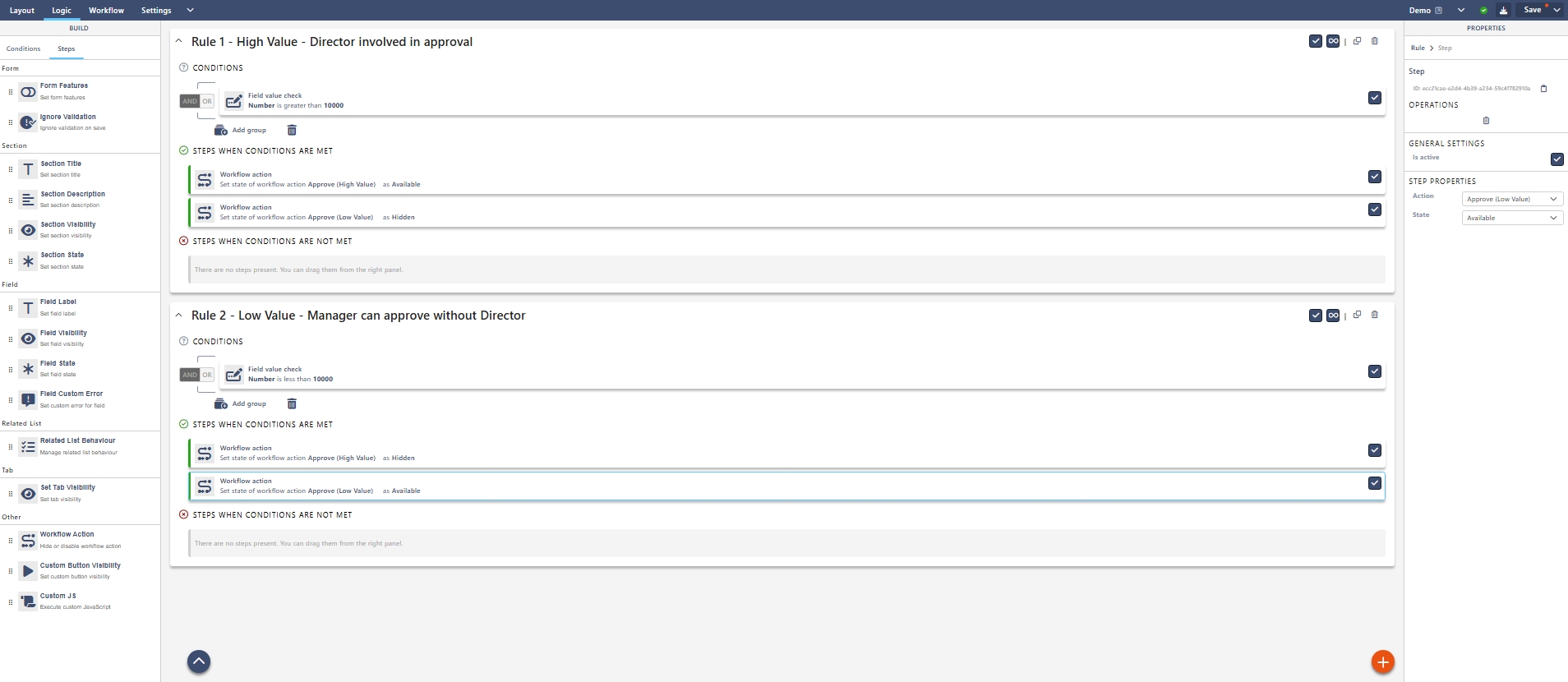
Step 3 – Add Logic to Control Visibility
Go to the Logic tab.
Now create rules that control which approval action is visible based on the Amount field.
Rule 1 – High Value
Condition:
Amount > 10000
The condition will be Field Value Check – Number is Greater than 10,000
Steps when conditions are met:
-
Show workflow action → Approve (High Value)
-
Hide workflow action → Approve (Low Value)
Rule 2 – Low Value
Condition:
Amount ≤ 10000
The condition will be Field Value Check – Number is less than 10,000
Steps when conditions are met:
-
Show workflow action → Approve (Low Value)
-
Hide workflow action → Approve (High Value)
What Happens in Practice
At Manager Review:
If Amount = £15,000
→ Only “Approve (High Value)” is visible
→ Routes to Director Review
If Amount = £5,000
→ Only “Approve (Low Value)” is visible
→ Routes directly to Approved
The routing feels automatic, but it is controlled by action visibility rules.
Tip: Keep the Button Label Clean
You don’t have to expose “High Value” or “Low Value” in the action name to end users.
Instead:
- Add the Buttons widget to your form.
- Add two Action Buttons.
- Link each button to: Approve (High Value) and Approve (Low Value)
- Edit both button labels so they simply display: Approve
Users will only ever see a single Approve button but behind the scenes it routes differently depending on the threshold.