
Search for answers or browse articles about Sintel Apps
Logic Tab: Create your First Rule (Overview)
The Logic tab in the Sintel Apps Designer allows you to control how a form behaves while a user is interacting with it.
Logic makes forms dynamic. It enables you to:
-
Show or hide fields, sections and tabs
-
Make fields required or optional
-
Display validation errors
-
Control workflow actions
-
Control custom button visibility
-
Enforce attachment or related list requirements
-
Execute custom JavaScript
For example: A section can appear immediately after a choice is selected. or Approval buttons that appear when status changes.
How Logic Works
Logic is built using rules. Each rule contains three parts:
- Conditions – When should the rule apply?
- Steps when conditions are met – What should happen if the condition is true?
- Steps when conditions are not met – What should happen if the condition is false?
Each rule runs independently. Multiple rules can apply to the same field or section.
Create your first Rule
Step 1: Open the Logic Tab
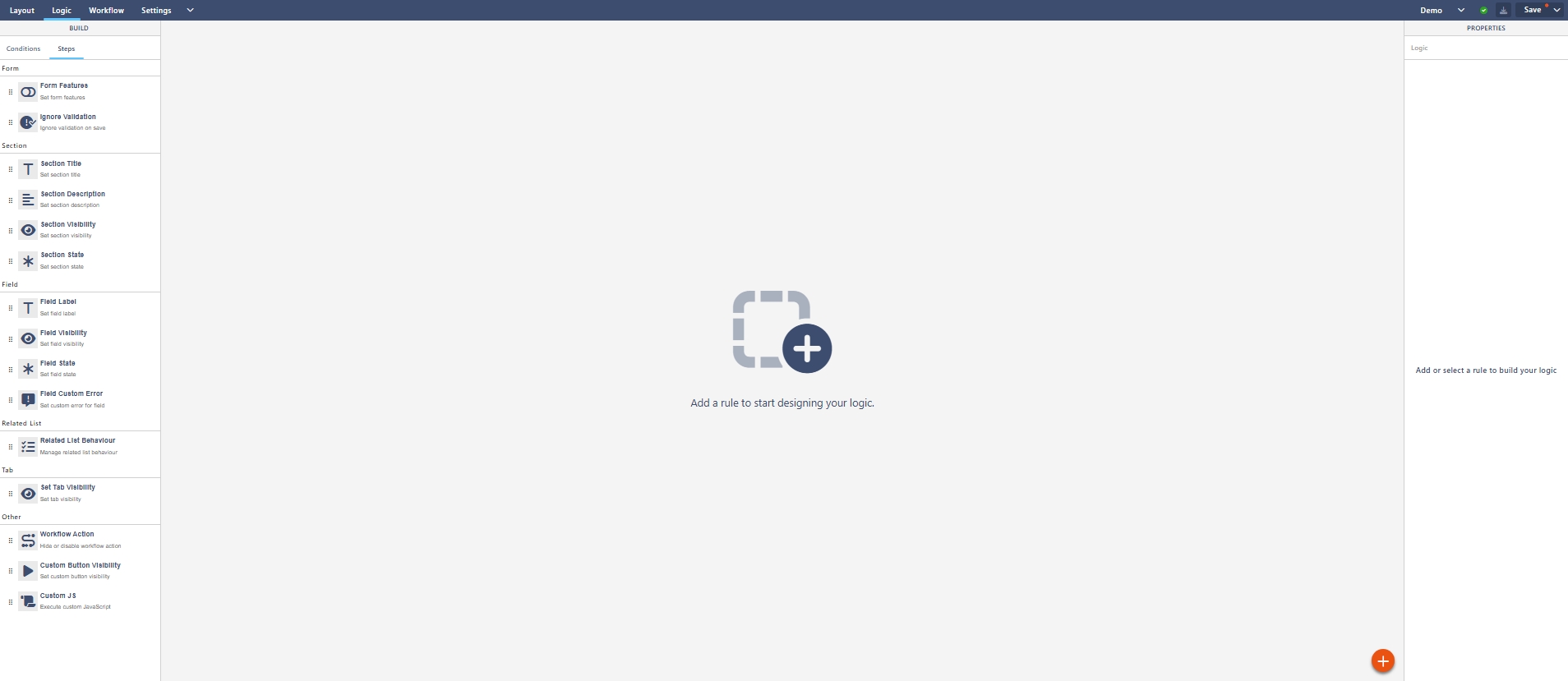
- Open your form in the Sintel Apps Designer.
- Select Logic from the top menu (Layout | Logic | Workflow | Settings).
You’ll see:
- A left panel with Conditions and Steps
- A large blank area prompting you to add a rule
- A right panel called Properties
Step 2: Add your rule
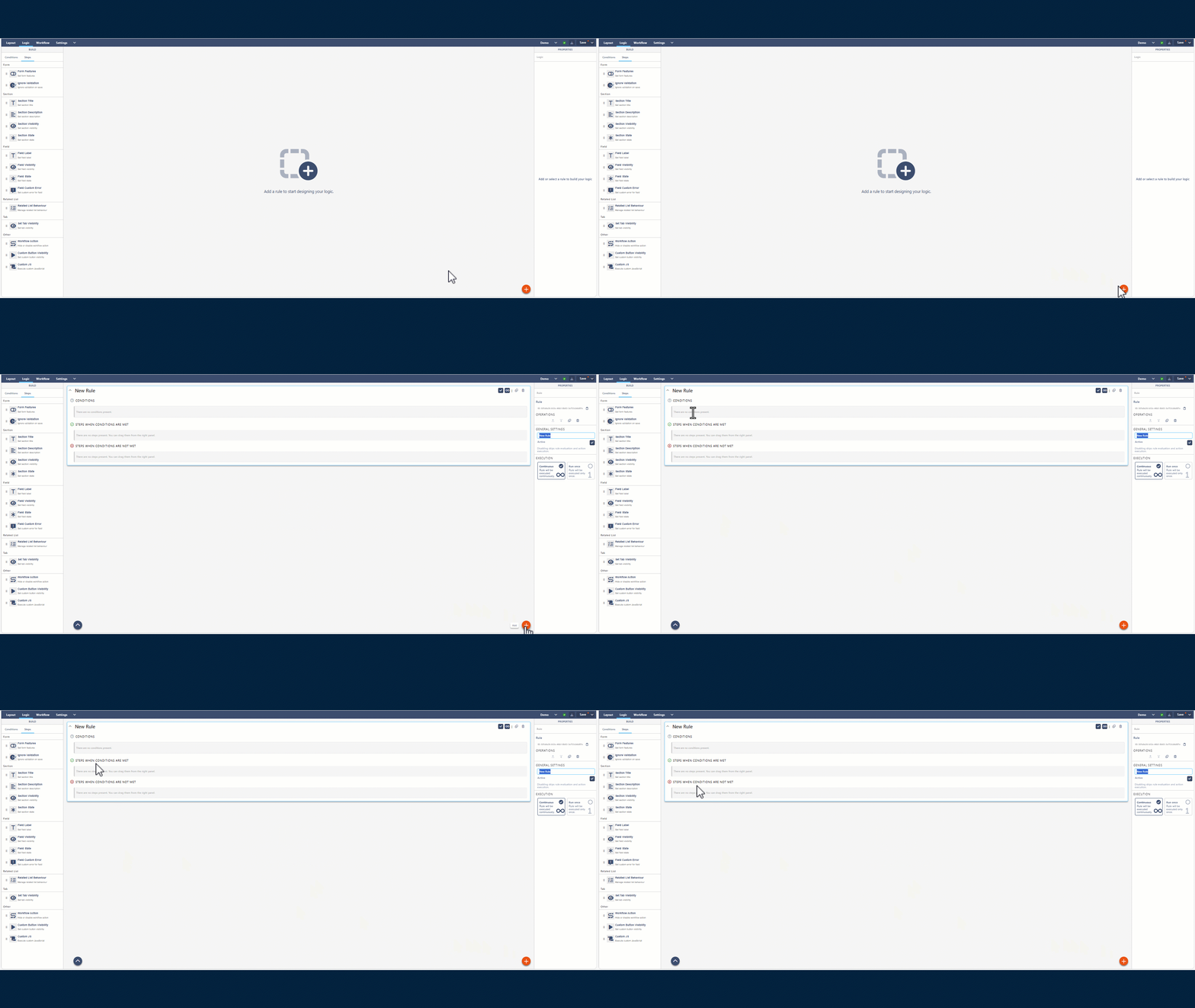
- Click the plus (+) button in the centre area (or “Add rule”).
- A new rule panel opens (often titled New Rule).
You will now see three sections:
- Conditions
- Steps when conditions are met
- Steps when conditions are not met
On the right, the Properties panel shows rule settings such as rule name and execution behaviour.
Step 3: Name the Rule
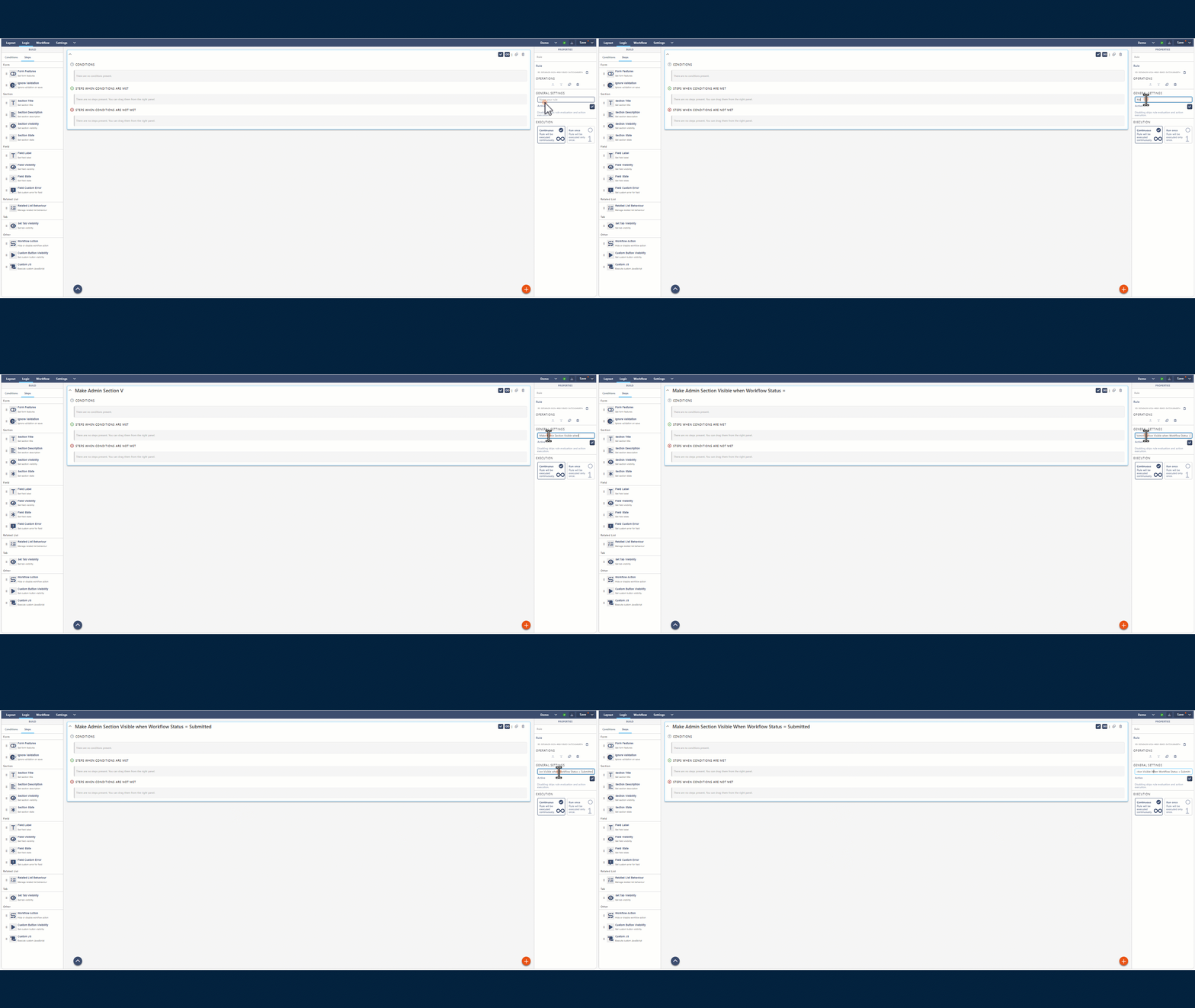
In the right-hand Properties panel, give the rule a clear name.
Use a consistent naming style like:
- Show Project Details when Request Type = Project
- Make Cost Code required when Department = Finance
- Hide Approval Section unless Status = Submitted
Good names make future maintenance much easier.
Step 4: Add a Condition
In the left panel, ensure Conditions is selected.
You’ll typically see condition types such as:
- Field value check
- Form mode (New, Edit, View)
- Author
- Group membership
- Workflow status
- Related list item count
- External user
- Attachment count
- Custom JS (advanced)
Step 5: Add Steps (Actions)
Now you define what happens.
In the left panel, select Steps.
Steps are grouped by area, for example:
Form
- Form features
- Ignore validation
Section
- Set section title
- Set section description
- Set section visibility
- Set section state
Field
- Set field label
- Set field visibility
- Set field state
- Set custom error for field
Related list – Related list behaviour
Tab – Set tab visibility
Other
- Workflow action
- Custom button visibility
- Custom JS
Step 6: Drag Steps Into “When Conditions Are Met”
- Drag the required step into Steps when conditions are met.
- Configure it once it lands in the step area.
Common Example: Show/Hide a Field
- Drag Set field visibility
- Choose the field
- Set to Visible (when met)
Then add the opposite step in the “not met” section.
Step 7: Add Steps Into “When Conditions Are Not Met”
This is the “otherwise” behaviour.
Example:
- Drag Set field visibility
- Choose the same field
- Set to Hidden (when not met)
This avoids scenarios where a field stays visible because a user changed an earlier answer.
Step 8: Choose Rule Execution Behaviour
On the right-hand Properties panel you’ll typically see execution options such as:
- Continuous (runs as the user interacts with the form)
- Run once (runs a single time)
Recommended
- Use Continuous for visibility/required-field logic.
- Use Run once only when you are setting values or doing something that shouldn’t re-trigger repeatedly.
Step 9: Save and Test
- Select Save
- Open the form and test:
What’s Next?➡️ Next article: Sintel Apps Designer – Workflow Tab (Overview)
We’ll build a basic workflow with statuses and actions, then cover audiences, quorum, and notifications.